MB-230 · Question #241
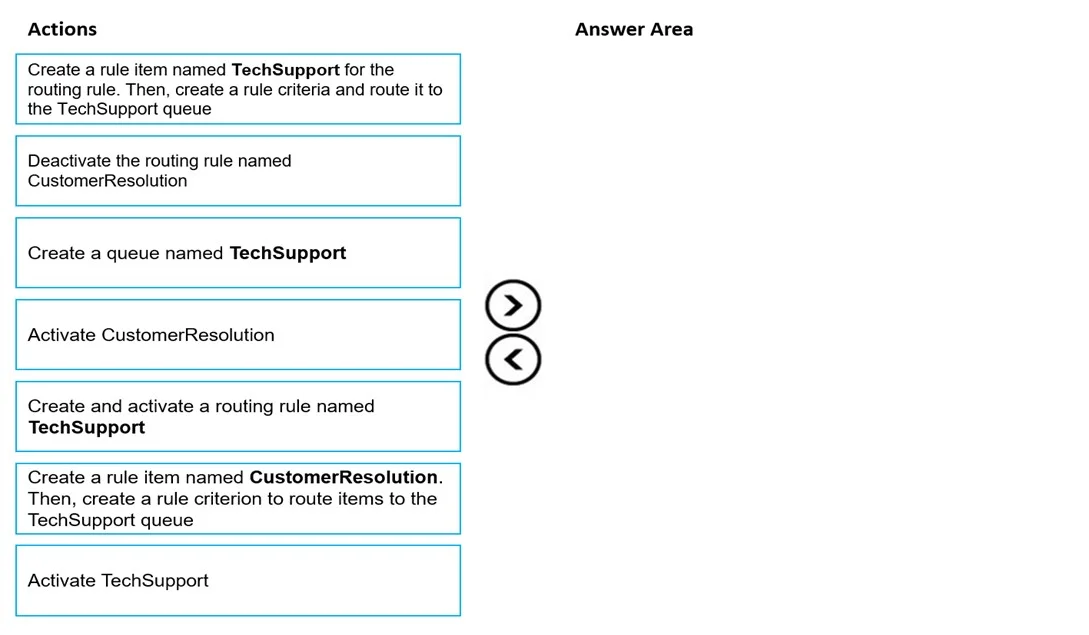
Drag and Drop Question You manage Dynamics 365 Customer Service. You have a routing rule set named CustomerResolution that assigns general inquiry cases to a queue named GeneralInquiry. You need to…
The correct answer is Create a queue named TechSupport; Create and activate a routing rule named TechSupport; Create a rule item named TechSupport for the routing rule. Then, create a rule criteria and route it to the TechSupport queue; Activate CustomerResolution. Dynamics 365 Routing Rule - Explanation Context In Dynamics 365 Customer Service, routing rule sets contain rule items. Each rule item has criteria and a destination queue. You cannot route to a queue that doesn't exist, and routing rules must be activated to take effect…
Question
Exhibit
Answer Area
Drag items
Correct arrangement
- Create a queue named TechSupport
- Create and activate a routing rule named TechSupport
- Create a rule item named TechSupport for the routing rule. Then, create a rule criteria and route it to the TechSupport queue
- Activate CustomerResolution
Explanation
Dynamics 365 Routing Rule - Explanation
Context
In Dynamics 365 Customer Service, routing rule sets contain rule items. Each rule item has criteria and a destination queue. You cannot route to a queue that doesn't exist, and routing rules must be activated to take effect.
Why This Order
Step 1: Create a queue named TechSupport
The destination must exist before any routing rule can reference it. This is a hard dependency - creating the routing rule or rule item first would fail or leave you with no valid target to assign. Always provision the resource (queue) before the rule that points to it.
Step 2: Create and activate a routing rule named TechSupport
With the destination queue in place, you now create a new, separate routing rule set named TechSupport. This establishes the rule container that will hold your case-routing logic for technical support.
Step 3: Create a rule item named TechSupport for the routing rule, then create the rule criteria and route it to the TechSupport queue
Rule items are the actual logic inside a routing rule set. Only after the rule set exists (Step 2) can you add rule items to it. Here you define what qualifies as a technical support case and where it goes (TechSupport queue).
Step 4: Activate CustomerResolution
After configuring the new TechSupport routing rule, you activate (or re-activate) the original CustomerResolution rule. This ensures both routing rules are live simultaneously - CustomerResolution continues handling general inquiries while TechSupport handles technical cases.
Common Mistakes / Misconceptions
| Mistake | Why It's Wrong |
|---|---|
| Creating the routing rule before the queue | You'd have no valid destination to assign in the rule item - the queue must exist first |
| Adding rule items before creating the rule set | Rule items belong to a rule set; the parent must exist first |
| Skipping Step 4 (activating CustomerResolution) | The original rule for general inquiries would remain inactive or unverified, breaking existing routing |
| Using "Deactivate CustomerResolution" as a step | That item is a distractor - deactivation is not required here since you're creating a new rule, not modifying the existing one |
| Choosing "Create a rule item named CustomerResolution to route to TechSupport" | This is the wrong item - you're creating a rule item for the TechSupport routing rule, not adding a TechSupport item inside CustomerResolution |
Key Takeaway
The sequence follows a strict dependency chain: queue → rule set → rule items → activation. Each step unblocks the next, and you must activate existing rules at the end to confirm the full routing configuration is live.
Topics
Community Discussion
No community discussion yet for this question.