nerdexam
Microsoft

MB-230 · Question #20

Drag and Drop Question You are a Dynamics 365 for Customer Service administrator. You need to import cases from a file without applying routing rules. Which three actions should you perform in sequenc

The correct answer is A. Save and import the import file C. Add a column named Route Case to the import file E. Add the value No for cases that must not be routed. Dynamics 365: Importing Cases Without Routing Rules Context When importing cases into Dynamics 365 for Customer Service, routing rules can automatically assign cases to queues/agents. To suppress routing during import, you must control this via a special column in the import file

implement routing

Question

Drag and Drop Question You are a Dynamics 365 for Customer Service administrator. You need to import cases from a file without applying routing rules. Which three actions should you perform in sequence? To answer, move the appropriate actions from the list of actions to the answer area and arrange them in the correct order. Answer:

Exhibit
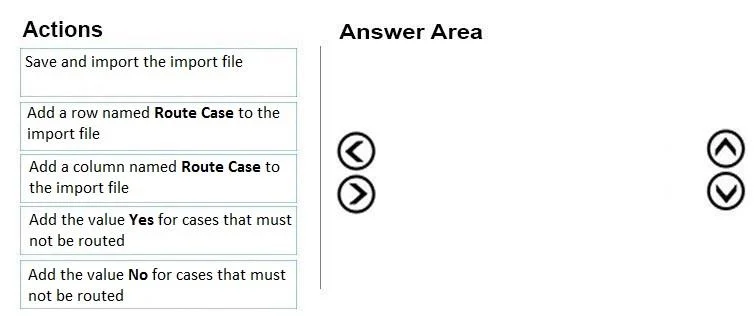
MB-230 question #20 exhibit

Options

  • ASave and import the import file
  • BAdd a row named Route Case to the import file
  • CAdd a column named Route Case to the import file
  • DAdd the value Yes for cases that must not be routed
  • EAdd the value No for cases that must not be routed

How the community answered

(63 responses)
  • B
    6% (4)
  • C
    84% (53)
  • D
    10% (6)

Explanation

Dynamics 365: Importing Cases Without Routing Rules

Context

When importing cases into Dynamics 365 for Customer Service, routing rules can automatically assign cases to queues/agents. To suppress routing during import, you must control this via a special column in the import file.


The Three Correct Actions in Sequence

StepActionWhy
1(C) Add a column named Route Case to the import fileThe column must exist before you can populate it
2(E) Add the value No for cases that must not be routedNo tells D365 to skip routing rules for those rows
3(A) Save and import the import fileData must be configured before the import is executed

Why Each Placement

Step 1 - Column first (C): D365 recognizes Route Case as a reserved import field. It must be structured as a column (field header), not a row. Creating it first is a prerequisite for step 2.

Step 2 - Set value to "No" (E): The Route Case field is a boolean-style flag. No = do not apply routing rules. This is applied per row, so each case record gets this value set. You do this before importing so the data is ready.

Step 3 - Save and import (A): Only after the file is correctly structured do you trigger the import. The import process reads the Route Case column and honors the No flag, skipping routing rule execution.


Common Mistakes & Misconceptions

  • Using "Yes" instead of "No" (D): Counterintuitively, Yes means do apply routing rules. Choosing D would cause the opposite of the intended behavior.
  • Adding a row instead of a column (B): Route Case must be a column header, not a data row. Adding it as a row is a structural error D365 won't recognize.
  • Doing step 3 before step 2: Importing before setting the No values means the column exists but is empty/defaulted, and routing rules may still be applied.

Topics

#case import#routing rules#Route Case column#import configuration

Community Discussion

No community discussion yet for this question.

Full MB-230 Practice