MB-230 · Question #316
Drag and Drop Question An organization uses Dynamics 365 Customer Service. The customer service queue is not implemented. Customer service representatives (CSRs) are unable to keep up with an influx…
The correct answer is Within Service management, select Queues; Create the customer service queue; Change the queue type to Private. Dynamics 365 Customer Service Queue Setup - Explained --- The Correct Sequence 1 → Within Service management, select Queues 2 → Create the customer service queue 3 → Change the queue type to Private --- Why This Order? Step 1: Within Service management, select Queues This is…
Question
Drag and Drop Question An organization uses Dynamics 365 Customer Service. The customer service queue is not implemented. Customer service representatives (CSRs) are unable to keep up with an influx of email inquiries. Other employees must read and respond to messages that are routed to a customer service queue. You need to create a queue for customer service emails. Which three actions should you perform in sequence? To answer, move the appropriate actions from the list of actions to the answer area and arrange them in the correct order. Answer:
Exhibit
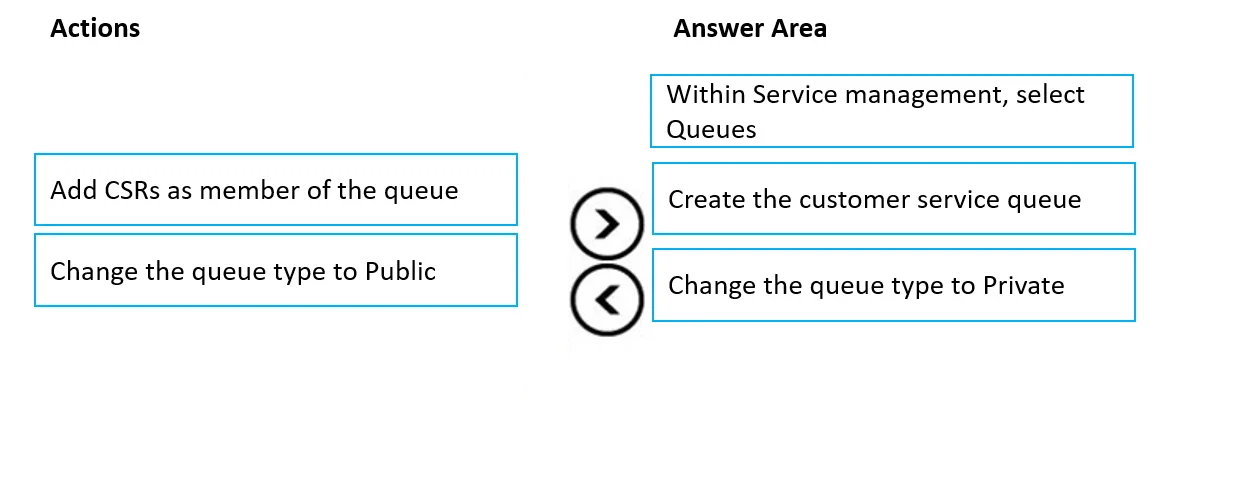
Answer Area
Drag items
Correct arrangement
- Within Service management, select Queues
- Create the customer service queue
- Change the queue type to Private
Explanation
Dynamics 365 Customer Service Queue Setup - Explained
The Correct Sequence
1 → Within Service management, select Queues 2 → Create the customer service queue 3 → Change the queue type to Private
Why This Order?
Step 1: Within Service management, select Queues
This is pure navigation - you cannot create or configure anything without first reaching the Queues management area. In Dynamics 365 Customer Service, queues live under Service Management, not the main Settings area. You must go there first before any other action is possible. Skipping this would mean working in the wrong module entirely.
Step 2: Create the customer service queue
Only after navigating to the correct area can you create the queue object. The queue must exist before any properties (like type) can be configured. This is a strict dependency - you cannot change a queue's type if the queue doesn't yet exist.
Step 3: Change the queue type to Private
When a queue is created in Dynamics 365, it defaults to a type that may not match your use case. Changing it to Private means only designated members can view and work items in that queue. This is the correct choice for a customer service team queue because:
- It restricts access to authorized personnel only
- It gives the organization control over who handles customer emails
- It prevents unintended users from picking up or ignoring queue items
Why the Rejected Items Are Wrong
| Item | Why excluded |
|---|---|
| Add CSRs as member of the queue | This is a valid follow-up step (step 4+), but not part of the core creation sequence being tested here |
| Change the queue type to Public | Public queues are visible to all users - inappropriate for a controlled customer service team |
Common Misconceptions
- "Public is better because more people can help" - Wrong. Public means any user can see the queue, not just trained CSRs or designated helpers. This creates noise and accountability problems.
- "Add members should be step 3" - Adding members only makes sense after the queue exists and its type is set. It's a configuration step, not a creation step.
- "You can create queues from the main Settings menu" - No. Queues for Customer Service are specifically managed under Service Management, which is a common navigation mistake on the exam.
Topics
Community Discussion
No community discussion yet for this question.
