MB-800 · Question #96
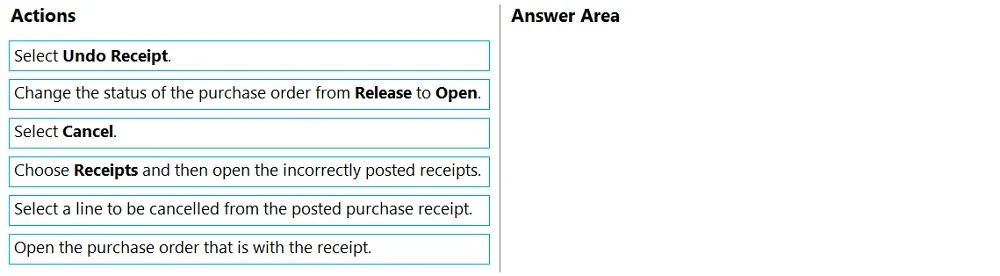
Drag and Drop Question You need to undo an incorrectly posted purchase receipt from a related purchase order. Which four actions should you perform in sequence? To answer, move the appropriate actions
The correct answer is Open the purchase order that is with the receipt.; Select Receipts and then open the incorrectly posted receipts.; Select a line to be cancelled from the posted purchase receipt.; Select Undo Receipt.. Undoing a Posted Purchase Receipt - Sequence Explanation This question is about Microsoft Dynamics 365 Business Central (or similar ERP). When a purchase receipt is posted in error, you must reverse it through the receipt record itself - not by modifying the purchase order direct
Question
Exhibit
Answer Area
Drag items
Correct arrangement
- Open the purchase order that is with the receipt.
- Select Receipts and then open the incorrectly posted receipts.
- Select a line to be cancelled from the posted purchase receipt.
- Select Undo Receipt.
Explanation
Undoing a Posted Purchase Receipt - Sequence Explanation
This question is about Microsoft Dynamics 365 Business Central (or similar ERP). When a purchase receipt is posted in error, you must reverse it through the receipt record itself - not by modifying the purchase order directly.
Correct Sequence & Why
1. Open the purchase order that is with the receipt.
You must start at the purchase order (PO) because the receipt was generated from it. The PO is the parent document and the entry point for navigating to the posted receipt. You cannot access a posted receipt in isolation without first locating the originating PO.
2. Select Receipts and then open the incorrectly posted receipts.
From the PO, the Receipts action shows all posted receipts linked to that order. You drill into the specific incorrect receipt here. This is required because a single PO can have multiple receipts - you must identify the exact one to reverse before taking any action.
3. Select a line to be cancelled from the posted purchase receipt.
Posted receipts can contain multiple lines (different items/quantities). You must select the specific line(s) you want to undo. The system needs to know the scope of the reversal before it can process the "Undo" action - acting on the whole document without line selection is not how the UI works.
4. Select Undo Receipt.
Only after identifying the document and the line does the Undo Receipt action become meaningful. This action posts a correcting negative entry that reverses the original receipt, restoring inventory and ledger to their pre-receipt state.
Why the Two Distractors Are Wrong
| Distractor | Why it's excluded |
|---|---|
| Change status from Release to Open | This modifies the PO status, not the posted receipt. Posted receipts are separate, already-committed documents - changing PO status does not reverse a posted receipt. This step is a common misconception because people think you must "unlock" the PO first. |
| Select Cancel | "Cancel" in this context would cancel the operation/dialog, not undo the receipt. The correct action is specifically Undo Receipt, which triggers the accounting reversal. Choosing "Cancel" is a common UI confusion mistake. |
Key Concept to Remember
Posted receipts are immutable journal entries. You never edit them directly. The "Undo Receipt" function creates an equal and opposite correcting entry - it does not delete the original. This is why you navigate to the receipt and select a line rather than editing the PO itself.
Topics
Community Discussion
No community discussion yet for this question.