nerdexam
Microsoft

MB-800 · Question #47

Drag and Drop Question You are a functional consultant working on purchase returns in Dynamics 365 Business Central. A customer orders 100 pieces of an item from a vendor. After receiving them into in

Dynamics 365 BC - Purchase Return Order (Partial Reversal) The Correct Sequence (5 of 7 options) | Step | Action | Option | |------|--------|--------| | 1 | Run the Get Posted Doc... to Reverse... function | Option5 | | 2 | Enable the Show Reversible Lines Only option | Option7 |

Purchasing

Question

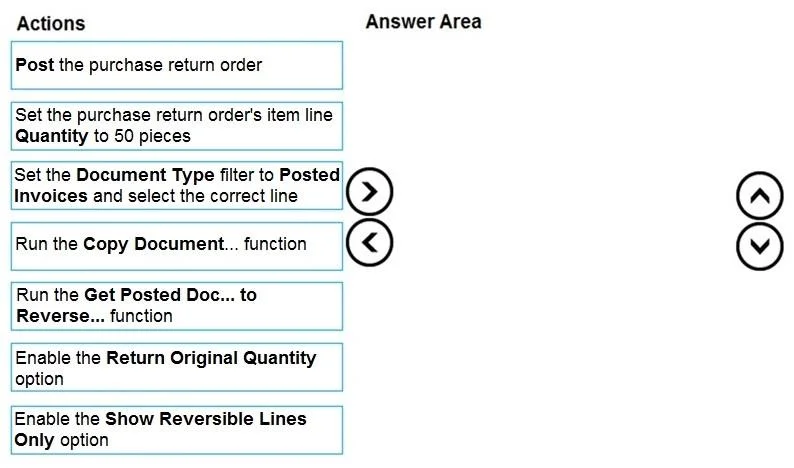
Drag and Drop Question You are a functional consultant working on purchase returns in Dynamics 365 Business Central. A customer orders 100 pieces of an item from a vendor. After receiving them into inventory and posting the invoice, the customer determines that only 50 pieces are needed. You create a purchase return order to return 50 pieces of the item. The vendor has authorized the return. You need to apply the return to the original purchase. Which five actions should you perform in sequence? To answer, move the appropriate actions from the list of actions to the answer area and arrange them in the correct order. Answer:

Exhibit
MB-800 question #47 exhibit

Options

  • Option1Post the purchase return order
  • Option2Set the purchase return order's item line Quantity to 50 pieces
  • Option3Set the Document Type filter to Posted Invoices and select the correct line
  • Option4Run the Copy Document... function
  • Option5Run the Get Posted Doc... to Reverse... function
  • Option6Enable the Return Original Quantity option
  • Option7Enable the Show Reversible Lines Only option

Explanation

Dynamics 365 BC - Purchase Return Order (Partial Reversal)

The Correct Sequence (5 of 7 options)

StepActionOption
1Run the Get Posted Doc... to Reverse... functionOption5
2Enable the Show Reversible Lines Only optionOption7
3Set the Document Type filter to Posted Invoices and select the correct lineOption3
4Set the item line Quantity to 50 piecesOption2
5Post the purchase return orderOption1

Distractors (do NOT use): Option4 (Copy Document) and Option6 (Return Original Quantity)


Step-by-Step Reasoning

Step 1 - Get Posted Doc. to Reverse (Option5) This is the entry point. From the Purchase Return Order's Lines section, this function opens a dialog listing posted purchase documents eligible for reversal. It is preferred over "Copy Document" because it automatically populates the Appl.-to Item Entry field on each return line, which is what links the return to the original receipt for exact cost reversal. Without this linkage, item cost may not reverse correctly (FIFO/Average cost implications).

Step 2 - Enable Show Reversible Lines Only (Option7) This filter narrows the dialog to only lines that can still be legally reversed (not already fully returned). It must come before you filter by document type and select a line - it narrows the dataset first so you're selecting from valid candidates only.

Step 3 - Set Document Type to Posted Invoices, select the line (Option3) Now that reversible lines are visible, you filter to Posted Invoices (not Posted Receipts - the invoice is what carries the financial posting you need to reverse) and select the specific line for the item. This pulls the line into your return order with the original quantity of 100.

Step 4 - Change Quantity to 50 (Option2) The copied line defaults to 100 (the full original quantity). You manually reduce it to 50 because this is a partial return. This step must follow line creation - you can't set the quantity before the line exists.

Step 5 - Post the return order (Option1) After the line is correctly set up with the item, quantity, and cost linkage, posting ships the 50 units back (or records the return), reverses the inventory and payables entries, and creates a Posted Purchase Return Receipt and a Posted Purchase Credit Memo.


Why the Distractors Are Wrong

Option4 - Copy Document: This is a general-purpose document copying tool. It does not automatically set the Appl.-to Item Entry, so the return won't be tied to the original receipt for cost reversal. It's valid for duplicating orders but wrong for reversals.

Option6 - Return Original Quantity: This option appears in the Copy Document dialog, not the Get Posted Doc. to Reverse dialog. Using it would copy the full 100 - but since we only need 50, it's both the wrong function context and produces the wrong quantity. It's a distractor that exploits confusion between the two functions.


Common Mistakes

  • Choosing Copy Document instead of Get Posted Doc. to Reverse - the most frequent error. Both can populate return lines, but only the latter creates the cost application link required for proper ledger reversal.
  • Skipping "Show Reversible Lines Only" - not a hard failure, but without it you may see already-returned lines and accidentally select them.
  • Forgetting to adjust quantity - the system copies the original quantity verbatim; partial returns always require a manual edit.
  • Confusing Posted Receipt vs. Posted Invoice as the document type - the invoice is the financial document; the receipt is just the inventory movement. You reverse the invoice to credit the payable.

Topics

#purchase return order#exact cost reversing#credit memo#return authorization

Community Discussion

No community discussion yet for this question.

Full MB-800 Practice