nerdexam
Microsoft

MB-800 · Question #171

Drag and Drop Question A company uses Dynamics 365 Business Central. The company plans to automatically create vendor payments based on posted purchase invoices. The payments should be summarized…

The correct answer is On the Prepare tab, select Suggest Vendor Payments.; Navigate to General Journals.; On the Options page, enter the posting date and enable the Summarize per Vendor option.; On the Options page, open the Payments menu and select Post Remittance Advice. Dynamics 365 Business Central: Configuring Vendor Payments > Note: The question states "three actions" but the correct arrangement shows four items. This appears to be a discrepancy in the question. The correct answer likely intended three steps, with the fourth being a…

Purchasing

Question

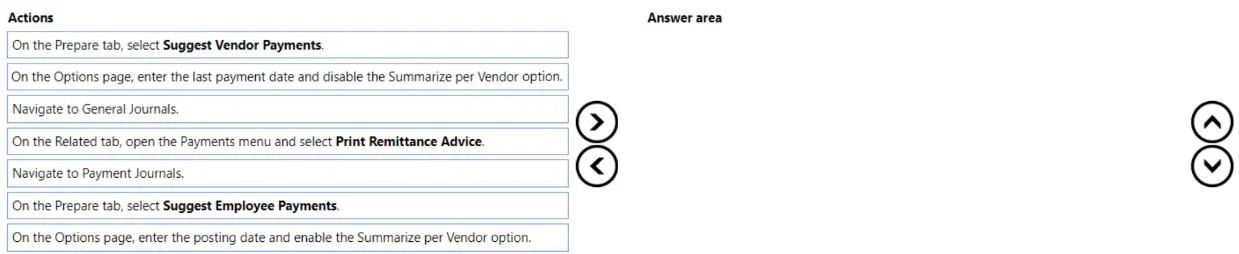
Drag and Drop Question A company uses Dynamics 365 Business Central. The company plans to automatically create vendor payments based on posted purchase invoices. The payments should be summarized based on the vendor invoices. You need to configure the vendor payments. Which three actions should you perform in sequence? To answer, move the appropriate actions from the list of actions to the answer area and arrange them in the correct order. Answer:

Exhibit
MB-800 question #171 exhibit

Answer Area

Drag items

On the Prepare tab, select Suggest Vendor Payments.Navigate to General Journals.On the Options page, open the Payments menu and select Post Remittance Advice.On the Options page, select Suggest Employee Payments.On the Options page, enter the posting date and enable the Summarize per Vendor option.

Correct arrangement

  • On the Prepare tab, select Suggest Vendor Payments.
  • Navigate to General Journals.
  • On the Options page, enter the posting date and enable the Summarize per Vendor option.
  • On the Options page, open the Payments menu and select Post Remittance Advice.

Explanation

Dynamics 365 Business Central: Configuring Vendor Payments

Note: The question states "three actions" but the correct arrangement shows four items. This appears to be a discrepancy in the question. The correct answer likely intended three steps, with the fourth being a distractor - see the analysis below.


The Workflow Explained

In Business Central, automatically generating vendor payments from posted purchase invoices follows this logical path: navigate to the journal → trigger the suggestion engine → configure the options → (optionally) communicate payment.


Item-by-Item Analysis

Step 1: "Navigate to General Journals"

This should logically be first. You must be inside a journal (specifically a Payment Journal, which is a type of General Journal) before any payment suggestion actions are available. The "Prepare" tab referenced in Step 1 only appears once you're inside the journal.

The given arrangement places this second, which is likely a mistake in the answer key.


Step 2: "On the Prepare tab, select Suggest Vendor Payments"

This action triggers BC to scan posted purchase invoices and auto-populate journal lines for each vendor. It should come after navigating to the journal. When selected, it opens an Options/request page where you configure parameters.

Common mistake: Confusing this with "Suggest Employee Payments," which applies to employee expense reimbursements - not vendor invoices.


Step 3: "On the Options page, enter the posting date and enable the Summarize per Vendor option"

This is the key configuration step. The "Summarize per Vendor" toggle consolidates multiple invoices from the same vendor into a single payment line, which is exactly what the scenario requires. The posting date determines when the payment will be recorded.

Common mistake: Skipping the Summarize per Vendor toggle, which results in one payment line per invoice rather than one per vendor.


Step 4: "On the Options page, open the Payments menu and select Post Remittance Advice"

This sends payment confirmation details to vendors and is a post-payment communication step, not part of the initial configuration. Its inclusion in the "correct" arrangement is questionable - it does not configure vendor payments, it notifies vendors after posting.

Likely a distractor that was incorrectly included in the answer key.


Distractors to Eliminate

ItemWhy It's Wrong
"Select Suggest Employee Payments"Applies to employees, not vendors
"Post Remittance Advice"A post-payment notification step, not payment configuration

The Correct Three-Step Sequence (as it should be)

  1. Navigate to General Journals (get into the Payment Journal)
  2. On the Prepare tab, select Suggest Vendor Payments (auto-populate payment lines)
  3. On the Options page, enter the posting date and enable Summarize per Vendor (configure consolidation)

Topics

#vendor payments#payment journal#purchase invoices#payment summarization

Community Discussion

No community discussion yet for this question.

Full MB-800 Practice