
MB-800 · Question #95
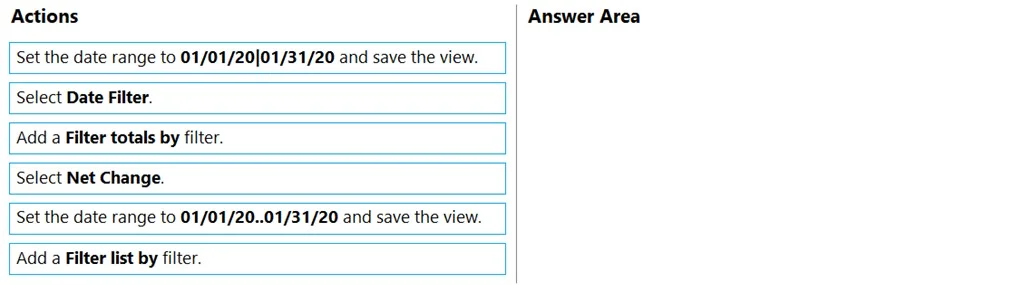
Drag and Drop Question You are creating a filtered view of a Chart of Accounts page. The page must be filtered to display Net Change values only for transactions between a specific date range. You…
The correct answer is Add a Filter totals by filter.; Select Date Filter.; Set the date range to 01/01/2020|01/31/20 and save the view. Chart of Accounts Date Filter - Explanation This question tests knowledge of Microsoft Dynamics 365 Business Central's Chart of Accounts filtering system, specifically how to filter calculated amount columns by date range. --- The Correct Sequence --- Step 1: Add a Filter…
Question
Exhibit
Answer Area
Drag items
Correct arrangement
- Add a Filter totals by filter.
- Select Date Filter.
- Set the date range to 01/01/2020|01/31/20 and save the view.
Explanation
Chart of Accounts Date Filter - Explanation
This question tests knowledge of Microsoft Dynamics 365 Business Central's Chart of Accounts filtering system, specifically how to filter calculated amount columns by date range.
The Correct Sequence
Step 1: Add a Filter totals by filter
Business Central has two distinct filter mechanisms:
| Filter Type | What it controls |
|---|---|
| Filter list by | Which rows/accounts appear in the list |
| Filter totals by | The calculated values (Net Change, Balance, etc.) shown in amount columns |
Since the goal is to affect Net Change values (a calculated total), you must use Filter totals by - not "Filter list by." Using the wrong filter type is the most common mistake here; the list of accounts would remain unchanged, but the amounts would not be scoped to your date range.
Step 2: Select Date Filter
After opening the "Filter totals by" panel, you must choose which field to filter on. Date Filter is the system field in Business Central that controls the date window used when calculating totals like Net Change. Selecting it activates the date range input. You cannot enter a date range before this field is selected.
Step 3: Set the date range to 01/01/2020|01/31/20 and save the view
- The pipe character
|is Business Central's range separator for date filters, meaning "from date to date." - The distractor option uses a period/dot (
01/01/20.01/31/20) as the separator - this is incorrect syntax and would not produce the intended range filter. - Saving the view at this step is correct because all filter conditions are now fully configured.
Why the Other Options Are Wrong
| Item | Why excluded |
|---|---|
| Select Net Change | Net Change is the column being displayed, not a filter field - you don't filter on it, you filter for it via Date Filter |
| Add a Filter list by filter | Controls which accounts appear, not the date range of calculated values |
01/01/20.01/31/20 (dot separator) | Incorrect date range syntax; the ` |
Key Takeaway
The logical flow is: choose the right filter type → choose the right filter field → enter the value and persist. Skipping or reordering any step either applies the wrong filter or has no field available to enter the date range into.
Topics
Community Discussion
No community discussion yet for this question.