nerdexam
Microsoft

MB-800 · Question #94

Drag and Drop Question You set up a new company in Dynamics 365 Business Central. You need to demonstrate Page Inspection functionality. Which features should you use? To answer, drag the…

The correct answer is Table Fields tab; Extensions tab; View Table link. Dynamics 365 Business Central: Page Inspection Features Context The Page Inspection pane (opened via Ctrl+Alt+F1) lets you see technical details about any page. The question maps three display requirements to the correct feature. --- Correct Arrangement Explained The display…

Perform Business Central operations

Question

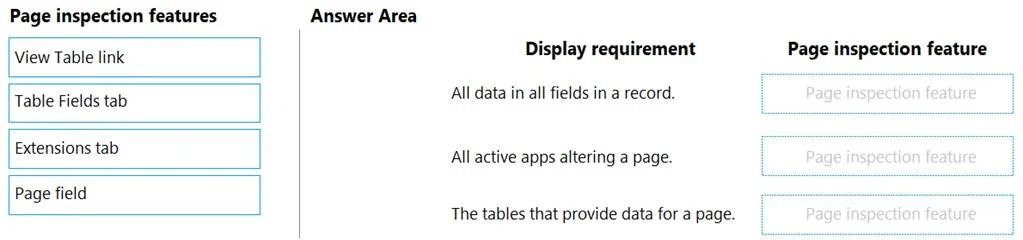
Drag and Drop Question You set up a new company in Dynamics 365 Business Central. You need to demonstrate Page Inspection functionality. Which features should you use? To answer, drag the appropriate page inspection features to the correct display requirements. Each page inspection feature may be used once, more than once, or not at all. You may need to drag the split bar between panes or scroll to view content. NOTE: Each correct selection is worth one point. Answer:

Exhibit
MB-800 question #94 exhibit

Answer Area

Drag items

View Table linkTable Fields tabExtensions tabPage field

Correct arrangement

  • Table Fields tab
  • Extensions tab
  • View Table link

Explanation

Dynamics 365 Business Central: Page Inspection Features

Context

The Page Inspection pane (opened via Ctrl+Alt+F1) lets you see technical details about any page. The question maps three display requirements to the correct feature.


Correct Arrangement Explained

The display requirements (implied by the arrangement) are:

#Display RequirementCorrect Feature
1Show the fields belonging to the underlying tableTable Fields tab
2Show which extensions have modified the pageExtensions tab
3Open the underlying table data directlyView Table link

Item-by-Item Breakdown

1. Table Fields tab Shows every field in the source table behind the current page - field name, number, data type, and current value. This is the go-to for inspecting table structure. It answers: "What fields exist in this table?"

2. Extensions tab Lists any installed extensions that have added or modified fields, actions, or controls on the page. Critical for troubleshooting customizations. It answers: "What has been customized and by which app?"

3. View Table link A hyperlink (not a tab) that opens the underlying table in a separate browser tab, letting you browse all records. It answers: "Let me see the actual data in this table."


Why "Page field" Is Not Used

The Page field (displayed at the top of the inspection pane) shows basic page-level metadata - Page ID, Page Name, and Source Table name. It is passive/informational and does not fulfill any of the three action-oriented display requirements above.


Common Misconceptions

  • Confusing "Page field" with "Table Fields tab" - "Page field" describes the page itself; "Table Fields tab" describes the table's columns.
  • Treating "View Table link" as a tab - It is a clickable hyperlink, not a navigation tab, which surprises people expecting a fourth tab.
  • Thinking "Extensions tab" shows all installed extensions - It only shows extensions that affect the current page, not your full extension list.

Topics

#page inspection#field information#table information#Business Central tools

Community Discussion

No community discussion yet for this question.

Full MB-800 Practice