nerdexam
Microsoft

MB-800 · Question #191

Drag and Drop Question A company uses Dynamics 365 Business Central. You need to create filters for ledger entries. Which features should you use? To answer, drag the appropriate features to the…

The correct answer is Views; Filter list by; Filter total by. Dynamics 365 Business Central: Filters for Ledger Entries > Note: The question body is incomplete - it lists requirements 1, 2, 3 but doesn't display their text. The explanation below is based on the standard exam format for this topic, mapping each feature to its canonical…

Perform Business Central operations

Question

Drag and Drop Question A company uses Dynamics 365 Business Central. You need to create filters for ledger entries. Which features should you use? To answer, drag the appropriate features to the correct requirements. Each feature may be used once, more than once, or not at all. You may need to drag the split bar between panes or scroll to view content. NOTE: Each correct selection is worth one point. Answer:

Exhibit
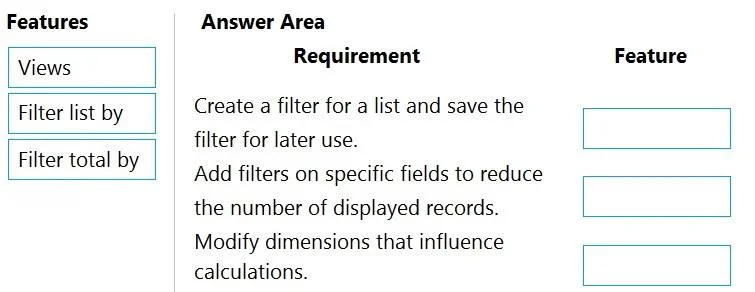
MB-800 question #191 exhibit

Answer Area

Drag items

ViewsFilter list byFilter total by

Correct arrangement

  • Views
  • Filter list by
  • Filter total by

Explanation

Dynamics 365 Business Central: Filters for Ledger Entries

Note: The question body is incomplete - it lists requirements 1, 2, 3 but doesn't display their text. The explanation below is based on the standard exam format for this topic, mapping each feature to its canonical requirement.


The Three Features and Their Roles

1. Views → Save and reuse a filter configuration

Views are named, saved filter sets accessible from a dropdown on a list page. When you need to return to the same filter repeatedly (e.g., "open entries for a specific department"), you save it as a View. It persists across sessions and can be shared.

  • Why here: The requirement is about persistence/reuse, not filtering itself.
  • Common mistake: Treating Views as just "bookmarks." They actively store field filters, sort orders, and can be set as personal or shared.

2. Filter list by → Limit which rows appear in the list

Filter list by is the standard row filter. It evaluates regular fields (non-calculated) on each ledger entry record and removes non-matching rows from the visible list entirely.

  • Why here: The requirement is about which entries are displayed - e.g., show only entries for Customer X or Posting Date = Q1.
  • Common mistake: Using this when you only want to change a calculated total for a period - that's the wrong tool and can hide entries unintentionally.

3. Filter total by → Filter calculated balances/totals without hiding rows

Filter total by affects FlowFields (calculated fields like Balance, Net Change, Debit Amount total). It tells Business Central what range to use when computing those totals, without removing any rows from the list.

  • Why here: The requirement is about changing what period or dimension the totals reflect - e.g., show the balance only for January entries, while keeping all rows visible.
  • Common mistake: Confusing it with "Filter list by." The key distinction: Filter total by does not hide rows - it only changes the calculation scope for aggregated fields.

Quick Comparison Table

FeatureAffectsHides rows?Persists?
ViewsSaved filter setDepends on saved filtersYes
Filter list byRegular fields (rows)YesNo (per session)
Filter total byFlowFields (totals/balances)NoNo (per session)

Key Takeaway

The ordering reflects a progression: save filters (Views) → filter what you see (Filter list by) → filter what you calculate (Filter total by). Exam questions typically test whether you know that Filter total by is a Business Central-specific concept for FlowField calculations, distinct from standard row filtering.

Topics

#ledger entry filters#analysis views#filtering#reporting

Community Discussion

No community discussion yet for this question.

Full MB-800 Practice