
MB-230 · Question #398
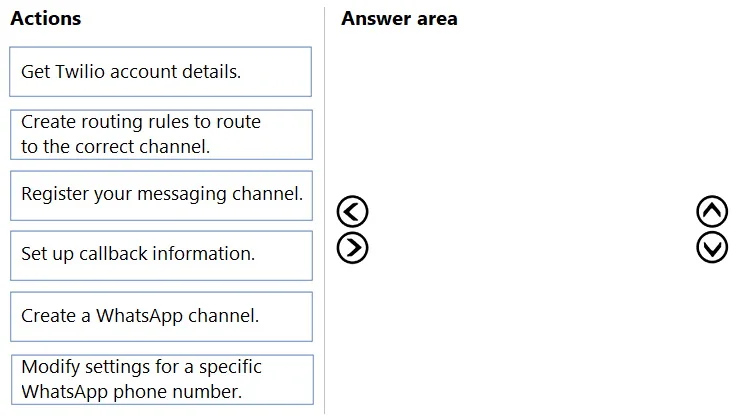
Drag and Drop Question You are setting up channels for Omnichannel for Customer Service. You want to set up a channel for a WhatsApp app. You need to configure the channel. Which four actions should…
The correct answer is Get Twilio account details.; Create a WhatsApp channel.; Register your messaging channel.; Create routing rules to route to the correct channel. WhatsApp Channel Setup in Dynamics 365 Omnichannel - Explained Why Twilio Is Involved Microsoft Dynamics 365 Omnichannel integrates WhatsApp through Twilio as the intermediary messaging provider. Understanding this makes the sequence logical. --- Step-by-Step Reasoning 1. Get…
Question
Drag and Drop Question You are setting up channels for Omnichannel for Customer Service. You want to set up a channel for a WhatsApp app. You need to configure the channel. Which four actions should you perform in sequence? To answer, move the appropriate actions from the list of actions to the answer area and arrange them in the correct order. Answer:
Exhibit
Answer Area
Drag items
Correct arrangement
- Get Twilio account details.
- Create a WhatsApp channel.
- Register your messaging channel.
- Create routing rules to route to the correct channel.
Explanation
WhatsApp Channel Setup in Dynamics 365 Omnichannel - Explained
Why Twilio Is Involved
Microsoft Dynamics 365 Omnichannel integrates WhatsApp through Twilio as the intermediary messaging provider. Understanding this makes the sequence logical.
Step-by-Step Reasoning
1. Get Twilio account details You must start here because everything else depends on these credentials (Account SID, Auth Token, WhatsApp-enabled phone number). Without them, you have nothing to enter in D365. This is an external prerequisite - you're gathering what Twilio gives you before touching Dynamics at all.
2. Create a WhatsApp channel Now that you have Twilio credentials, you create the channel definition inside Omnichannel Admin Center, entering those Twilio details. This is the D365-side channel object - it doesn't work yet, but it must exist before it can be registered.
3. Register your messaging channel Registration activates the channel by generating and configuring the webhook/callback URL that Twilio uses to forward messages into D365. This is the handshake between Twilio and Dynamics - the channel becomes live at this step.
4. Create routing rules to route to the correct channel Only after the channel is live can you meaningfully route traffic through it. Routing rules (work streams, queues, assignment logic) direct incoming WhatsApp messages to the right agents. You can't route to a channel that doesn't exist yet.
Why the Excluded Items Don't Make the Cut
| Item | Why it's excluded |
|---|---|
| Set up callback information | This is a sub-task within registering the messaging channel (step 3), not a standalone step in the top-level sequence. |
| Modify settings for a specific WhatsApp phone number | This is an optional post-setup adjustment, not part of the core initial configuration flow. |
Common Mistakes
- Putting routing rules too early - Routing requires a live channel to route to. Many candidates place this before registration.
- Skipping Twilio prep - Some assume D365 handles the WhatsApp account directly; it doesn't - Twilio is mandatory.
- Confusing "Set up callback information" with "Register your messaging channel" - Callback setup is part of registration, not a separate preceding step. Choosing it instead of step 3 is the most common distractor trap on this question.
Topics
Community Discussion
No community discussion yet for this question.