nerdexam
Microsoft

MB-230 · Question #277

Drag and Drop Question You must create a custom web portal to support customer service processes. The portal must allow customers to chat with customer service if the customer initiates a chat convers

The correct answer is Open Omnichannel Administration.; On the Basic details tab, copy the widget snippet code.; Open the Portal Management app.; In Content snippet > Chat widget code in the web portal, paste the widget snippet code.. Embedding an Omnichannel Chat Widget into a Web Portal This question tests your knowledge of the integration flow between Dynamics 365 Omnichannel for Customer Service and Power Apps Portals (Portal Management app). --- The Correct Sequence - and Why 1. Open Omnichannel Administr

Configure representative experience and routing

Question

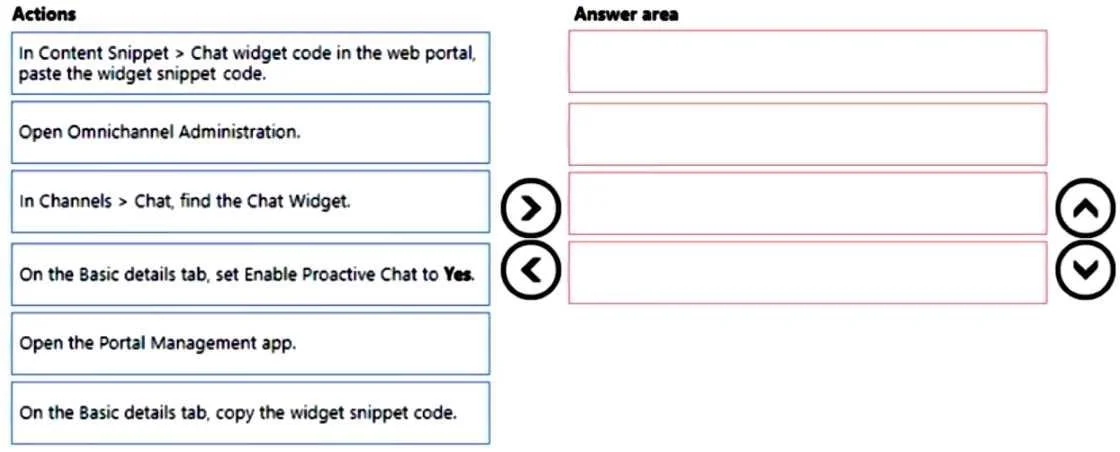
Drag and Drop Question You must create a custom web portal to support customer service processes. The portal must allow customers to chat with customer service if the customer initiates a chat conversation. You need to embed the chat widget into the web portal. Which four actions should you perform in sequence? To answer, move the appropriate actions from the list of actions to the answer area and arrange them in the correct order. Answer:

Exhibit
MB-230 question #277 exhibit

Answer Area

Drag items

In Content snippet > Chat widget code in the web portal, paste the widget snippet code.Open Omnichannel Administration.In Channels > Chat, find the Chat Widget.On the Basic details tab, set Enable Proactive Chat to Yes.Open the Portal Management app.On the Basic details tab, copy the widget snippet code.

Correct arrangement

  • Open Omnichannel Administration.
  • On the Basic details tab, copy the widget snippet code.
  • Open the Portal Management app.
  • In Content snippet > Chat widget code in the web portal, paste the widget snippet code.

Explanation

Embedding an Omnichannel Chat Widget into a Web Portal

This question tests your knowledge of the integration flow between Dynamics 365 Omnichannel for Customer Service and Power Apps Portals (Portal Management app).


The Correct Sequence - and Why

1. Open Omnichannel Administration

This is the starting point because the chat widget is created and managed in Omnichannel Administration, not in the portal. You must go to the source system first before you can retrieve anything to embed. You cannot copy a snippet that you haven't navigated to yet.

2. On the Basic details tab, copy the widget snippet code

Once inside Omnichannel Administration, you navigate to Channels > Chat, open the relevant Chat Widget, and find the snippet on the Basic details tab. This is the JavaScript embed code that renders the chat widget on external pages. You copy it here because you need it for the next step. This logically precedes any portal action.

3. Open the Portal Management app

Now that you have the snippet code in your clipboard, you switch to the Portal Management app - the tool used to configure Power Apps Portal content. You must open this after copying the code, because without the code, there's nothing to paste.

4. In Content snippet > Chat widget code, paste the widget snippet code

Inside Portal Management, navigate to Content Snippets, find the snippet named "Chat widget code," and paste the copied JavaScript. The portal template references this snippet, which is how the chat widget appears on the customer-facing portal pages.


Why the Two Excluded Items Are Wrong

Excluded ItemWhy It's Not in the Sequence
In Channels > Chat, find the Chat WidgetThis step is implied within step 2 - it's a sub-action of navigating to the Basic details tab, not a distinct required step at this level of granularity.
On the Basic details tab, set Enable Proactive Chat to YesThe question specifies chat is triggered only when the customer initiates it - proactive chat (agent-initiated) is explicitly not required and would contradict the requirement.

Common Mistakes

  • Confusing the two apps: Candidates often mix up Omnichannel Administration (where the widget lives) and Portal Management (where it gets embedded). The flow always goes: source → copy → destination → paste.
  • Including "Enable Proactive Chat": This is a deliberate distractor. The scenario says customer-initiated only - enabling proactive chat is the opposite of the requirement.
  • Going to the portal first: There's nothing to configure in the portal until you have the snippet. Order matters here for a practical reason, not just convention.

Topics

#chat widget#Omnichannel#web portal#channel configuration

Community Discussion

No community discussion yet for this question.

Full MB-230 Practice