MB-230 · Question #30
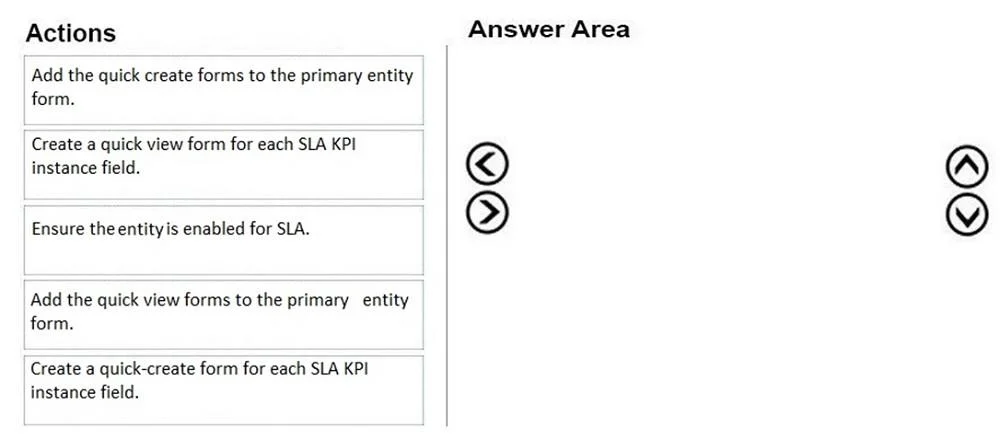
Drag and Drop Question You are a Dynamics 365 for Customer Service administrator. You must track time against enhanced service-level agreements (SLAs). You need to add a timer. Which three actions sho
Dynamics 365: Adding a Timer for Enhanced SLA Tracking The Correct Sequence Box 1 → Ensure the entity is enabled for SLA Box 2 → Create a quick view form for each SLA KPI instance field Box 3 → Add the quick view forms to the primary entity form --- Why This Order? Box 1: Ensure
Question
Exhibit
Options
- Box1Ensure the entity is enabled for SLA.
- Box2Create a quick view form for each SLA KPI instance field.
- Box3Add the quick view forms to the primary entity form.
Explanation
Dynamics 365: Adding a Timer for Enhanced SLA Tracking
The Correct Sequence
Box 1 → Ensure the entity is enabled for SLA Box 2 → Create a quick view form for each SLA KPI instance field Box 3 → Add the quick view forms to the primary entity form
Why This Order?
Box 1: Ensure the entity is enabled for SLA
This is the prerequisite step. Enhanced SLAs in Dynamics 365 work by creating SLA KPI Instance records - one per KPI tracked (e.g., First Response By, Resolve By). These instance records only get created if the entity (e.g., Case, or a custom entity) is explicitly enabled to participate in SLA tracking.
Without this step, the system has no SLA KPI instance fields on the entity, so there is nothing to display a timer for. You cannot build on a foundation that doesn't exist yet.
Common mistake: Skipping this step and jumping straight to form design, then wondering why no SLA KPI fields are available to reference.
Box 2: Create a quick view form for each SLA KPI instance field
Once the entity is SLA-enabled, Dynamics creates SLA KPI Instance lookup fields on the entity (e.g., First Response By KPI, Resolve By KPI). Each of these lookups points to a related SLA KPI Instance record that holds the timer data (warning/failure times, status).
To surface that timer data, you must create a Quick View Form on the SLA KPI Instance entity for each KPI field. This form is what renders the actual visual timer/countdown widget.
This step must come before step 3 because you cannot add a quick view form component to the main form until the quick view form itself exists.
Common mistake: Trying to create one generic quick view form for all KPIs. Each KPI instance field requires its own quick view form because each is a separate lookup relationship.
Box 3: Add the quick view forms to the primary entity form
This is the final assembly step. You open the primary form of the entity (e.g., the Case main form) and insert the quick view form components you created in step 2. This is what makes the timer(s) visible to agents on the record.
This step is last by necessity - it depends on both a SLA-enabled entity (step 1) and existing quick view forms (step 2) to reference.
Common mistake: Confusing this with adding a sub-grid instead of a quick view form control. Sub-grids show lists of related records; quick view forms show the timer widget from the specific related KPI instance.
Summary Mental Model
Think of it as infrastructure → component → surface:
| Step | What you're doing | Why it must be here |
|---|---|---|
| 1 | Enable SLA on entity | Creates the KPI fields that everything else depends on |
| 2 | Build quick view forms | Wraps KPI data in a displayable widget |
| 3 | Add to main form | Exposes the widget to end users |
Each step is a hard dependency on the one before it - the sequence cannot be reordered.
Topics
Community Discussion
No community discussion yet for this question.