
MB-230 · Question #260
Case Study 4 - Lamna Healthcare Background Lamna Healthcare Company has a call center for the city. They receive roughly 5,000 calls a day on health issues. They have the following three departments…
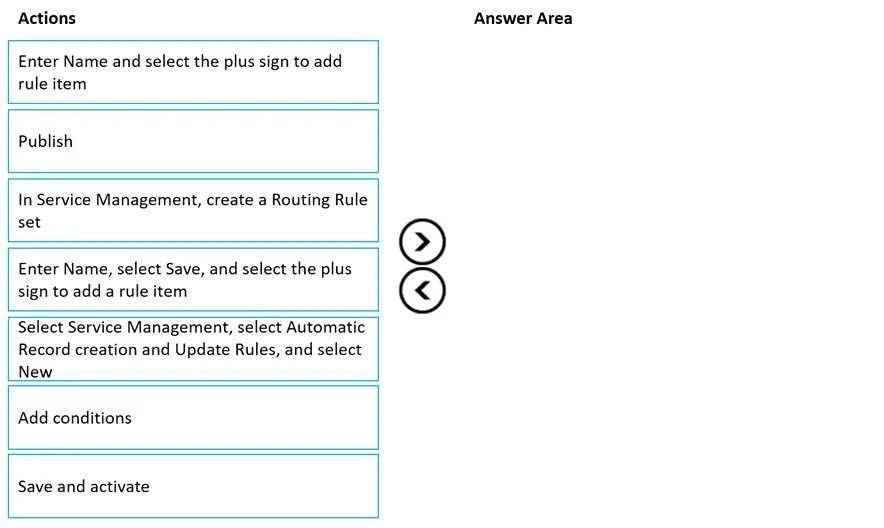
The correct answer is In Service Management, create a Routing Rule set; Enter Name and select the plus sign to add rule item; Add conditions; Save and activate. Dynamics 365: Setting Up Routing Rules for Supervisors Context The requirement is: "If a case is open more than 30 days, the case must automatically be routed to the supervisor." This is accomplished via a Routing Rule Set in Service Management. --- Why This Sequence Step 1: In…
Question
Exhibit
Answer Area
Drag items
Correct arrangement
- In Service Management, create a Routing Rule set
- Enter Name and select the plus sign to add rule item
- Add conditions
- Save and activate
Explanation
Dynamics 365: Setting Up Routing Rules for Supervisors
Context
The requirement is: "If a case is open more than 30 days, the case must automatically be routed to the supervisor." This is accomplished via a Routing Rule Set in Service Management.
Why This Sequence
Step 1: In Service Management, create a Routing Rule set
You must create the container before you can configure anything inside it. A Routing Rule Set is the top-level object that holds all routing logic. Nothing else can exist without it. This is always the entry point for automated case routing in Dynamics 365 Customer Service.
Step 2: Enter Name and select the plus sign to add rule item
After the Rule Set exists, you name it and begin adding individual rule items. A Rule Set alone does nothing - it needs rule items, which are the actual conditional logic units. Clicking the + sign opens the rule item form. Note the distinction from the distractor option below.
Step 3: Add conditions
Once inside the rule item, you define the trigger logic. Here you specify: "If case open duration > 30 days → route to supervisor queue." Conditions must be added after the rule item is created, not before, because they belong to the rule item.
Step 4: Save and activate
Routing rules are inactive by default until explicitly activated. Saving alone does not make the rule live. Activation is a distinct action that publishes the rule into production. Without this step, no routing occurs.
Distractors - Why They're Wrong
| Distractor | Why excluded |
|---|---|
Enter Name, select Save, and select the plus sign to add a rule item | Saves before adding a rule item - this is the flow for a different feature (Automatic Record Creation rules, not Routing Rule Sets). It's a common confusion. |
Select Service Management, select Automatic Record creation and Update Rules, and select New | This is for creating records from incoming emails/activities, not for routing existing cases based on age. Wrong feature entirely. |
Publish | Routing Rule Sets use Activate, not Publish. "Publish" is the term used for Knowledge Base articles. This is a classic cross-feature terminology trap in this case study. |
Common Mistakes
- Confusing Routing Rule Sets with Automatic Record Creation rules - they live in the same Service Management area but serve different purposes. The "Save before adding rule items" step belongs to the latter.
- Skipping Activate - rules left in Draft state silently do nothing, which is hard to debug.
- Using "Publish" - pulled from the Knowledge Base section of the same case study, making it a deliberate distractor.
Topics
Community Discussion
No community discussion yet for this question.