
MB-230 · Question #174
Drag and Drop Question You are a functional consultant for a Dynamics 365 Customer Service organization. You must add the knowledge base search control to the Case entity main form and the Phone…
The correct answer is In the Customer Service admin center, verify that knowledge management is enabled.; Edit the entity main form.; Select the area where you want to place the search control. On the Insert tab, select Knowledge Search.; In the Set properties dialog box, on the Display tab, specify fields for filter data, knowledge base suggestions, and ratings. Adding Knowledge Base Search Control to Dynamics 365 Forms The Correct Sequence & Why --- 1. In the Customer Service admin center, verify that knowledge management is enabled. This is the prerequisite step. If knowledge management isn't enabled at the organizational level, the…
Question
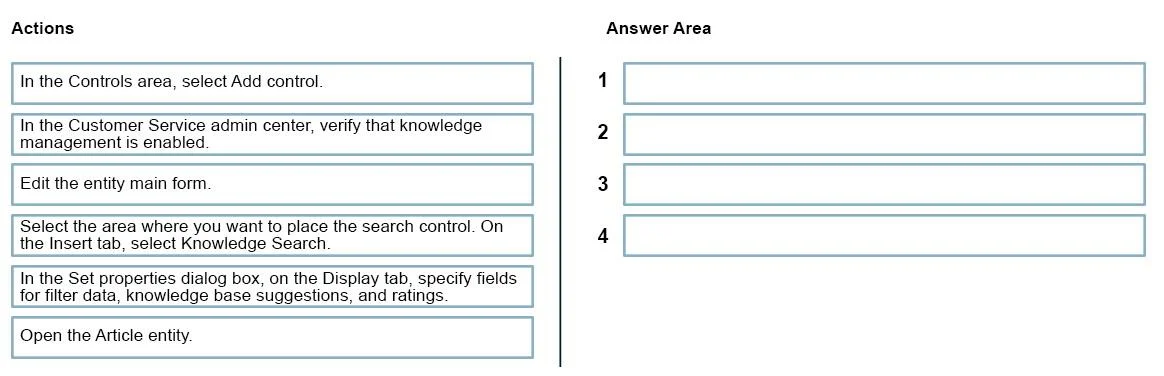
Drag and Drop Question You are a functional consultant for a Dynamics 365 Customer Service organization. You must add the knowledge base search control to the Case entity main form and the Phone call main form. Which four actions should you perform in sequence? To answer, move the appropriate actions from the list of actions to the answer area and arrange them in the correct order. Answer:
Exhibit
Answer Area
Drag items
Correct arrangement
- In the Customer Service admin center, verify that knowledge management is enabled.
- Edit the entity main form.
- Select the area where you want to place the search control. On the Insert tab, select Knowledge Search.
- In the Set properties dialog box, on the Display tab, specify fields for filter data, knowledge base suggestions, and ratings.
Explanation
Adding Knowledge Base Search Control to Dynamics 365 Forms
The Correct Sequence & Why
1. In the Customer Service admin center, verify that knowledge management is enabled.
This is the prerequisite step. If knowledge management isn't enabled at the organizational level, the Knowledge Search option simply won't appear in the form editor. You can't place a control that the system doesn't know exists yet. This is an admin-level gate that must pass before any form customization begins.
Common mistake: Skipping this and jumping straight to form editing - then wondering why "Knowledge Search" is missing from the Insert tab.
2. Edit the entity main form.
Once the feature is confirmed active, you navigate to the specific entity (Case or Phone Call) and open its main form in the form editor. This is the workspace where the remaining steps happen. You can't select placement areas or configure controls without being inside the form editor first.
Common mistake: Confusing this with opening the Article entity (a distractor in this question). You edit the target entity's form, not the knowledge article entity.
3. Select the area where you want to place the search control. On the Insert tab, select Knowledge Search.
With the form open, you pick the exact section/tab where the control should live, then use the Insert tab to add the Knowledge Search control. Order matters: you must select the target area first, then insert - the control drops into wherever is currently selected.
Common mistake: Trying to configure properties before the control is placed. You can't open the Set Properties dialog for something that hasn't been inserted yet.
4. In the Set properties dialog box, on the Display tab, specify fields for filter data, knowledge base suggestions, and ratings.
After inserting the control, the Set Properties dialog lets you configure its behavior - which fields drive filtering, whether to show suggestions, and whether to display ratings. This is always the final step because it configures an already-placed control.
Eliminated Items & Why
| Item | Why Excluded |
|---|---|
| In the Controls area, select Add control. | That workflow is for adding standard controls via the field properties panel - not how Knowledge Search is inserted. Knowledge Search has its own dedicated Insert tab option. |
| Open the Article entity. | A red herring. You're customizing the Case/Phone Call form, not the Knowledge Article entity itself. |
Key Takeaway
The sequence follows a logical dependency chain: enable → access → place → configure. Each step unlocks the next, and no step can succeed without the one before it.
Topics
Community Discussion
No community discussion yet for this question.