
PL-500 · Question #94
Drag and Drop Question You develop a desktop flow for a company. You need to ensure that another user can modify the flow. Which three actions should you perform in sequence? To answer, move the…
The correct answer is Navigate to https://flow.microsoft.com.; Select a flow and select Share.; Add people and select the co-owner access type. To allow another user to modify a desktop flow, the correct sequence involves navigating to the Power Automate portal, selecting the flow for sharing, and then granting co-owner access to the user.
Question
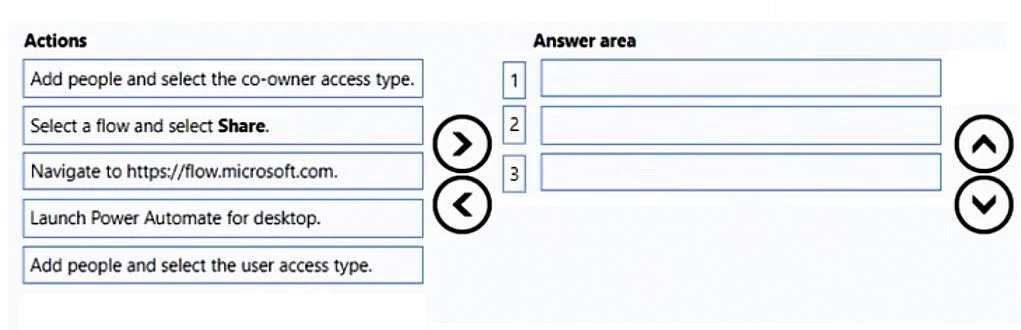
Drag and Drop Question You develop a desktop flow for a company. You need to ensure that another user can modify the flow. Which three actions should you perform in sequence? To answer, move the appropriate actions from the list of actions to the answer area and arrange them in the correct order. Answer:
Exhibit
Answer Area
Drag items
Correct arrangement
- Navigate to https://flow.microsoft.com.
- Select a flow and select Share.
- Add people and select the co-owner access type.
Explanation
To allow another user to modify a desktop flow, the correct sequence involves navigating to the Power Automate portal, selecting the flow for sharing, and then granting co-owner access to the user.
Approach. The correct interaction is to drag the following three actions into the answer area in the specified order:
- Navigate to https://flow.microsoft.com.: Desktop flows, despite being created and edited with the desktop application, are managed and shared through the Power Automate web portal (flow.microsoft.com). This is the initial step to access the flow's settings.
- Select a flow and select Share.: Once in the portal, you need to locate the specific desktop flow you wish to share and initiate the sharing process by selecting the 'Share' option.
- Add people and select the co-owner access type.: To allow another user to 'modify' the flow, they must be granted 'co-owner' access. This permission level provides full control over the flow, including the ability to edit it. After selecting 'Share', you add the user and choose 'co-owner' from the available access types.
Common mistakes.
- common_mistake. 1. Launching Power Automate for desktop: While desktop flows are developed using the Power Automate for desktop application, sharing permissions and access management are handled via the web portal, not directly from the desktop application itself. This action is irrelevant for sharing the flow.
- Adding people and selecting the user access type: This is a common mistake because 'user' access typically allows someone to run the flow, but not to modify its definition. The question explicitly states the other user must be able to 'modify' the flow, which requires 'co-owner' permissions. Granting 'user' access would not fulfill the requirement.
- Incorrect order of operations: Attempting to share a flow or add co-owners before navigating to the Power Automate portal and selecting the specific flow would be illogical and impossible within the platform's user interface.
Concept tested. This question tests the candidate's knowledge of Power Automate flow management, specifically desktop flow sharing, access control, and the different permission levels (co-owner vs. user) available in the Power Automate web portal.
Topics
Community Discussion
No community discussion yet for this question.