nerdexam
Microsoft

MB-800 · Question #81

Drag and Drop Question A company implements Dynamics 365 Business Central. The database contains very few posted entries. You observe that Global Dimension 1 is configured incorrectly. You need to run

The correct answer is Open General Ledger Setup.; Select the Change Global Dimensions action.; Select the new dimension.; Select the Start action.. Changing Global Dimensions in Sequential Mode - Explained The Correct Sequence 1. Open General Ledger Setup This is the entry point. The Change Global Dimensions function lives inside General Ledger Setup - it's not a standalone module. You must navigate here first because global

Configure financials

Question

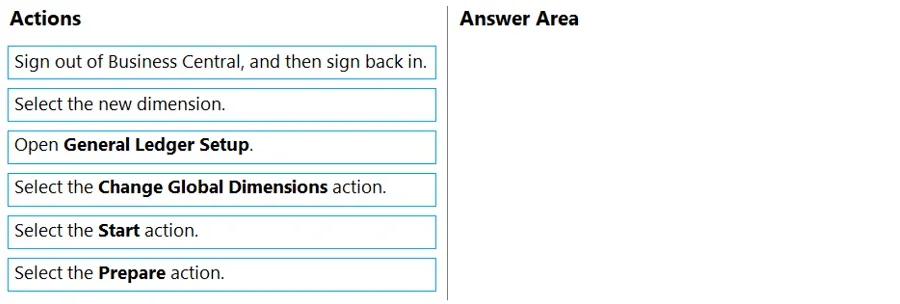
Drag and Drop Question A company implements Dynamics 365 Business Central. The database contains very few posted entries. You observe that Global Dimension 1 is configured incorrectly. You need to run the Change Global Dimensions function in Sequential mode to replace Global Dimension 1. Which four actions should you perform in sequence? To answer, move the appropriate actions from the list of actions to the answer area and arrange them in the correct order. Answer:

Exhibit
MB-800 question #81 exhibit

Answer Area

Drag items

Sign out of Business Central, and then sign back in.Select the new dimension.Open General Ledger Setup.Select the Change Global Dimensions action.Select the Start action.Select the Prepare action.

Correct arrangement

  • Open General Ledger Setup.
  • Select the Change Global Dimensions action.
  • Select the new dimension.
  • Select the Start action.

Explanation

Changing Global Dimensions in Sequential Mode - Explained

The Correct Sequence

1. Open General Ledger Setup

This is the entry point. The Change Global Dimensions function lives inside General Ledger Setup - it's not a standalone module. You must navigate here first because global dimensions are a core financial configuration, and that's where Business Central exposes dimension management.

2. Select the Change Global Dimensions action

Once inside General Ledger Setup, you trigger the dedicated wizard/page for this operation. This action opens the Change Global Dimensions page where you can configure and run the replacement. You cannot select a dimension or start anything until this page is open.

3. Select the new dimension

With the Change Global Dimensions page open, you specify the replacement value - i.e., which dimension should replace the incorrectly configured Global Dimension 1. This is a configuration step that must happen before any process is initiated. You're telling the system what to change to.

4. Select the Start action

In Sequential mode (as opposed to Parallel mode), the Start action executes the replacement. It processes entries one by one, which is appropriate here because there are very few posted entries. This is the final trigger that commits the change.


Why the Two Excluded Items Don't Belong

Excluded ItemWhy It's Wrong
Select the Prepare action"Prepare" is used in Parallel mode, not Sequential mode. In Sequential mode, you go directly to Start. This is the most common exam trap.
Sign out and sign back inThis step applies in Parallel mode after preparation (to release locks held by other sessions). In Sequential mode with few entries, it's unnecessary.

Key Misconception

Prepare vs. Start is the critical distinction between modes.

  • Sequential: Configure → Start (runs immediately, no lock management needed)
  • Parallel: Configure → Prepare → sign everyone out → Start (distributes work across sessions, requires exclusive access)

The question explicitly states Sequential mode and few posted entries - both clues that point away from Prepare and the sign-out step.

Topics

#global dimensions#dimension change#sequential mode#dimension setup

Community Discussion

No community discussion yet for this question.

Full MB-800 Practice