MB-800 · Question #285
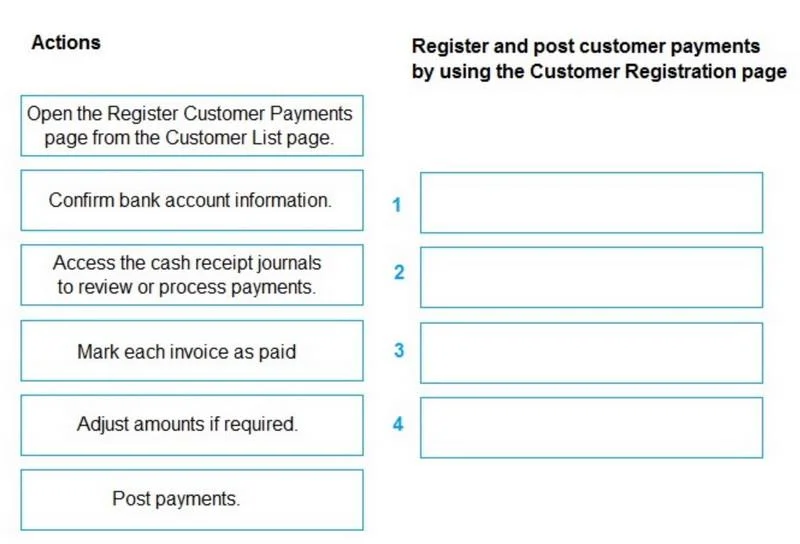
Drag and Drop Question A company is implementing Business Central. The finance manager must be able to streamline the process of recording customer payments. You need to recommend a quick and easy…
The correct answer is Open the Register Customer Payments page from the Customer List page.; Adjust amounts if required.; Mark each invoice as paid.; Post payments. Business Central: Register Customer Payments - Sequence Explained The Core Concept The Register Customer Payments page is a simplified, streamlined UI in Business Central designed specifically to let finance staff quickly match and post incoming payments against open invoices…
Question
Exhibit
Answer Area
Drag items
Correct arrangement
- Open the Register Customer Payments page from the Customer List page.
- Adjust amounts if required.
- Mark each invoice as paid.
- Post payments.
Explanation
Business Central: Register Customer Payments - Sequence Explained
The Core Concept
The Register Customer Payments page is a simplified, streamlined UI in Business Central designed specifically to let finance staff quickly match and post incoming payments against open invoices - without navigating the full Cash Receipt Journal manually.
Why This Exact Order
Step 1 - Open the Register Customer Payments page from the Customer List page
Why first, and why this specific entry point: The Customer List page has a built-in action to launch Register Customer Payments directly. This is the entire point of the workflow - it bypasses the more complex journal setup. Starting here scopes the view to the selected customer's open invoices immediately.
Common mistake: Choosing "Access the cash receipt journals" instead. Cash receipt journals are the underlying mechanism, but using them directly defeats the purpose of this streamlined flow and isn't the recommended quick method.
Step 2 - Adjust amounts if required
Why second: Once the page opens, it pre-populates with the customer's outstanding invoices. Before marking anything paid, you verify and adjust the payment amount (e.g., partial payments, discounts, tolerance differences). You must get the amount correct before applying it to an invoice.
Common mistake: Marking invoices as paid first, then trying to adjust - the system applies the amount as-is at the point of marking, so adjustment must precede application.
Step 3 - Mark each invoice as paid
Why third: After confirming the correct amount, you check the Payment Made checkbox (or equivalent) on each invoice line being settled. This tells BC which open entries to close against the payment.
Common mistake: Confusing this with "Confirm bank account information" - that item is a distractor referencing a step relevant to bank reconciliation flows, not this specific Register Customer Payments workflow.
Step 4 - Post payments
Why last: Posting is always the final, irreversible action. It creates the ledger entries, closes the open customer entries, and records the transaction. Nothing can be posted until amounts are set and invoices are marked.
Why the Distractors Are Wrong
| Distractor | Why excluded |
|---|---|
| Confirm bank account information | Relevant to bank reconciliation, not this payment registration flow |
| Access the cash receipt journals | This is what the streamlined page replaces - using it directly is the longer, manual approach |
Key Takeaway
The sequence follows a natural navigate → verify → apply → commit pattern. Any other order either skips a prerequisite or attempts to finalize before the data is ready.
Topics
Community Discussion
No community discussion yet for this question.