nerdexam
Microsoft

MB-800 · Question #265

Drag and Drop Question A company uses Dynamics 365 Business Central. The company requires one entry to apply customer payments to one or many customer invoices and enter the payment in the bank…

The correct answer is Open a cash receipt journal.; Add lines for each customer payment.; Apply entries.; Post the cash receipt journal. Cash Receipt Journal - Sequence Explained The correct order: Open journal → Add lines → Apply entries → Post --- Why this sequence? 1. Open a cash receipt journal This is the mandatory starting point. In Business Central, cash receipts are processed in a dedicated journal…

Financial management

Question

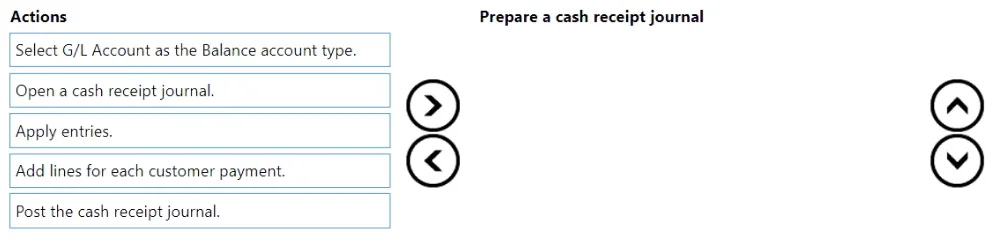
Drag and Drop Question A company uses Dynamics 365 Business Central. The company requires one entry to apply customer payments to one or many customer invoices and enter the payment in the bank account. You need to prepare a cash receipt journal. Which four actions should you perform in sequence? To answer, move the appropriate actions from the list of actions to the answer area and arrange them in the correct order. Answer:

Exhibit
MB-800 question #265 exhibit

Answer Area

Drag items

Select G/L Account as the Balance account type.Open a cash receipt journal.Apply entries.Add lines for each customer payment.Post the cash receipt journal.

Correct arrangement

  • Open a cash receipt journal.
  • Add lines for each customer payment.
  • Apply entries.
  • Post the cash receipt journal.

Explanation

Cash Receipt Journal - Sequence Explained

The correct order: Open journal → Add lines → Apply entries → Post


Why this sequence?

1. Open a cash receipt journal This is the mandatory starting point. In Business Central, cash receipts are processed in a dedicated journal template (distinct from general journals or payment journals). You must navigate to this journal before any data entry is possible. Nothing else can happen until the workspace exists.

2. Add lines for each customer payment Each line captures the raw payment data: customer number, document type (Payment), amount, and posting date. You're recording what money came in before you tell the system what it pays off. The lines must exist before you can apply them to invoices - you can't apply a payment that hasn't been entered yet.

3. Apply entries Once lines exist, you open the application screen (via "Apply Entries" on each line) to match the payment to the specific open invoice(s). This is the core of the one-entry-to-many-invoices requirement. Business Central marks the selected invoices for closure when the journal posts, but the application link is set before posting, not after.

4. Post the cash receipt journal Posting is always the final action. It simultaneously:

  • Creates the customer ledger entries (closing the matched invoices)
  • Creates the bank ledger entry (recording receipt in the bank account)

Posting before applying means invoices remain open; you'd have to apply retrospectively, which is more complex and error-prone.


The distractor: "Select G/L Account as the Balance account type"

This option is incorrect for a cash receipt journal. The balance account type should be Bank Account (not G/L Account), because the requirement explicitly states the payment must be entered in the bank account. Choosing G/L Account is a common mistake - it would post to a general ledger account instead of reconciling against your bank, defeating the purpose of the journal entirely.


Common mistakes

MistakeWhy it's wrong
Posting before applyingInvoices stay open; requires manual post-posting application
Applying before adding linesNo journal lines exist to apply against
Using G/L Account as balance typePayment won't hit the bank account ledger

The sequence follows a strict setup → data entry → configuration → commit pattern that is consistent across all Business Central journal workflows.

Topics

#cash receipt journal#customer payments#payment application#bank account

Community Discussion

No community discussion yet for this question.

Full MB-800 Practice