nerdexam
Microsoft

MB-800 · Question #44

Drag and Drop Question A company uses Dynamics 365 Business Central. The company's funds are limited and some invoices that are due cannot be paid on time. You need to prioritize vendors when you sugg

The correct answer is Set Vendor Priority on the Vendor card using the lowest number, except zero, for the highest priority.; Select Use Vendor Priority when you run the Suggest Vendor Payments batch job.; Enter Available Amount (LCY) when you run the Suggest Vendor Payments batch job.. Dynamics 365 Business Central: Vendor Payment Prioritization The Core Concept When funds are insufficient to pay all due invoices, Business Central's Suggest Vendor Payments batch job can allocate the available budget to vendors in priority order. This requires a three-step setup

Financial management

Question

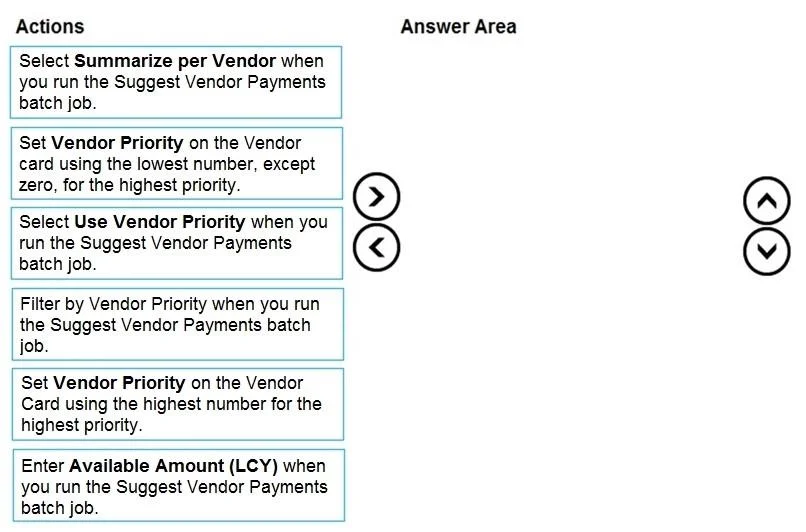
Drag and Drop Question A company uses Dynamics 365 Business Central. The company's funds are limited and some invoices that are due cannot be paid on time. You need to prioritize vendors when you suggest vendor payments. Which three actions should you perform in sequence? To answer, move the appropriate actions from the list of actions to the answer area and arrange them in the correct order. Answer:

Exhibit
MB-800 question #44 exhibit

Answer Area

Drag items

Select Summarize per Vendor when you run the Suggest Vendor Payments batch job.Set Vendor Priority on the Vendor card using the lowest number, except zero, for the highest priority.Select Use Vendor Priority when you run the Suggest Vendor Payments batch job.Filter by Vendor Priority when you run the Suggest Vendor Payments batch job.Set Vendor Priority on the Vendor Card using the highest number for the highest priority.Enter Available Amount (LCY) when you run the Suggest Vendor Payments batch job.

Correct arrangement

  • Set Vendor Priority on the Vendor card using the lowest number, except zero, for the highest priority.
  • Select Use Vendor Priority when you run the Suggest Vendor Payments batch job.
  • Enter Available Amount (LCY) when you run the Suggest Vendor Payments batch job.

Explanation

Dynamics 365 Business Central: Vendor Payment Prioritization

The Core Concept

When funds are insufficient to pay all due invoices, Business Central's Suggest Vendor Payments batch job can allocate the available budget to vendors in priority order. This requires a three-step setup + execution flow.


Step-by-Step Breakdown

Step 1: Set Vendor Priority on the Vendor card using the lowest number, except zero, for the highest priority.

This must come first because you're configuring the data before running any batch job. The priority field is set on each individual Vendor card.

  • Why lowest number = highest priority? Business Central sorts vendors ascending by priority number. Vendor with priority 1 is paid before 2, 3, etc.
  • Why "except zero"? Zero (0) means no priority assigned - it is not treated as the highest priority. Vendors with 0 are effectively unprioritized and typically processed last or ignored.
  • This is a prerequisite - without this data being set, the batch job has nothing to act on.

Step 2: Select "Use Vendor Priority" when you run the Suggest Vendor Payments batch job.

Once vendor priorities are configured, you run the batch job and enable this option to activate the priority logic.

  • Without checking Use Vendor Priority, the system ignores the priority numbers you set in Step 1 entirely - it will not sort by priority.
  • This option tells the engine: "rank suggested payments by the vendor priority field."
  • It must come after Step 1 (priorities must exist to be used) and before Step 3 (you need to activate priority logic before the available amount matters for allocation order).

Step 3: Enter Available Amount (LCY) when you run the Suggest Vendor Payments batch job.

This is the budget cap. The batch job will fill payments starting with the highest-priority vendor and stop when the available amount is exhausted.

  • LCY = Local Currency. You enter the total funds available to disburse.
  • This is the final limiting constraint - it only makes sense to enter it after priority is enabled, because without priority ordering, the cutoff would be arbitrary.
  • The combination of Steps 2 + 3 produces the desired result: highest-priority vendors get paid first, and payments stop when the budget runs out.

Why the Wrong Answers Are Wrong

ItemWhy Excluded
Summarize per VendorThis consolidates multiple invoices into one payment line per vendor - it's about payment presentation, not prioritization.
Filter by Vendor PriorityThere is no such filter option in this batch job - this is a distractor. Priority is applied, not filtered.
Highest number = highest priorityThis is the classic misconception. In BC, priority 1 beats priority 10. Picking the highest number would pay your least important vendors first.

The Mental Model

Think of it as: Configure → Activate → Constrain

  1. Configure the priority data on vendor cards.
  2. Activate priority sorting in the batch job.
  3. Constrain the total spend so the priority ordering actually matters.

Topics

#vendor payments#payment prioritization#suggest vendor payments#payment journal

Community Discussion

No community discussion yet for this question.

Full MB-800 Practice