
Microsoft
MB-800 · Question #130
Drag and Drop Question You are setting up a new company for a customer. The customer wants you to filter the view to show all customers in the My Customers list and calculate the year-to-date sales…
Sign in or unlock MB-800 to reveal the answer and full explanation for question #130. The question stem and answer options stay visible for context.
Perform Business Central operations
Question
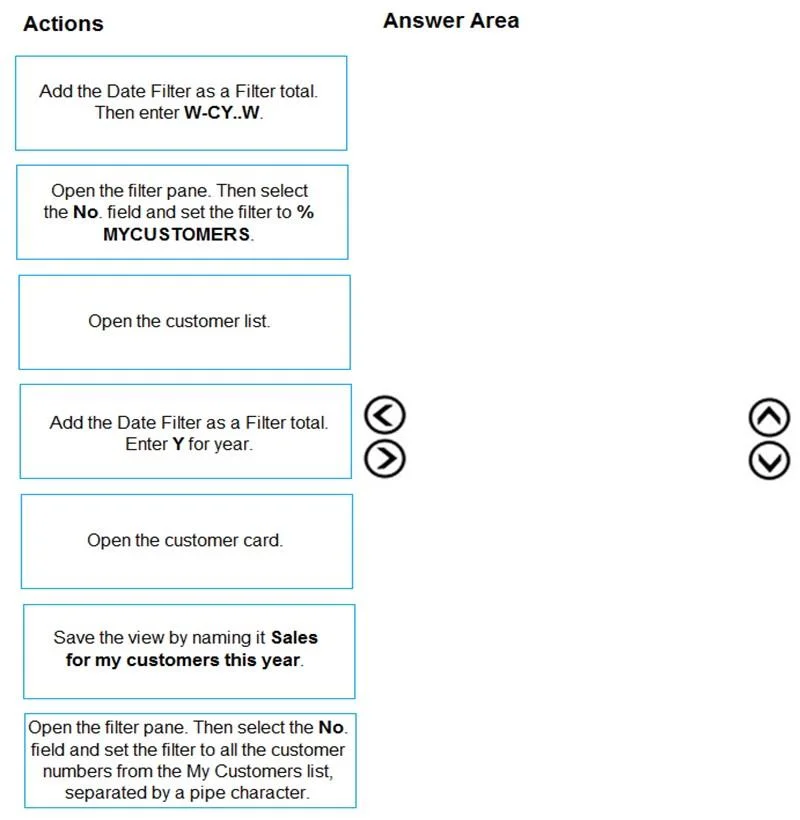
Drag and Drop Question You are setting up a new company for a customer. The customer wants you to filter the view to show all customers in the My Customers list and calculate the year-to-date sales. You need to apply the filter. Which four actions should you perform in sequence? To answer, move the appropriate entities from the list of actions to the answer area and arrange them in the correct order. NOTE: More than one order of answer choices is correct. You will receive credit for any of the correct orders you select. Answer:
Exhibit
Options
- Option1Add the Date Filter as a Filter total. Then enter W-CY.W.
- Option2Open the filter pane. Then select the No field and set the filter to % MYCUSTOMERS.
- Option3Open the customer list.
- Option4Add the Date Filter as a Filter total. Enter Y for year.
- Option5Open the customer card.
- Option6Save the view by naming it Sales for my customers this year.
- Option7Open the filter pane. Then select the No field and set the filter to all the customer numbers from the My Customers list, separated by a pipe character.
Unlock MB-800 to see the answer
You've previewed enough free MB-800 questions. Unlock MB-800 for full answers, explanations, the timed quiz mode, progress tracking, and the master PDF. Question stem and options stay visible so you can still see what's on the exam.
Topics
#My Customers list#list filtering#year-to-date sales#customer view