MB-800 · Question #131
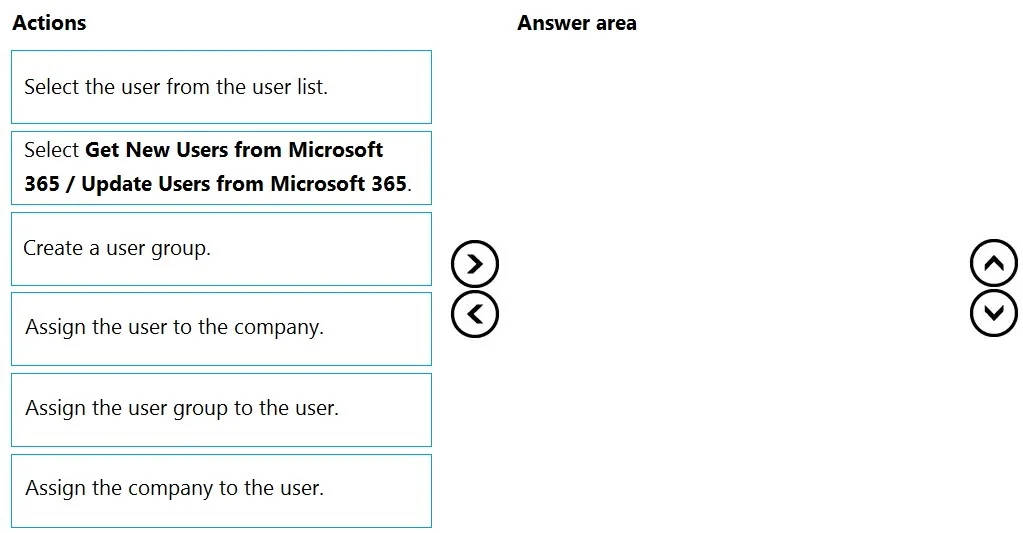
Drag and Drop Question A company adds a user to Microsoft 365. Existing user groups do not have the required permission sets for newly added users. You need to assign a Dynamics 365 Business Central…
Dynamics 365 Business Central: Assigning Users, Groups & Permissions The Core Logic This workflow follows a strict dependency chain: you can't assign what doesn't exist, and you can't act on a user who isn't in the system yet. --- Step-by-Step Breakdown Box 1 - Get New Users /…
Question
Exhibit
Options
- Box1Select Get New Users from Microsoft 365 / Update Users from Microsoft 365.
- Box2Create a user group.
- Box3Select the user from the user list.
- Box4Assign the group to the user.
- Box5Assign the user to the company.
Explanation
Dynamics 365 Business Central: Assigning Users, Groups & Permissions
The Core Logic
This workflow follows a strict dependency chain: you can't assign what doesn't exist, and you can't act on a user who isn't in the system yet.
Step-by-Step Breakdown
Box 1 - Get New Users / Update Users from Microsoft 365
This must come first. Business Central doesn't automatically sync new Microsoft 365 users. Until you run this action (via the Users page), the new user simply doesn't exist in BC. Every subsequent step depends on the user being present in BC's user list.
Common mistake: Skipping this step and wondering why the user doesn't appear. Microsoft 365 and Business Central are integrated but not automatically synced on user creation.
Box 2 - Create a user group
The question explicitly states existing groups lack the required permissions, so you must create a new one. This must happen before Box 4, because you can't assign a group that doesn't exist yet. It logically precedes user-specific actions since groups are reusable objects configured independently of any single user.
Common mistake: Trying to assign permissions directly to the user instead of creating a group. BC's best practice is group-based permission management for scalability.
Box 3 - Select the user from the user list
Now that the user exists (Box 1) and the group is ready (Box 2), you navigate to the specific user in the Users list to begin configuration. This is a prerequisite for Box 4 - you must be in the user's record to assign things to them.
Common mistake: Confusing this with selecting a user group. You're selecting the user, not the group, to open their profile.
Box 4 - Assign the group to the user
With the user's record open, you assign the newly created user group (from Box 2). This grants the user the permission sets bundled in that group. This must follow Box 3 (user selected) and Box 2 (group exists).
Common mistake: Assigning permission sets directly to the user rather than through a group - technically possible, but not the recommended or testable workflow here.
Box 5 - Assign the user to the company
Business Central is multi-company capable. A user existing in BC (with permissions) is still not active until assigned to at least one company. This is the final step because everything else must be in place before company access is granted.
Common mistake: Forgetting this step entirely. Users with permissions but no company assignment cannot log in or access data - this is a frequent real-world oversight.
Why Multiple Orderings Are Accepted
Box 2 (create user group) and Box 3 (select user) are independent of each other - you can create the group before or after navigating to the user, as long as both precede Box 4. That's why the exam credits more than one valid sequence.
Topics
Community Discussion
No community discussion yet for this question.