nerdexam
Microsoft

MB-800 · Question #240

Drag and Drop Question A company uses Business Central and plans to automate its processes by using Power Automate. The company finance manager wants to restrict access to Power Automate features…

The correct answer is As an administrator, agree to the integration notice on the Privacy Notices Status page on behalf of all users or allow users to decide themselves.; Add the system permission Allow Action Automate (ID 9630) to the assigned permissions sets.; Validate that authorized users have the Automate Action permission. Business Central + Power Automate: Access Control Setup The Goal Restrict instant flow creation/execution to only trained users. This requires three sequential steps: enabling the integration, granting permissions, then verifying access. --- Step-by-Step Breakdown Step 1: Agree…

Set up Business Central

Question

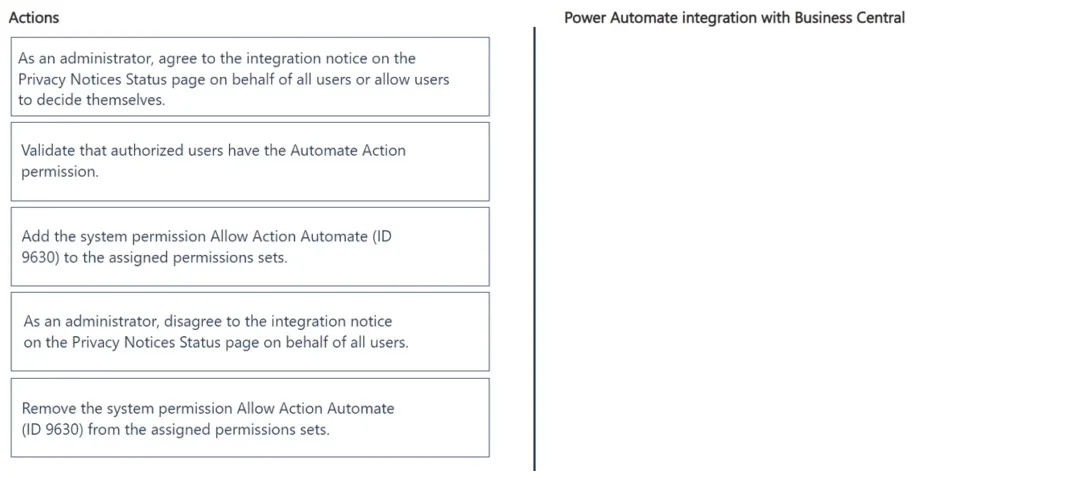
Drag and Drop Question A company uses Business Central and plans to automate its processes by using Power Automate. The company finance manager wants to restrict access to Power Automate features. Only trained users must be able to create and run instant flows in Business Central. You need to set up access control for specific users. Which three actions should you perform in sequence? To answer, move the appropriate actions from the list of actions to the answer area and arrange them in the correct order. Answer:

Exhibit
MB-800 question #240 exhibit

Answer Area

Drag items

As an administrator, agree to the integration notice on the Privacy Notices Status page on behalf of all users or allow users to decide themselves.Validate that authorized users have the Automate Action permission.Add the system permission Allow Action Automate (ID 9630) to the assigned permissions sets.As an administrator, disagree to the integration notice on the Privacy Notices Status page on behalf of all users.Remove the system permission Allow Action Automate (ID 9630) from the assigned permissions sets.

Correct arrangement

  • As an administrator, agree to the integration notice on the Privacy Notices Status page on behalf of all users or allow users to decide themselves.
  • Add the system permission Allow Action Automate (ID 9630) to the assigned permissions sets.
  • Validate that authorized users have the Automate Action permission.

Explanation

Business Central + Power Automate: Access Control Setup

The Goal

Restrict instant flow creation/execution to only trained users. This requires three sequential steps: enabling the integration, granting permissions, then verifying access.


Step-by-Step Breakdown

Step 1: Agree to the integration notice (Privacy Notices Status page)

This is the prerequisite gate. Before any user can interact with Power Automate from Business Central, the integration must be legally acknowledged - Microsoft requires admin consent due to data sharing between services. Without this step, the Automate menu/actions are simply not available to anyone, regardless of permissions. The admin either accepts on behalf of all users or delegates that decision to each user individually.

Why first: You cannot configure what doesn't exist. The integration must be active before permission controls have anything to act on.


Step 2: Add system permission Allow Action Automate (ID 9630) to the assigned permission sets

Once the integration is live, access is controlled by a specific system permission (9630). By default, the Automate action may be visible but not functional for restricted users. Adding this permission to only the relevant permission sets (those assigned to trained users) scopes access appropriately.

Why second: You first need the integration on (Step 1), then you configure who gets access via the permission set.


Step 3: Validate that authorized users have the Automate Action permission

After configuration, verification confirms the setup is correct - checking that trained users actually have the permission applied via their assigned permission sets.

Why third: Validation is always the final step; you confirm the configuration works as intended before declaring it done.


Why the Wrong Items Are Excluded

ItemWhy Wrong
Disagree to the integration noticeThis would disable the feature entirely for all users - the opposite of the goal
Remove permission ID 9630This restricts access, but the question asks you to grant it to trained users, not remove it

Common Mistakes

  • Skipping Step 1: Candidates sometimes jump straight to permissions, forgetting that the integration consent is a hard prerequisite - no consent means no Automate action appears at all.
  • Confusing remove vs. add: The scenario is about enabling trained users, not locking out others. The removal option is a distractor that sounds like "restricting access" but would remove it from everyone.
  • Validation last: Some candidates place validation second, before permissions are fully applied. Always configure first, validate after.

Topics

#Power Automate#access control#instant flows#user permissions

Community Discussion

No community discussion yet for this question.

Full MB-800 Practice