
MB-500 · Question #320
Drag and Drop Question You are working on a Dynamics 365 Finance project with multiple developers contributing to the same codebase. During a code check-in, you encounter a conflict where changes…
The correct answer is Perform Get Latest on the Release branch.; Merge the code from the Development branch into the Release branch and check it in.; Resolve conflicts and check in the code in the Development branch. Explanation: Resolving Code Conflicts in Dynamics 365 Finance This question tests your understanding of the branching and merge workflow in a Dynamics 365 Finance project using version control (typically TFS/Azure DevOps). The branching model here involves at minimum a…
Question
Exhibit
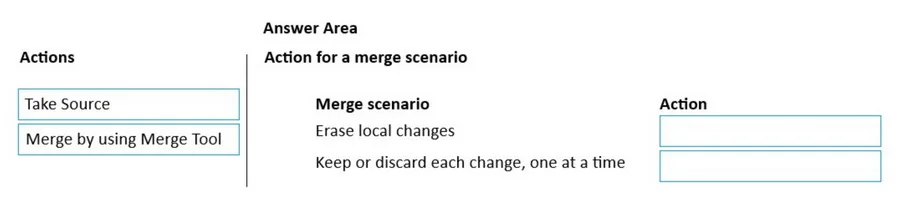
Answer Area
Drag items
Correct arrangement
- Perform Get Latest on the Release branch.
- Merge the code from the Development branch into the Release branch and check it in.
- Resolve conflicts and check in the code in the Development branch.
Explanation
Explanation: Resolving Code Conflicts in Dynamics 365 Finance
This question tests your understanding of the branching and merge workflow in a Dynamics 365 Finance project using version control (typically TFS/Azure DevOps). The branching model here involves at minimum a Development branch and a Release branch.
Why This Arrangement is Correct
Step 1 - Perform Get Latest on the Release branch
Reason: Before resolving any conflict or performing any merge, you must synchronize your local workspace with the current state of the Release branch. This ensures you are working against the most up-to-date baseline. Attempting to merge without getting latest means you may be working with stale code, which can introduce additional conflicts or overwrite another developer's recent changes.
Step 2 - Merge the code from the Development branch into the Release branch and check it in
Reason: After establishing the latest state of the Release branch, the next step is to forward-integrate - push your development changes up to Release. This is the standard promotion path in a D365F branching strategy. The merge at this point incorporates your Development work into the Release codebase.
Step 3 - Resolve conflicts and check in the code in the Development branch
Reason: After the merge into Release, any remaining conflicts that exist in the Development branch must be explicitly resolved before checking in. This keeps the Development branch clean and synchronized with what was just merged into Release. Resolving in Development (not Release) maintains branch integrity.
Why the Other Items Were NOT Selected
| Item | Why Excluded |
|---|---|
| Resolve conflicts and check in the Release branch | Conflict resolution happens in Development, not Release. Checking in conflicted code directly to Release risks polluting the release-ready branch. |
| Merge code from the Main branch into the Release branch | The conflict is between Development and Release - the Main branch is not part of this specific resolution flow. |
Common Mistakes
- Skipping Get Latest first: Developers often try to resolve conflicts immediately without syncing, which leads to missing changes from other developers.
- Resolving in the wrong branch: A common misconception is to resolve conflicts directly in Release. You resolve in Development to keep Release stable.
- Reversing the merge direction: Merging Release into Development (reverse integration) is a valid maintenance task but is not the conflict resolution path described here.
Topics
Community Discussion
No community discussion yet for this question.