
MB-335 · Question #200
Drag and Drop Question A company makes lubricants and greases used in the automotive industry. The company plans to implement Dynamics 365 Supply Chain Management. The system must meet the following…
The correct answer is Create a product dimension group for size under the dimension and variant groups setup menu.; Create sizes under the dimension and variant groups setup menu.; Create a product master.; Add product dimensions to the product master.; Generate product variants.; Assign sizes to the individual items. Dynamics 365 SCM - Product Item Setup: Explanation Context In D365 SCM, products that come in variants (e.g., different sizes of a lubricant container) require a product master with product dimensions. This is distinct from simple released products. The correct setup follows a…
Question
Drag and Drop Question A company makes lubricants and greases used in the automotive industry. The company plans to implement Dynamics 365 Supply Chain Management. The system must meet the following requirements:
- Schedule the batch production of products.
- Plan for inventory fluctuations of ingredients that are used across
different products.
- Schedule delivery of amounts of proprietary compounds used during
production from vendors to keep production runs on schedule and eliminating excess stock on hand or delayed production. You need to perform the initial setup of the company's Dynamics 365 environment. At which level should you set up the items? To answer, drag the appropriate setup levels to the correct setup options. Each setup level may be used once, more than once, or not at all. You may need to drag the split bar between panes or scroll to view content. NOTE: Each correct selection is worth one point. Answer:
Exhibit
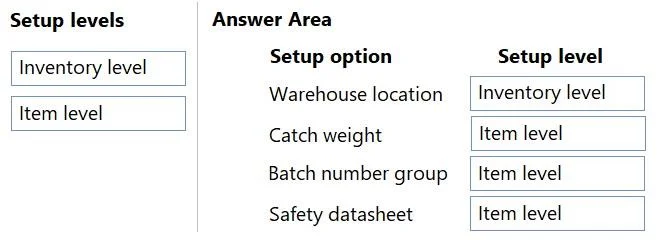
Answer Area
Drag items
Correct arrangement
- Create a product dimension group for size under the dimension and variant groups setup menu.
- Create sizes under the dimension and variant groups setup menu.
- Create a product master.
- Add product dimensions to the product master.
- Generate product variants.
- Assign sizes to the individual items.
Explanation
Dynamics 365 SCM - Product Item Setup: Explanation
Context
In D365 SCM, products that come in variants (e.g., different sizes of a lubricant container) require a product master with product dimensions. This is distinct from simple released products. The correct setup follows a strict dependency chain - each step must exist before the next is possible.
Why This Specific Order
Step 1: Create a product dimension group for size
Why first: The dimension group is a configuration template that tells the system "this product uses size as a variant dimension." It must exist before any product master can reference it. You cannot assign what doesn't exist.
Step 2: Create sizes under dimension and variant groups
Why second: The dimension group tells the system that size is used; this step defines the actual values (e.g., 1L, 5L, 20L). These values must be defined before they can be attached to any product master or variant.
Step 3: Create a product master
Why third: The product master is the parent template. It can only be created after the dimension infrastructure (group + values) is ready, because assigning a dimension group is part of configuring the master.
Step 4: Add product dimensions to the product master
Why fourth: Now you attach the dimension group (Step 1) and specific size values (Step 2) to the master. This wires the product to its variants. No variants can be generated until this linkage exists.
Step 5: Generate product variants
Why fifth: With dimensions configured on the master, D365 can now auto-generate the matrix of variants (e.g., Product A – 1L, Product A – 5L). This step consumes everything set up in Steps 1–4.
Step 6: Assign sizes to the individual items
Why last: After variants exist as released products (items), you may need to confirm or restrict which size values apply at the individual item/released-product level within a legal entity.
The Excluded Item: "Assign a tracking dimension group for size to the item"
This is the key distractor. Tracking dimensions (batch number, serial number) track inventory movements and quality - they are not the same as product dimensions (size, color, style) which define product variants. In this lubricants scenario, "size" is a product dimension for variant generation, not a tracking attribute. Applying a tracking dimension group for size would be architecturally wrong.
Common Mistakes
| Mistake | Why It's Wrong |
|---|---|
| Creating the product master before the dimension group | The master needs the group at creation time - the field would be empty/invalid |
| Generating variants before adding dimensions to the master | No dimension = no variant combinations to generate |
| Using a tracking dimension for size | Tracking dimensions manage lot/serial traceability, not product variants |
| Skipping size value creation (Step 2) | You'd have a group that references "size" but no actual size values to assign |
The Core Mental Model
Infrastructure → Master → Variants → Item-level assignment
Think of it as building a house: foundation (dimension group + values) → frame (product master) → rooms (dimensions on master) → building (generate variants) → furniture (assign to items).
Topics
Community Discussion
No community discussion yet for this question.