
MB-230 · Question #348
Drag and Drop Question A company uses Dynamics 365 Customer Service and Microsoft Teams. A project requires the creation of an automated tool to provide recommendations when addressing specific…
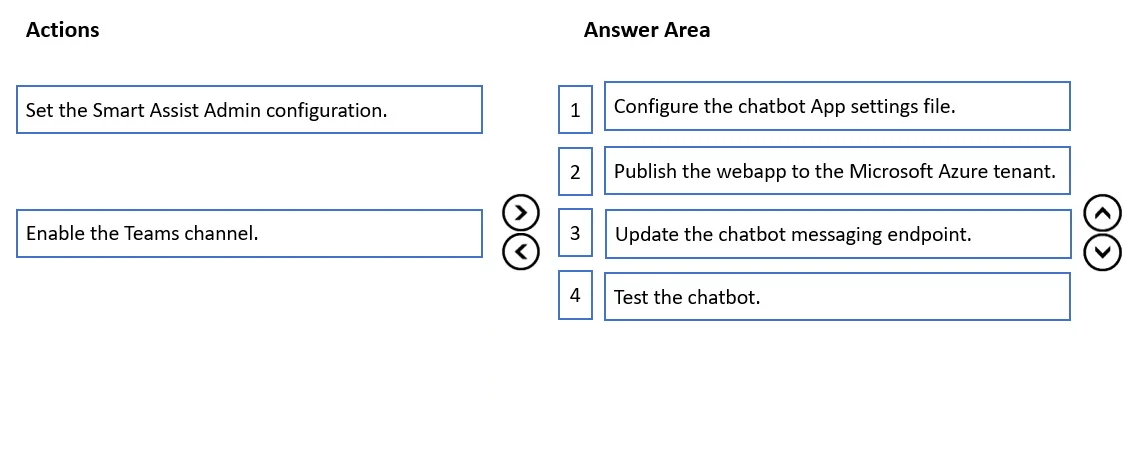
The correct answer is Configure the chatbot App settings file.; Publish the webapp to the Microsoft Azure tenant.; Update the chatbot messaging endpoint.; Test the chatbot. Smart Assist Chatbot Configuration - Order Explanation Key Observation: Two Items Are Excluded Notice that 6 items are available but only 4 appear in the correct answer. "Set the Smart Assist Admin configuration" and "Enable the Teams channel" are distractors - they either…
Question
Exhibit
Answer Area
Drag items
Correct arrangement
- Configure the chatbot App settings file.
- Publish the webapp to the Microsoft Azure tenant.
- Update the chatbot messaging endpoint.
- Test the chatbot.
Explanation
Smart Assist Chatbot Configuration - Order Explanation
Key Observation: Two Items Are Excluded
Notice that 6 items are available but only 4 appear in the correct answer. "Set the Smart Assist Admin configuration" and "Enable the Teams channel" are distractors - they either belong to a different configuration phase or are not required steps for the bot deployment pipeline itself.
Correct Order Breakdown
1. Configure the chatbot App settings file
Why first: This is the foundational step. Before the bot can do anything, its appsettings.json (or equivalent config file) must contain the required credentials and connection strings - App ID, App Password, any Cognitive Services keys, and endpoint references. You cannot deploy a misconfigured or unconfigured application.
Common mistake: Trying to publish to Azure before configuring the app settings. The deployment will succeed but the bot will fail at runtime with authentication or connection errors.
2. Publish the webapp to the Microsoft Azure tenant
Why second: With the settings properly configured, you deploy the bot web application to Azure App Service. This step makes the bot live and reachable at a public HTTPS URL. The URL generated here is what you need for the next step - you cannot know the endpoint URL until after publishing.
Common mistake: Updating the messaging endpoint before publishing, which means you have no valid URL to point to yet.
3. Update the chatbot messaging endpoint
Why third: After publishing, Azure gives you the hosted URL (e.g., https://your-bot.azurewebsites.net/api/messages). You now register this URL as the messaging endpoint in the Azure Bot registration (Bot Framework / Azure Bot Service). This tells Teams where to route incoming messages.
Common mistake: Skipping this step and assuming publishing alone wires up the endpoint. The bot registration and the deployed app are separate resources - you must explicitly link them.
4. Test the chatbot
Why last: Only after the app is configured, deployed, and the endpoint is registered can you meaningfully test. Testing at any earlier stage will produce false negatives or incomplete results.
Common mistake: Testing mid-process (e.g., right after publishing but before updating the endpoint), then concluding the bot is broken when it simply hasn't been fully wired up yet.
Why the Two Excluded Items Are Not in the Sequence
| Item | Why Excluded |
|---|---|
| Enable the Teams channel | This is an Azure Bot Service channel configuration step, but in this scenario the Teams integration is already established (the company already uses D365 + Teams). It is not part of the bot deployment pipeline. |
| Set the Smart Assist Admin configuration | This is a D365 Customer Service admin step (configuring the Smart Assist bot URL inside D365). It belongs to the D365 side of the configuration, not the bot deployment sequence. It would be done separately, typically after the bot is fully deployed and verified. |
Summary Mental Model
App Config → Deploy to Azure → Register Endpoint → Test
(local setup)   (make it live)   (wire it up)     (verify)
Each step depends on the output of the previous one. This is a standard bot deployment pipeline pattern in Azure.
Topics
Community Discussion
No community discussion yet for this question.