
MB-230 · Question #124
Case Study 1 - Humongous Insurance Background Humongous Insurance is contracted to process all insurance claims for a health facility that accepts the following types of health insurance: Health…
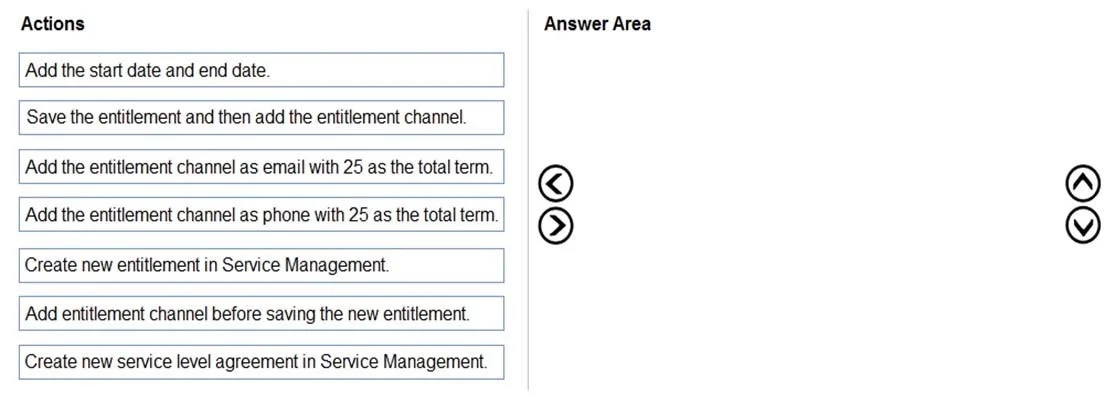
The correct answer is Create new entitlement in Service Management.; Add the start date and end date.; Save the entitlement and then add the entitlement channel.; Add the entitlement channel as email with 25 as the total term.; Add the entitlement channel as phone with 25 as the total term. Explanation: Configuring Entitlements to Limit Case Creation This question tests knowledge of Dynamics 365 Customer Service Entitlements - the feature used to cap how many cases a customer can open (here, 25 per calendar year). > Note: The question states "four actions" but the…
Question
Exhibit
Answer Area
Drag items
Correct arrangement
- Create new entitlement in Service Management.
- Add the start date and end date.
- Save the entitlement and then add the entitlement channel.
- Add the entitlement channel as email with 25 as the total term.
- Add the entitlement channel as phone with 25 as the total term.
Explanation
Explanation: Configuring Entitlements to Limit Case Creation
This question tests knowledge of Dynamics 365 Customer Service Entitlements - the feature used to cap how many cases a customer can open (here, 25 per calendar year).
Note: The question states "four actions" but the correct arrangement contains five steps. This is likely a transcription error - treat it as five steps.
Why This Feature?
The requirement states: "Each insured person is entitled to open 25 new cases each calendar year." In Dynamics 365, Entitlements enforce exactly this - they track and limit case volume per customer per channel per period.
Step-by-Step Breakdown
Step 1 - Create new entitlement in Service Management
Why first: The entitlement is the parent record. Nothing else can exist without it. You navigate to Service Management > Entitlements > New to initialize the record. All subsequent steps depend on this container existing.
Step 2 - Add the start date and end date
Why second: Immediately after creation, while the form is open and unsaved, you define the validity window. The case study specifies "each calendar year", so you'd set Jan 1 – Dec 31. This field is part of the main entitlement form and must be populated before saving.
Common mistake: Skipping the date range. Without it, the entitlement has no defined period and case counts won't reset annually.
Step 3 - Save the entitlement and then add the entitlement channel
Why third: This is the most critical ordering constraint. In Dynamics 365, Entitlement Channels are a child/related entity stored in a sub-grid. The sub-grid only becomes interactive after the parent record is saved to the database. You physically cannot add channels before saving - the "Add" button in the channels sub-grid is disabled on an unsaved record.
Common mistake: Choosing "Add entitlement channel before saving the new entitlement" (the distractor). This is technically impossible in the platform - it's the trap option.
Step 4 - Add the entitlement channel as email with 25 as the total term
Why fourth: Now that the parent entitlement is saved, you add the first channel. Email comes first (alphabetically or by convention - order between steps 4 and 5 is interchangeable, but both are required). Setting 25 as the total term for email enforces the cap on email-submitted cases.
Step 5 - Add the entitlement channel as phone with 25 as the total term
Why fifth: Same rationale as step 4 - add the phone channel with its own 25-case limit. The case study notes the company currently only accepts claims by telephone, but the system also handles email (cases received by email are immediately closed with status reason "Email Sent"), so both channels need entitlement coverage.
Common mistake: Only adding one channel. Both phone and email are used in this scenario, so both need term limits configured.
Eliminated Distractors
| Item | Why Eliminated |
|---|---|
| Add entitlement channel before saving | Technically impossible - sub-grid is locked until parent is saved |
| Create new service level agreement | SLAs are a separate feature for response time tracking, not case count limits |
Key Takeaway
The underlying rule is parent before child: create → configure → save → extend. You can't add child records (channels) until the parent (entitlement) exists in the database. That save requirement in Step 3 is the single most testable concept in this question.
Topics
Community Discussion
No community discussion yet for this question.