
300-440 · Question #79
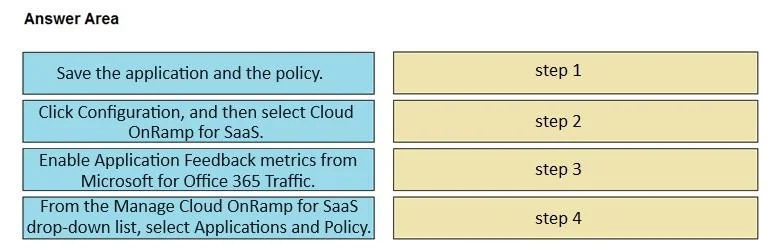
Drag and Drop Question An engineer must use Cisco vManage to configure Cloud OnRamp for Microsoft 365. The engineer enabled Cloud OnRamp for SaaS. Drag and drop the steps from the left onto the…
The correct answer is Click Configuration, and then select Cloud OnRamp for SaaS.; From the vManage Cloud OnRamp for SaaS drop-down list, select Applications and Policy.; Enable Application Feedback metrics from Microsoft for Office 365 Traffic.; Save the application and the policy. Cisco vManage: Cloud OnRamp for Microsoft 365 Configuration Order Overview This question tests knowledge of the exact UI workflow in Cisco SD-WAN's vManage to configure Cloud OnRamp for SaaS (specifically Microsoft 365). The steps follow a strict navigate → configure →…
Question
Exhibit
Answer Area
Drag items
Correct arrangement
- Click Configuration, and then select Cloud OnRamp for SaaS.
- From the vManage Cloud OnRamp for SaaS drop-down list, select Applications and Policy.
- Enable Application Feedback metrics from Microsoft for Office 365 Traffic.
- Save the application and the policy.
Explanation
Cisco vManage: Cloud OnRamp for Microsoft 365 Configuration Order
Overview
This question tests knowledge of the exact UI workflow in Cisco SD-WAN's vManage to configure Cloud OnRamp for SaaS (specifically Microsoft 365). The steps follow a strict navigate → configure → customize → save pattern.
Step-by-Step Breakdown
Step 1: Click Configuration, and then select Cloud OnRamp for SaaS.
This is the mandatory entry point. You cannot configure anything without first navigating to the correct section. In vManage, Configuration is the top-level menu, and Cloud OnRamp for SaaS is a submenu item within it. The exam premise already states Cloud OnRamp for SaaS is enabled, so this step is about navigation, not enabling.
Common mistake: Confusing "enabling" (which is a prerequisite already done) with "navigating to" the feature. These are distinct actions.
Step 2: From the vManage Cloud OnRamp for SaaS drop-down list, select Applications and Policy.
Once inside the Cloud OnRamp for SaaS section, you must choose what to configure. The "Applications and Policy" option is where you define which SaaS applications (e.g., Microsoft 365) are subject to Cloud OnRamp optimization and what policies govern their traffic path selection.
Common mistake: Trying to enable Application Feedback before selecting the application scope. You have no application context yet at this point.
Step 3: Enable Application Feedback metrics from Microsoft for Office 365 Traffic.
This step is specific to Microsoft 365 and is only accessible after selecting the application in step 2. Application Feedback is a feature where Microsoft publishes real-time performance telemetry that vManage uses to make better path decisions. Enabling it here enhances path selection intelligence for M365 traffic.
Common mistake: Thinking this step is optional or belongs earlier. It's Microsoft-specific and must be configured within the application/policy context established in step 2.
Step 4: Save the application and the policy.
Saving is always last. In vManage, configurations are not committed until explicitly saved. Saving before fully configuring (e.g., before enabling Application Feedback) would result in an incomplete policy being pushed.
Common mistake: Saving after each individual setting. vManage expects you to complete the configuration within the session and save once.
Key Mental Model
Navigate → Scope → Configure Feature → Commit
Every vManage workflow follows this pattern. The ordering is logical because each step unlocks or provides context for the next - you can't configure what you haven't navigated to, and you can't save what you haven't configured.
Topics
Community Discussion
No community discussion yet for this question.