
300-440 · Question #38
Drag and Drop Question An engineer must use Cisco vManage to configure an application-aware routing policy Drag and drop the steps from the left onto the order on the right to complete the…
The correct answer is Click Add Template, select the device, and then click Basic Configuration.; Shut down the tunnel and then remove the ISAKMP profile.; Click Configuration, select Templates, and then select Feature Templates.; Attach the IKEv2 profile and then run the no shutdown command on the tunnel. Explanation: Cisco vManage Tunnel Migration (IKEv1 → IKEv2) > Note: Despite the question title mentioning "application-aware routing policy," the actual steps describe a IKEv1-to-IKEv2 tunnel migration workflow in vManage. This is a common exam mismatch - the steps are correct…
Question
Exhibit
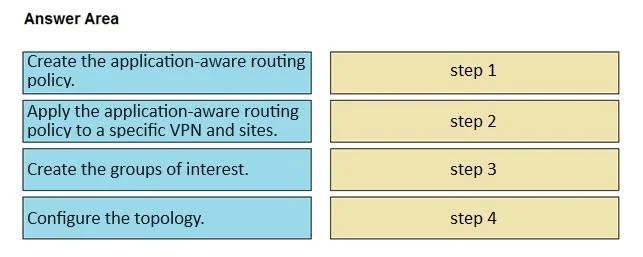
Answer Area
Drag items
Correct arrangement
- Click Add Template, select the device, and then click Basic Configuration.
- Shut down the tunnel and then remove the ISAKMP profile.
- Click Configuration, select Templates, and then select Feature Templates.
- Attach the IKEv2 profile and then run the no shutdown command on the tunnel.
Explanation
Explanation: Cisco vManage Tunnel Migration (IKEv1 → IKEv2)
Note: Despite the question title mentioning "application-aware routing policy," the actual steps describe a IKEv1-to-IKEv2 tunnel migration workflow in vManage. This is a common exam mismatch - the steps are correct regardless of the title.
Correct Order & Technical Reasoning
Step 1 - Click Add Template, select the device, and then click Basic Configuration.
You must establish the device template foundation first. In vManage, a Basic Configuration feature template is the prerequisite container - it holds device identity, system IP, site ID, and other parameters that all other feature templates depend on. You cannot attach a VPN/security template without a base template already defined.
Step 2 - Shut down the tunnel and then remove the ISAKMP profile.
Before introducing IKEv2, the existing IKEv1 (ISAKMP) configuration must be cleanly removed. Attempting to attach an IKEv2 profile while an ISAKMP profile is still active on the same interface causes a profile conflict. Shutting the tunnel down first prevents traffic disruption and ensures the interface is in a safe state for reconfiguration.
Step 3 - Click Configuration, select Templates, and then select Feature Templates.
Now that the old profile is removed, you navigate to Feature Templates to locate or create the IKEv2-specific template. This step comes after the tunnel teardown because you are now ready to apply the new configuration - navigating here earlier would be premature since the old ISAKMP config was still active.
Step 4 - Attach the IKEv2 profile and then run the no shutdown command on the tunnel.
This is the restoration step. Attaching the IKEv2 profile before bringing the tunnel back up ensures the interface comes online with the correct security parameters already applied. Running no shutdown last is intentional - it prevents the tunnel from initializing with incomplete configuration.
Common Mistakes
| Mistake | Why It's Wrong |
|---|---|
| Putting navigation (Step 3) before Add Template (Step 1) | You need a base template before feature templates are meaningful |
| Removing ISAKMP before shutting the tunnel down | Active tunnels can re-negotiate; shut it down first to prevent conflicts |
Running no shutdown before attaching IKEv2 profile | Tunnel comes up without a valid security profile, causing negotiation failures |
| Skipping Basic Configuration entirely | Feature templates cannot be properly attached without a base device template |
Topics
Community Discussion
No community discussion yet for this question.