
300-440 · Question #27
Drag and Drop Question An engineer signs in to Cisco vManage and needs to configure a custom application with a Cisco SD-WAN centralized policy. Drag and drop the steps from the left onto the order…
The correct answer is Click Custom Options, select Centralized Policy, and then select Lists.; Enter a name for the application, enter the match criteria, and then click Add.; Click Custom Applications, and then select New Custom Application.; Click Configuration, select Policies, and then select Centralized Policy. Cisco vManage: Custom Application with Centralized Policy Important note: The "Correct Arrangement" as numbered in this question (1→2→3→4) does not reflect a logical workflow. The actual correct sequence based on how vManage navigation works is: --- Logical Correct Order Step 1…
Question
Exhibit
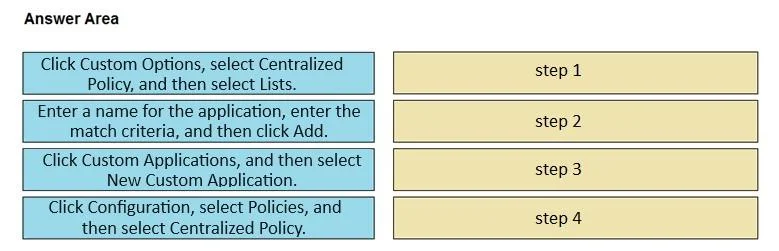
Answer Area
Drag items
Correct arrangement
- Click Custom Options, select Centralized Policy, and then select Lists.
- Enter a name for the application, enter the match criteria, and then click Add.
- Click Custom Applications, and then select New Custom Application.
- Click Configuration, select Policies, and then select Centralized Policy.
Explanation
Cisco vManage: Custom Application with Centralized Policy
Important note: The "Correct Arrangement" as numbered in this question (1→2→3→4) does not reflect a logical workflow. The actual correct sequence based on how vManage navigation works is:
Logical Correct Order
Step 1 - Click Configuration, select Policies, and then select Centralized Policy.
This must come first. It's the entry point - you cannot access any policy-related configuration without navigating here. Skipping this means you have no context to work within.
Step 2 - Click Custom Options, select Centralized Policy, and then select Lists.
Once inside Centralized Policy, Custom Options exposes the policy building blocks. "Lists" is where custom application definitions live. You must open this container before you can create anything inside it.
Step 3 - Click Custom Applications, and then select New Custom Application.
Now that you're in the Lists section, you select the Custom Applications list type and initiate creation of a new entry. This opens the form for defining the application.
Step 4 - Enter a name for the application, enter the match criteria, and then click Add.
Only after the creation form is open can you fill in the name and match criteria (IP prefix, port, DSCP, etc.) and save it.
Common Mistakes
- Reversing steps 3 and 4 - You cannot enter a name/criteria before the "New Custom Application" dialog is open.
- Starting at step 2 - "Custom Options" only appears after you've already entered an existing or new Centralized Policy. Jumping here first is impossible.
- Confusing this with localized policy - The path
Configuration > Policies > Centralized Policyis specific to centralized data/control policies, not localized.
The numbering in the question's "Correct Arrangement" section appears to be a transcription error - the logical order is 4 → 1 → 3 → 2 using the original item numbers.
Topics
Community Discussion
No community discussion yet for this question.