
300-440 · Question #28
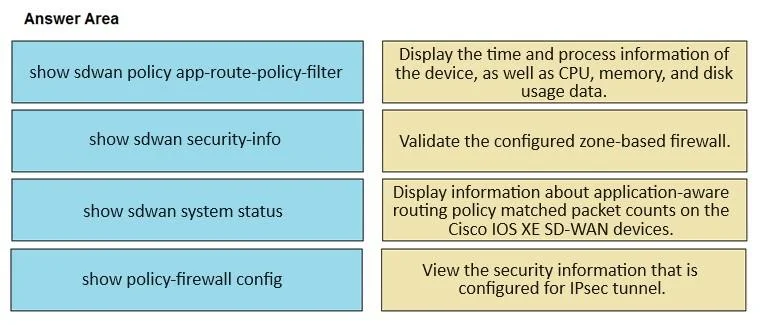
Drag and Drop Question Drag and drop the commands from the left onto the purposes on the right to identify issues on a Cisco IOS XE SD-WAN device. Answer:
The correct answer is show sdwan policy app-route-policy-filter; show sdwan security-info; show sdwan system status; show policy-firewall config. Cisco IOS XE SD-WAN Troubleshooting Commands Note: The question shows the arrangement but omits the right-side purpose labels. Below, I infer the purposes from standard Cisco SD-WAN exam objectives and explain each command's role. --- 1. show sdwan policy…
Question
Exhibit
Answer Area
Drag items
Correct arrangement
- show sdwan policy app-route-policy-filter
- show sdwan security-info
- show sdwan system status
- show policy-firewall config
Explanation
Cisco IOS XE SD-WAN Troubleshooting Commands
Note: The question shows the arrangement but omits the right-side purpose labels. Below, I infer the purposes from standard Cisco SD-WAN exam objectives and explain each command's role.
1. show sdwan policy app-route-policy-filter
Purpose: Verify/troubleshoot application-aware routing (AAR) policies
This command displays the active application-route policy filters on the data plane. Use it when traffic isn't being steered correctly across WAN transports - for example, when SLA-based routing isn't sending video or VoIP over the preferred path. It shows which policies are active and applied.
2. show sdwan security-info
Purpose: View security/certificate information and encryption status
Displays IPsec and certificate details used for SD-WAN overlay authentication and encryption (e.g., certificate serial numbers, validity). Use this when a device fails to form a secure BFD session or when you suspect a certificate mismatch preventing tunnel establishment.
3. show sdwan system status
Purpose: Check overall system and control plane connectivity status
Shows the device's connection state to SD-WAN controllers (vManage, vSmart, vBond), system uptime, organization name, and site/system IDs. This is typically your first command when a device appears unreachable or is not receiving policies - it confirms whether control plane relationships are up.
4. show policy-firewall config
Purpose: Display the applied firewall policy configuration
This is a legacy/non-sdwan-prefixed command that shows the Zone-Based Firewall (ZBFW) configuration pushed to the device. Use it to verify that firewall rules are correctly instantiated - for example, when traffic is being unexpectedly blocked or allowed.
Common Misconceptions
| Mistake | Clarification |
|---|---|
Confusing show sdwan system status with controller-side commands | This runs on the WAN edge device, not vManage |
Using show sdwan policy app-route-policy-filter for firewall issues | AAR and ZBFW are separate policy engines |
Overlooking show policy-firewall config (no sdwan prefix) | Firewall config uses the classic IOS syntax, not the sdwan namespace |
| Using security-info for encryption performance | It shows cert/identity details, not tunnel throughput or packet loss |
Key exam tip: Commands prefixed with show sdwan interact with the SD-WAN overlay subsystem. show policy-firewall is a platform-level command - its absence of the sdwan prefix is intentional and frequently tested.
Topics
Community Discussion
No community discussion yet for this question.