
PL-200 · Question #64
Drag and Drop Question You have a business process flow. You need to update the business process flow while minimizing administrative and maintenance efforts. What should you implement? To answer…
The correct answer is Action step; Action step. Both requirements involve implementing custom, on-demand logic within specific stages of a Business Process Flow, which is best achieved by leveraging 'Action steps' to invoke Power Automate flows or custom actions, thereby minimizing administrative effort and maximizing…
Question
Exhibit
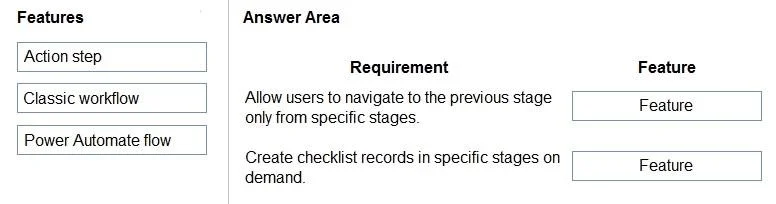
Answer Area
Drag items
Correct arrangement
- Action step
- Action step
Explanation
Both requirements involve implementing custom, on-demand logic within specific stages of a Business Process Flow, which is best achieved by leveraging 'Action steps' to invoke Power Automate flows or custom actions, thereby minimizing administrative effort and maximizing flexibility.
Approach. 1. For 'Allow users to navigate to the previous stage only from specific stages.': The 'Action step' feature within a Business Process Flow (BPF) allows designers to embed a custom action or a Power Automate flow directly into a BPF stage. This enables the execution of sophisticated logic that can programmatically control BPF navigation. For instance, a Power Automate flow triggered by an Action step could check specific conditions (e.g., data completeness, user roles) and then use Power Apps Component Framework (PCF) or client-side scripting (if applicable to the specific context) to enable or disable the ability to move to a previous stage. This provides the granular, conditional control required. 2. For 'Create checklist records in specific stages on demand.': Similarly, an 'Action step' can be configured to invoke a Power Automate flow or a custom API action. When a user is in a specific BPF stage and clicks this 'Action step', the associated flow or action is triggered. This flow can then create new records (e.g., checklist items), link them to the primary record of the BPF, and perform any other necessary data manipulations. This fulfills the 'on demand' aspect and allows for dynamic record creation tied to specific points in the business process. Both scenarios require custom, interactive logic within a BPF stage. 'Action steps' are the modern, recommended way to achieve this, enabling seamless integration with Power Automate or custom actions while minimizing administrative and maintenance efforts by leveraging low-code platforms and well-defined integrations.
Common mistakes.
- common_mistake. 1. Classic workflow: Classic workflows are primarily for background, asynchronous automation triggered by record events (e.g., create, update, status change). They are not designed for direct, on-demand user interaction within a BPF stage to conditionally control UI elements like navigation or to trigger specific record creation based on a user's explicit action within the flow's user interface. Using them for these requirements would be less efficient, harder to maintain, and would not provide the direct user interaction needed for 'on demand' or conditional UI control. They are generally considered a legacy approach compared to Power Automate.
- Power Automate flow: While a Power Automate flow would indeed contain the actual business logic for both requirements (conditional navigation logic or record creation logic), 'Power Automate flow' itself is not the direct feature you add to a BPF stage. The mechanism within the BPF designer that allows you to invoke a Power Automate flow or a custom API action is the 'Action step' (also known as a 'Flow step' or 'Action card'). Therefore, 'Action step' is the more precise and correct answer as it represents the actionable component within the BPF structure that facilitates these capabilities. Simply dragging 'Power Automate flow' would miss the specific integration point within the BPF.
Concept tested. The core concept tested is the ability to extend Business Process Flows (BPFs) in Microsoft Power Apps/Dynamics 365 using modern features, specifically understanding the role and capabilities of 'Action steps' (Flow steps) within BPF stages to invoke custom logic via Power Automate flows or custom actions. It also tests the understanding of best practices for minimizing administrative and maintenance efforts by choosing appropriate extensibility patterns over legacy options like Classic Workflows.
Topics
Community Discussion
No community discussion yet for this question.