
MS-721 · Question #84
Drag and Drop Question You have a Microsoft Teams Rooms on Windows system in a local conference room. The system is NOT joined to Active Directory. You need to ensure that the system can be managed…
The correct answer is Press CTRL + ALT + DELETE; Configure the Remote Desktop settings and sign out; Select the Administrator account and enter the password. The correct sequence involves accessing the Windows login screen, logging in as a local administrator, and then configuring Remote Desktop settings before signing out.
Question
Exhibit
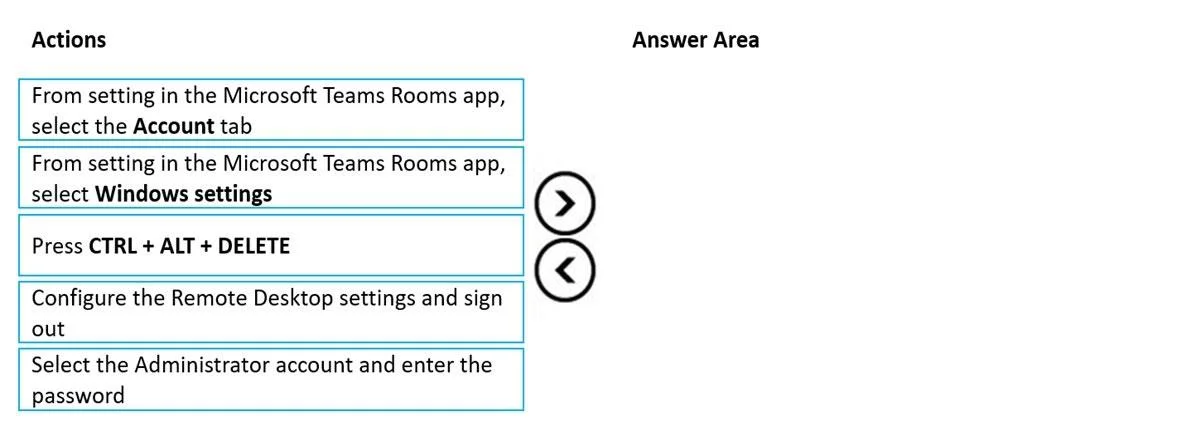
Answer Area
Drag items
Correct arrangement
- Press CTRL + ALT + DELETE
- Configure the Remote Desktop settings and sign out
- Select the Administrator account and enter the password
Explanation
The correct sequence involves accessing the Windows login screen, logging in as a local administrator, and then configuring Remote Desktop settings before signing out.
Approach. To enable RDP on a Microsoft Teams Rooms (MTR) on Windows system that is not joined to Active Directory, you must first gain administrative access to the underlying Windows operating system. The correct sequence of actions to achieve this and configure RDP is: 1. Press CTRL + ALT + DELETE: This is a standard Windows command that brings up the Windows Security screen, providing options like 'Lock', 'Switch user', 'Sign out', or 'Task Manager'. From this screen, you can access the Windows login screen. 2. Select the Administrator account and enter the password: Since the MTR system is not domain-joined, you must log in using a local Administrator account to perform system-level changes. This action directly follows gaining access to the login screen. 3. Configure the Remote Desktop settings and sign out: Once logged in as an administrator, you can navigate to the system settings (e.g., through Control Panel or the Settings app) to enable Remote Desktop, specify which users are allowed to connect via RDP, and then sign out to exit the administrative session and typically return the MTR device to its default MTR application interface.
Common mistakes.
- common_mistake. Common mistakes include selecting incorrect actions or placing the correct actions in the wrong order. Actions like 'From setting in the Microsoft Teams Rooms app, select the Account tab' are irrelevant for configuring RDP. While 'From setting in the Microsoft Teams Rooms app, select Windows settings' can lead to some Windows configurations, it typically doesn't directly provide the full administrative access needed to enable and configure RDP without additional login steps. The 'Press CTRL + ALT + DELETE' method is a more direct and universally recognized way to reach the Windows login screen for administrative access. Attempting to configure RDP before successfully logging in as an administrator, or trying to log in without first reaching the Windows login screen, would result in an incorrect sequence and failure to meet the objective.
Concept tested. Administering Microsoft Teams Rooms on Windows, accessing the underlying Windows operating system from its kiosk mode, managing local administrator accounts on a standalone Windows system, and configuring Remote Desktop Protocol (RDP) for remote management.
Topics
Community Discussion
No community discussion yet for this question.