
MS-721 · Question #85
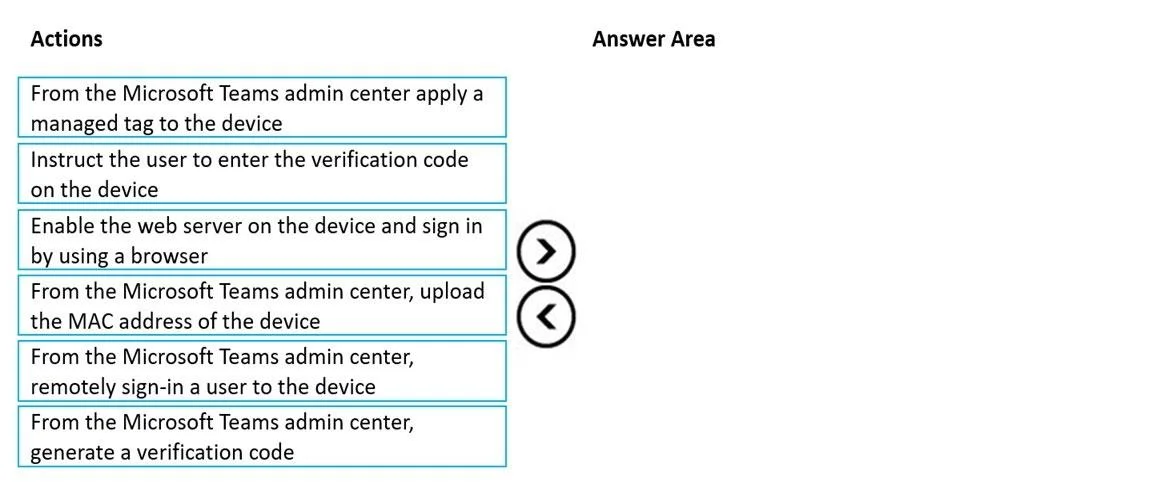
Drag and Drop Question You need to provision a Microsoft Teams-certified common area phone device at a field site. The solution must ensure that a standard user can complete the physical handset…
The correct answer is From the Microsoft Teams admin center, upload the MAC address of the device; From the Microsoft Teams admin center, generate a verification code; Instruct the user to enter the verification code on the device; From the Microsoft Teams admin center, remotely sign-in a user to the device. The question requires understanding the secure provisioning sequence for a Microsoft Teams common area phone using the device code flow, which avoids sharing credentials directly with the end-user.
Question
Exhibit
Answer Area
Drag items
Correct arrangement
- From the Microsoft Teams admin center, upload the MAC address of the device
- From the Microsoft Teams admin center, generate a verification code
- Instruct the user to enter the verification code on the device
- From the Microsoft Teams admin center, remotely sign-in a user to the device
Explanation
The question requires understanding the secure provisioning sequence for a Microsoft Teams common area phone using the device code flow, which avoids sharing credentials directly with the end-user.
Approach. The correct approach involves using the device code flow for remote sign-in, which is ideal for common area phones at field sites without sharing credentials. The sequence is as follows:
- From the Microsoft Teams admin center, upload the MAC address of the device: This step is crucial for the Teams admin center to recognize and manage the specific physical device. Without identifying the device, no further configuration or sign-in can proceed.
- From the Microsoft Teams admin center, generate a verification code: Once the device is registered, the administrator initiates the remote sign-in process by generating a unique verification code. This code acts as a temporary token to link the device to a specific resource account.
- Instruct the user to enter the verification code on the device: The user at the field site, without needing any credentials, physically inputs the generated verification code onto the device's interface. This action establishes a secure link between the device and the admin-initiated sign-in process.
- From the Microsoft Teams admin center, remotely sign-in a user to the device: After the code is entered on the device, the administrator completes the sign-in process from the Teams admin center, associating a Common Area Phone resource account (or a designated user account) with the device. This finalizes the provisioning without the user ever seeing or entering account credentials.
Common mistakes.
- common_mistake. Choosing 'From the Microsoft Teams admin center apply a managed tag to the device' is incorrect for the initial sign-in sequence. Tags are typically applied after a device is provisioned and signed in, for organizational or policy management purposes. Selecting 'Enable the web server on the device and sign in by using a browser' is also incorrect because while it's a valid sign-in method for some devices, the question specifically states 'without sharing credentials' and implies a remote/device code flow for ease of use at a field site. This method often requires direct credential entry or is less secure for a general user compared to the device code flow, and it's not the primary method for the 'without sharing credentials' requirement when a remote sign-in option is available.
Concept tested. Provisioning and secure sign-in methods for Microsoft Teams-certified common area phones, specifically leveraging the device code flow for remote sign-in without direct credential sharing.
Topics
Community Discussion
No community discussion yet for this question.