
MS-721 · Question #327
Drag and Drop Question You need to deploy a new Microsoft Teams Rooms on Windows device to meet the following requirements: - Automatically decline meetings outside of a 30-day booking window…
The correct answer is Create a Teams resource account.; Assign a Teams Rooms Pro license. To deploy a Microsoft Teams Room with advanced features and specific booking rules, you must first create a dedicated Teams resource account, configure its booking options, and then assign a Teams Rooms Pro license.
Question
Exhibit
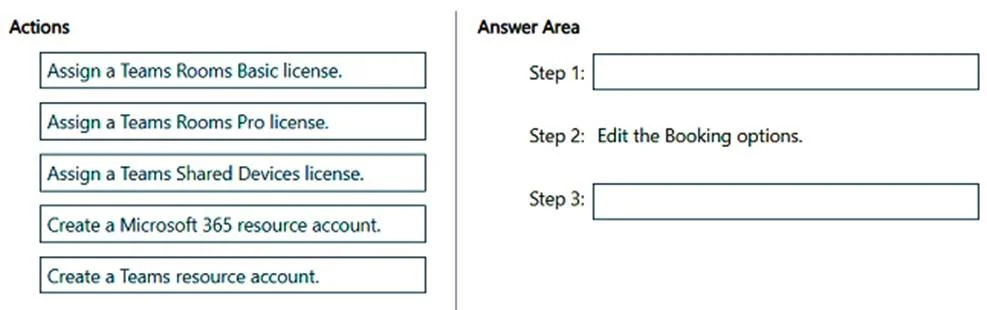
Answer Area
Drag items
Correct arrangement
- Create a Teams resource account.
- Assign a Teams Rooms Pro license.
Explanation
To deploy a Microsoft Teams Room with advanced features and specific booking rules, you must first create a dedicated Teams resource account, configure its booking options, and then assign a Teams Rooms Pro license.
Approach. The correct interaction is to drag 'Create a Teams resource account' to Step 1 and 'Assign a Teams Rooms Pro license' to Step 3. The rationale is as follows:
-
Create a Teams resource account (Step 1): Before any license can be assigned or booking options configured for a Microsoft Teams Room (MTR) device, a dedicated resource account must be created in Microsoft 365. This account serves as the digital representation of the meeting room in Exchange Online and Teams. Choosing 'Create a Teams resource account' is more specific and appropriate for an MTR setup than 'Create a Microsoft 365 resource account', although the former is a type of the latter.
-
Edit the Booking options (Step 2 - Pre-filled): Once the resource account exists, its booking policies can be configured. The requirement to 'Automatically decline meetings outside of a 30-day booking window' directly maps to editing these booking options on the resource mailbox associated with the account. This step logically follows the creation of the account.
-
Assign a Teams Rooms Pro license (Step 3): The requirements 'Support dual screen and intelligent audio and video' are key differentiators. Teams Rooms Pro licenses provide advanced capabilities such as intelligent audio and video (e.g., AI noise suppression, speaker tracking), dual-screen support, and enhanced management features. The Teams Rooms Basic license only supports basic meeting features and a single screen. Therefore, to meet the specified advanced feature requirements, a Teams Rooms Pro license is necessary, despite the 'Minimize costs' requirement, as Pro is the lowest cost option that meets all functional needs. This step enables the full functionality of the MTR device after the account and booking settings are in place.
Common mistakes.
- common_mistake. 1. Assign a Teams Rooms Basic license: This would not meet the requirement for 'Support dual screen and intelligent audio and video,' as Basic licenses only provide core meeting functionality and single-screen support. While it would minimize costs, it fails on functionality.
- Assign a Teams Shared Devices license: This license is designed for common area phones, lobby phones, and other shared calling devices, not for full Microsoft Teams Rooms meeting devices. It would be an incorrect license type for the specified MTR deployment.
- Create a Microsoft 365 resource account: While a Teams resource account is technically a Microsoft 365 resource account, 'Create a Teams resource account' is the more specific and therefore correct action for setting up a Teams Room. In an exam scenario, choose the most precise option available.
- Incorrect order: Assigning a license before creating the account, or editing booking options before the account exists, would be illogical and technically infeasible.
Concept tested. Microsoft Teams Rooms deployment, resource account management, Teams Rooms licensing (Basic vs. Pro features), and booking policy configuration for meeting rooms.
Reference. null
Topics
Community Discussion
No community discussion yet for this question.