
MS-720 · Question #111
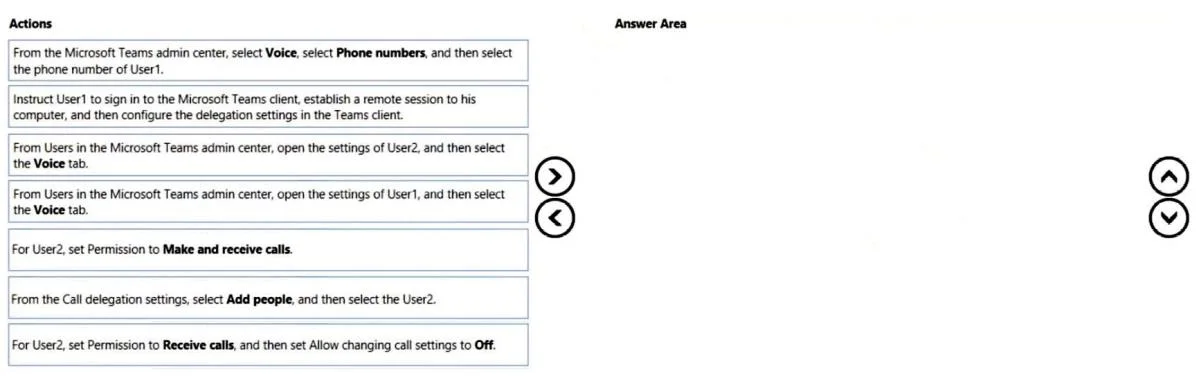
Drag and Drop Question You have two users named User1 and User2. You need to configure User2 as a call delegate for Uset1. The solution must meet the following requirements: - Minimize disruptions…
The correct answer is From Users in the Microsoft Teams admin center, open the settings of User1, and then select the Delegates tab.; From the Call delegation settings, select Add people, and then select the User2.; For User2, set Permission to Receive calls, and then set Allow changing call settings to Off. Microsoft Teams Call Delegation - Exam Question Explained Context You need to make User2 a call delegate for User1, meaning User2 can answer calls on User1's behalf - but with two restrictions: User2 cannot place calls on User1's behalf User2 cannot modify User1's settings…
Question
Exhibit
Answer Area
Drag items
Correct arrangement
- From Users in the Microsoft Teams admin center, open the settings of User1, and then select the Delegates tab.
- From the Call delegation settings, select Add people, and then select the User2.
- For User2, set Permission to Receive calls, and then set Allow changing call settings to Off.
Explanation
Microsoft Teams Call Delegation - Exam Question Explained
Context
You need to make User2 a call delegate for User1, meaning User2 can answer calls on User1's behalf - but with two restrictions:
- User2 cannot place calls on User1's behalf
- User2 cannot modify User1's settings
Why This Specific Order
Step 1: From Users in the Microsoft Teams admin center, open the settings of User1, and then select the Delegates tab.
Why first: You're configuring User1's delegation settings, so you must start from User1's profile. The Delegates tab is specifically where call delegation is managed - not the Voice tab, not Phone numbers. This is the entry point for the entire workflow.
Common mistake: Candidates often confuse the Voice tab (which handles call routing, voicemail, and phone number assignment) with the Delegates tab (which manages who can act on behalf of the user). The Voice tab is a distractor here.
Why it minimizes disruption to User1: Configuring delegation from the admin center means User1 doesn't need to do anything themselves - no client-side action required. The distractor option that says "instruct User1 to sign in and configure via remote session" would be disruptive and is explicitly ruled out by the requirement to minimize disruptions.
Step 2: From the Call delegation settings, select Add people, and then select User2.
Why second: You can only reach the delegation settings after you've opened User1's Delegates tab (Step 1). This step adds User2 to the delegate list - you must add the delegate before you can configure their permissions.
Why not before Step 1: There is no "Add people" button accessible without first navigating into User1's Delegates tab. The sequence is a prerequisite chain.
Step 3: For User2, set Permission to Receive calls, and then set Allow changing call settings to Off.
Why third: Permissions only appear for User2 after they've been added as a delegate (Step 2). This step enforces both requirements simultaneously:
- "Receive calls" (not "Make and receive calls") - prevents User2 from placing calls on User1's behalf
- "Allow changing call settings to Off" - prevents User2 from modifying User1's settings
Common mistake: Selecting "Make and receive calls" permission would violate the requirement to prevent User2 from placing calls. This is a deliberate distractor in the options list. The distinction between the two permission levels is a key exam point.
Eliminated Distractors and Why
| Item | Why Eliminated |
|---|---|
| Phone numbers > Voice tab | Manages number assignment, not delegation |
| Instruct User1 to configure via remote session | Causes disruption to User1 - violates a requirement |
| Open User1 settings > Voice tab | Wrong tab; delegation lives under Delegates, not Voice |
| Set Permission to "Make and receive calls" | Allows outbound calls on User1's behalf - violates a requirement |
Key Takeaway
The correct path is always: Admin center → User1's Delegates tab → Add User2 → Restrict to Receive-only + block settings changes. The requirements directly map to specific UI choices, and the order follows a strict prerequisite chain - you can't configure permissions before adding the delegate, and you can't add a delegate before navigating to the right tab.
Topics
Community Discussion
No community discussion yet for this question.