
MS-720 · Question #109
Drag and Drop Question Your company has an on-premises deployment of Microsoft Skype for Business Server 2015 with CU8 that is configured for hybrid connectivity. You are migrating to Microsoft…
The correct answer is From Org-wide settings in the Microsoft Teams admin center, select Resource accounts, and then select Add.; From the Microsoft 365 admin center, assign a Microsoft 365 Domestic Calling Plan license to the account.; From the Skype for Business Server Management Shell, run the New-CsOnlineApplicationInstance cmdlet and specify the -LineURI parameter.; From Microsoft Teams PowerShell, run the Set-CsOnlineApplicationInstance cmdlet and assign a phone number to the resource account.; Assign the resource account to the call queue during the call queue setup.; From the Microsoft 365 admin center, assign a Microsoft 365 Phone System - Virtual User license to the account. Explanation: Resource Account for Call Queue in Hybrid Teams/SfB Environment Scenario Context Key constraints driving the sequence: Hybrid SfB Server 2015 + Teams coexistence Direct Routing for PSTN (not Microsoft Calling Plans) Phone numbers must be assigned via Active…
Question
Exhibit
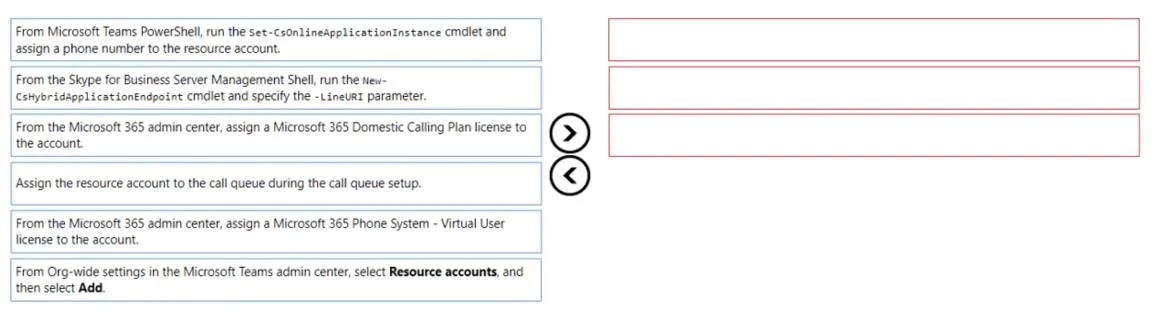
Answer Area
Drag items
Correct arrangement
- From Org-wide settings in the Microsoft Teams admin center, select Resource accounts, and then select Add.
- From the Microsoft 365 admin center, assign a Microsoft 365 Domestic Calling Plan license to the account.
- From the Skype for Business Server Management Shell, run the New-CsOnlineApplicationInstance cmdlet and specify the -LineURI parameter.
- From Microsoft Teams PowerShell, run the Set-CsOnlineApplicationInstance cmdlet and assign a phone number to the resource account.
- Assign the resource account to the call queue during the call queue setup.
- From the Microsoft 365 admin center, assign a Microsoft 365 Phone System - Virtual User license to the account.
Explanation
Explanation: Resource Account for Call Queue in Hybrid Teams/SfB Environment
Scenario Context
Key constraints driving the sequence:
- Hybrid SfB Server 2015 + Teams coexistence
- Direct Routing for PSTN (not Microsoft Calling Plans)
- Phone numbers must be assigned via Active Directory (on-premises)
- Call queue must reach both on-premises and cloud users
Step-by-Step Breakdown
Step 1 - Create the resource account in Teams admin center
Org-wide settings > Resource accounts > Add
Resource accounts must exist in Azure AD before any license or number can be assigned. The Teams admin center is the correct GUI starting point. This creates the cloud identity the call queue will reference.
Step 2 - Assign a Microsoft 365 Domestic Calling Plan license
Important caveat: This step is technically questionable for this scenario. The question explicitly states Direct Routing is used for PSTN, which does not require a Calling Plan license. The correct license for resource accounts is the Microsoft 365 Phone System - Virtual User license (free, purpose-built for resource accounts).
This appears to be an error in the provided arrangement, or the exam is testing a nuance where a Calling Plan license is needed for a specific routing configuration. In real-world Direct Routing deployments, skip the Calling Plan license here.
Step 3 - From SfB Server Management Shell, run New-CsOnlineApplicationInstance with -LineURI
This is the critical hybrid-specific step. The requirement that "phone number assignments be performed in Active Directory" means you must use the on-premises SfB Management Shell. The -LineURI parameter assigns the phone number as an on-premises AD attribute, which then syncs to Azure AD via AAD Connect. This is what enables the call queue to route calls to both on-premises and cloud users.
Note: The available items list says "specify the resource parameter" - but the correct answer specifies
-LineURI. This appears to be a discrepancy in the question as presented.-LineURIis technically correct for number assignment.
Step 4 - From Teams PowerShell, run Set-CsOnlineApplicationInstance and assign phone number
After the on-premises cmdlet creates/configures the instance, Set-CsOnlineApplicationInstance finalizes the online-side configuration in Teams. This step bridges the on-premises AD assignment with the cloud routing policy, enabling Direct Routing to function correctly with the resource account.
Step 5 - Assign the resource account to the call queue
You cannot assign a resource account to a call queue until:
- The account exists
- It has a license
- It has a phone number assigned
The call queue setup is the final functional step that ties the resource account into the routing chain.
Step 6 - Assign Microsoft 365 Phone System - Virtual User license
This placement is unusual and likely incorrect. The Virtual User license should be assigned before assigning phone numbers (Steps 3–4), not after assigning to the call queue. Attempting to assign a phone number to an unlicensed resource account will fail.
The correct real-world sequence would place the Virtual User license assignment as Step 2, and omit the Calling Plan license entirely for a Direct Routing scenario.
Common Mistakes & Misconceptions
| Mistake | Reality |
|---|---|
| Using a Calling Plan license for Direct Routing resource accounts | Direct Routing only needs Phone System Virtual User license |
| Assigning the phone number before licensing | License must exist first or number assignment fails |
| Using Teams PowerShell only (skipping SfB Shell) | In hybrid + AD-number-assignment scenarios, SfB Management Shell is required to write the LineURI to AD |
| Assigning to call queue before the number is set | The resource account must be fully configured before attaching it |
Using New-CsOnlineApplicationInstance without -LineURI in hybrid | The -resource parameter alone won't assign a phone number via AD |
Summary
The logical flow is: Create → License → Assign Number (on-prem AD) → Configure Online → Attach to Queue. The provided arrangement has two notable issues: the Calling Plan license is wrong for a Direct Routing scenario, and the Virtual User license is placed too late. If this is from a practice exam, verify against current Microsoft documentation, as the Virtual User + Direct Routing combination is the standard for resource accounts without Microsoft PSTN calling plans.
Topics
Community Discussion
No community discussion yet for this question.