
Microsoft
MB-800 · Question #53
Case Study 1 - Cash and Carry Current environment Cash and carry sales When a customer makes a purchase at the company's cash and carry desk, the sale is handwritten on a three-part form. The cash…
Sign in or unlock MB-800 to reveal the answer and full explanation for question #53. The question stem and answer options stay visible for context.
Purchasing
Question
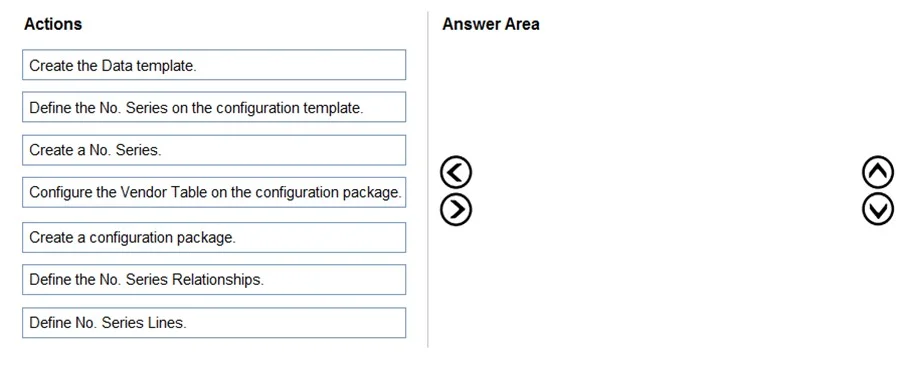
Case Study 1 - Cash and Carry Current environment Cash and carry sales When a customer makes a purchase at the company's cash and carry desk, the sale is handwritten on a three-part form. The cash and carry associate retrieves the items listed on the order from the warehouse. Special prices and discounts are used to move products that will expire soon or that are overstocked. Cash is accepted for payments. The cash drawer is balanced at the end of every day. A deposit is created for the cash and given to the accountant. Brokered sales orders Brokered sales are called in to customer service by the brokers and sometimes directly by customers. The sales are entered into QuickBooks. Because inventory is not tracked in QuickBooks, the generic item Brokered Item is used. Two copies of the packing slip and printed from QuickBooks and sent to the warehouse. Order picking The warehouse manager provides a container and the two copies of the packing slip to a picker. Items that are out of stock are marked on both copies of the packing slip. The shipping amount is determined and written on the packing slips. One copy of the completed packing slip is placed in a basket for customer service. Completed orders are boxed up with a copy of the invoice and shipped to customers. Order invoicing Throughout the day, the customer service manager collects the packing slip copies and updates the invoices in QuickBooks. The customer service manager adds a line for shipping with the amount provided by the packer. The customer service manager prints a copy of the final invoice and sends it to the warehouse. The accountant uses Microsoft Word to create weekly invoices for all shipments invoiced in QuickBooks during the week for some customers. Cash and carry sales One-line sales invoices are saved in QuickBooks for each cash and carry sale to a miscellaneous customer. Customer details for cash and carry sales are not kept in QuickBooks. Deposits The accountant receives the deposit bag from the cash and carry sales desk at the end of every day. Receipts are recorded in QuickBooks against cash and carry and brokered sales based on the deposit slips. Brokers commission Brokers fees are paid as a percentage of sales. A Sales by Product/Service Summary report is run in QuickBooks every month for Brokered Item to calculate what is owned. Requirements Customers Users with permission must be able to quickly add new customers. The original source of all customers in the accounting system must be identified to be from cash and carry or brokered sales. The company needs to keep a record of special price promotions given to specific customers. Customers must be identified with a unique general business posting group so that the correct freight G/L account is used in sales transactions. Sales The customer source must be used to identify the business line, and the customer source must be indicated on every sales transactions. Customer service and cash and carry desk associates must be able to enter sales into Dynamics 365 Business Central by customer. Excess paper must be eliminated, and paper management must be reduced. If a customer is not already listed in the system, a cash and carry associate or customer service associate must be able to quickly add the new customer in the process of recording the first sale. A point-of-sale system is not needed, but users must be able to record which items are purchased by customers, accept and record their payment, and print receipts indicating paid in full. Items The sales manager and warehouse manager must be able to set a specific timeframe for special promotion discounts on items. For special promotions, discounts must be consistent for all items in a product line using a single discount calculation. Special pricing may be given to a retail chain or buying group. This pricing must be automatically applied when an order is taken for any of these customers. The original price must be recorded with each sale. Customers must always be charged the lowest amount for an item at the time of the sale. For example, an overstocked olive oil has a regular price of $20 per unit. Customers in a buying group for restaurants can buy it for $18 per unit. There is an autumn promotion price for the item at $19 per unit. However, on a specific day only, there is an overstock special at a 15 percent discount off the regular price. Sales invoices Warehouse workers must be able to indicate the following in the system for each order: 1. the items picked 2. the shipping charges 3. notifications, if any, that customer service needs to provide to the customer Items sold at a discount must show the original price, discount, and net amount on each line of the invoice. Invoices must be posted at the cash and carry desk at the time of sale. For orders, accounting must post invoices and send them to customers. Warehouse employees must be able to indicate what has been shipped on an order. They will use the G/L account for shipping charges. They need to use the correct G/L account for sales versus cost through proper assignment of sales and purchase accounts in the general posting setup. Some of the brokered customers require one invoice per week regardless of the number of orders or shipments. Accounts Payment terms vary by customer. The amount paid to brokers must be calculated from sales after invoice discounts. Broker vendors must be easily identifiable from other vendors in lists Commission paid on sales not collected within 120 days must be deducted from brokers' next compensation payment. Reporting Wide World Importers requires reporting on the following: the overall profitability of each line of business at any time for any given period the cost of outbound shipping in the overall profitability of sales by business line in all related reports freight sales and cost by account in the trial balance the cost of brokers' compensation in reporting the overall profitability of sales by business line the effect of item discount promotions in financial statements. Issues Pricing Spreadsheets are used to maintain special item pricing and discounts. The only source of product line discount information is a whiteboard in the warehouse. The price charged is frequently incorrect. Customers complain when they think they think they have not received the best price available. Promotions are sometimes applied in error after a special pricing event ends, for example, when discounts are offered temporarily to reduce overstock. Management cannot see original versus actual price on all sales. Discounts given by brokers requires spreadsheets and comparison between price list and price on sales invoice. Management needs to be able to quickly see the discount given on each sale. Payment terms Agreed-upon payment terms are frequently entered incorrectly on orders, causing cashflow issues. Invoices already paid in full exist on the sales aging reports. The frequent cause of this issue is that sales from the cash and carry desk are not indicated as cash sales and are not posted as paid in full. Some buying groups require that all invoices sent during a month be due on the 20th of the following month. Invoicing Paperwork is frequently misplaced between the warehouse, customer service, and accounting. Invoices that are posted in the accounting system based on shipments and invoices that are sent to customers weekly do not match due to errors transferring the data from one document to another. Users are selecting the incorrect freight type (expense versus sales) on purchase and sales transactions, making it difficult to reconcile freight costs. Sales placed from the cash and carry desk by customers originally acquired through a broker are not being recognized with the correct customer source. Reporting by business line is inaccurate. Accounts Users often forget which fields to use to enter information when they add new customers to QuickBooks. This results in errors and inconsistencies in data and affects sales reporting. Confidence in sales reporting accuracy is low. Adding new brokers is a different process than adding other purchase vendors. Users often forget which fields to select and how to correctly assign the vendor number to add new brokers. Manual entries to certain G/L accounts cause reconciliation issues. Drag and Drop Question You need to design a process to resolve the broker issues for Accounts. Which three actions should perform in sequence? To answer, move the appropriate actions from the list of actions to the answer area and arrange them in the correct order. NOTE: More than one order of answer choices is correct. You will receive credit for any of the correct orders you select. Answer:
Exhibit
Answer Area
Drag items
Select the Search icon, enter Chart of Accounts, and then select the related link.Select the Dimension Value Code that is used for the redesigned dimension.Select the Search icon, enter Customers, and then select the related link.
Unlock MB-800 to see the answer
You've previewed enough free MB-800 questions. Unlock MB-800 for full answers, explanations, the timed quiz mode, progress tracking, and the master PDF. Question stem and options stay visible so you can still see what's on the exam.
Topics
#vendor setup#broker commission#accounts payable#vendor posting group