MB-800 · Question #238
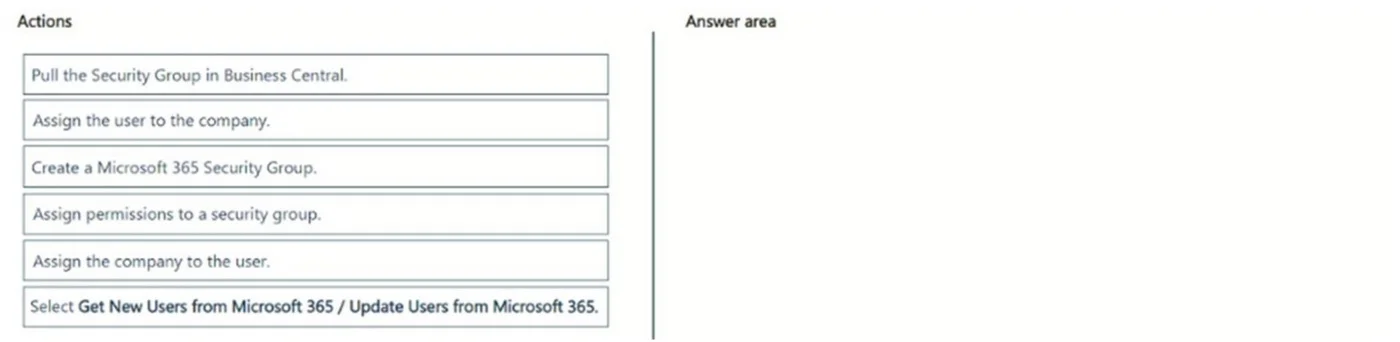
Drag and Drop Question A company adds a user to Microsoft 365. Existing security groups do not have the required permission sets for newly added users. You need to assign a Dynamics 365 Business…
The correct answer is Assign the user to the company.; Select Get New Users from Microsoft 365 / Update Users from Microsoft 365.; Create a Microsoft 365 Security Group.; Pull the Security Group in Business Central.; Assign permissions to a security group. Dynamics 365 Business Central: Security Group & User Setup - Explained The Core Concept This workflow has two parallel tracks that must eventually converge: User track: Get the M365 user into Business Central and assign them to a company Security group track: Create a group in…
Question
Exhibit
Answer Area
Drag items
Correct arrangement
- Assign the user to the company.
- Select Get New Users from Microsoft 365 / Update Users from Microsoft 365.
- Create a Microsoft 365 Security Group.
- Pull the Security Group in Business Central.
- Assign permissions to a security group.
Explanation
Dynamics 365 Business Central: Security Group & User Setup - Explained
The Core Concept
This workflow has two parallel tracks that must eventually converge:
- User track: Get the M365 user into Business Central and assign them to a company
- Security group track: Create a group in M365, pull it into Business Central, then configure permissions
The note about multiple valid orders reflects that these tracks can be interleaved - but dependencies within each track must hold.
Step-by-Step Breakdown
1. Assign the user to the company
The user was added to M365 but Business Central needs to know which company (tenant/legal entity) they belong to before they can operate within BC.
- In BC, users must be explicitly mapped to a company
- This can be done before full sync if a partial user record exists, or it establishes the mapping that the subsequent sync will reinforce
- Common mistake: Skipping this and wondering why the user can't see company data after permissions are granted
2. Select "Get New Users from Microsoft 365 / Update Users from Microsoft 365"
This action syncs the M365 user identity into Business Central, creating a BC user record linked to the M365 account.
- BC does not automatically detect new M365 users - you must manually trigger this sync from the Users page in BC
- Until this runs, BC has no record of the user and cannot assign them anything
- Common mistake: Manually creating users in BC instead of syncing from M365, which breaks the identity link
3. Create a Microsoft 365 Security Group
The existing security groups lack the required permission sets (per the scenario), so a new one must be created in the Microsoft 365 admin center / Azure AD.
- Security groups are created outside Business Central, in M365/Azure AD
- This step can technically happen before or after steps 1–2 (hence multiple valid orderings)
- Common mistake: Trying to create the security group directly inside BC - BC only consumes M365 security groups, it doesn't create them
4. Pull the Security Group in Business Central
After the group exists in M365, you must import/pull it into BC so BC can recognize and manage it.
- Done via the Security Groups page in BC using the "Get Security Groups from Microsoft 365" action
- This is a strict dependency: the M365 group must exist first (step 3 must precede step 4)
- Common mistake: Expecting BC to auto-detect new M365 groups - the pull must be triggered manually
5. Assign permissions to a security group
Once the security group exists in BC, you assign BC permission sets to it. All users in that group inherit those permissions automatically.
- This must be last because the group must exist in BC (step 4) before you can configure it
- Assigning permissions to the group (not individual users) is the scalable approach - new users added to the M365 group inherit permissions without manual BC changes
- Common mistake: Assigning permissions directly to individual users instead of the group, undermining the purpose of using security groups
Why Multiple Orders Are Accepted
The exam accepts variations because the user track (steps 1–2) and security group track (steps 3–5) are independent until both feed into the final working setup. You could do 3 → 4 → 5 first, then 1 → 2. The hard constraints are:
| Must come before | Step |
|---|---|
| Step 4 (Pull group in BC) | Step 3 (Create M365 group) |
| Step 5 (Assign permissions) | Step 4 (Pull group in BC) |
| Step 2 (Sync users) | Users must exist in M365 |
Topics
Community Discussion
No community discussion yet for this question.