MB-800 · Question #154
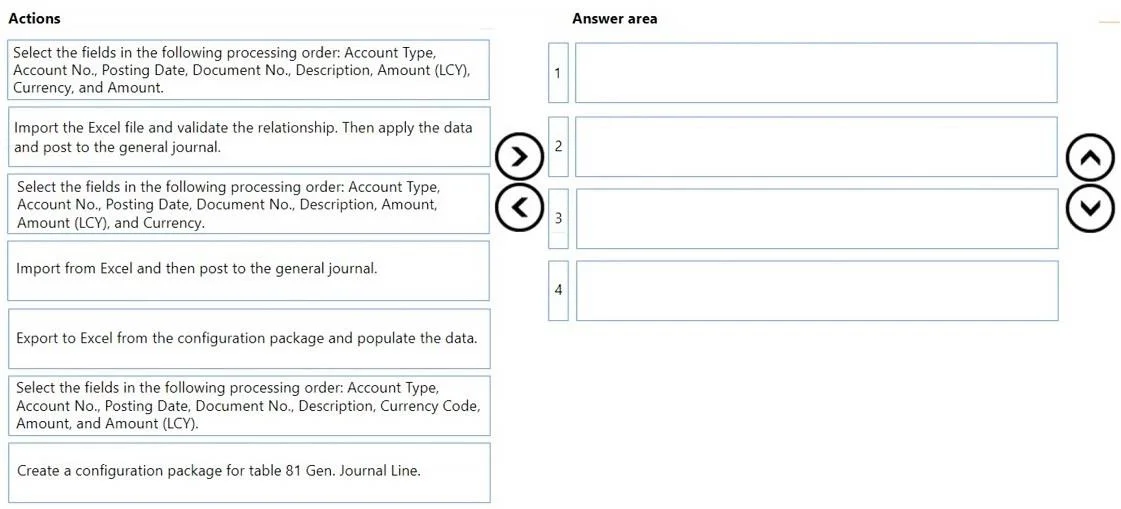
Drag and Drop Question A company implements Dynamics 365 Business Central. The company stores master data for vendor opening balances in an Excel file. Most of the vendors use a foreign currency for…
The correct answer is Create a configuration package for table 81 Gen. Journal Line.; Select the fields in the following processing order: Account Type, Account No., Posting Date, Document No., Description, Currency Code, Amount, and Amount (LCY).; Export to Excel from the configuration package and populate the data.; Import the Excel file and validate the relationship. Then apply the data and post to the general journal. Explanation: Importing Vendor Opening Balances via Configuration Packages in Business Central Context Configuration packages in Business Central allow bulk data import into any table. Table 81 (Gen. Journal Line) is the staging table for general journal entries. Field…
Question
Exhibit
Answer Area
Drag items
Correct arrangement
- Create a configuration package for table 81 Gen. Journal Line.
- Select the fields in the following processing order: Account Type, Account No., Posting Date, Document No., Description, Currency Code, Amount, and Amount (LCY).
- Export to Excel from the configuration package and populate the data.
- Import the Excel file and validate the relationship. Then apply the data and post to the general journal.
Explanation
Explanation: Importing Vendor Opening Balances via Configuration Packages in Business Central
Context
Configuration packages in Business Central allow bulk data import into any table. Table 81 (Gen. Journal Line) is the staging table for general journal entries. Field processing order within a package is sequential - each field is applied in the order listed, which makes the field sequence technically critical for foreign-currency data.
Step-by-Step Breakdown
Step 1: Create a configuration package for table 81 Gen. Journal Line.
This is the mandatory starting point. Nothing else is possible without a configuration package to define what data goes where. Table 81 is correct because vendor opening balances are posted through the general journal. There is no viable alternative ordering here - you cannot select fields or export a template from a package that doesn't exist yet.
Step 2: Select the fields in the following processing order: Account Type, Account No., Posting Date, Document No., Description, Currency Code, Amount, and Amount (LCY).
This is the most technically nuanced step and the source of most exam mistakes. Business Central processes configuration package fields left to right in the order defined. For foreign currency lines:
- Currency Code must precede Amount. When the system processes
Amount, it needs to already know the currency to interpret the value correctly and calculate the LCY equivalent. - Amount must precede Amount (LCY). Amount (LCY) is derived from the foreign amount and the exchange rate; it must be resolved after the foreign Amount is set.
The correct field order is: ... Currency Code → Amount → Amount (LCY)
Why the distractors fail:
| Distractor Order | Problem |
|---|---|
Amount (LCY), Currency, Amount | LCY processed before currency or foreign amount; field name "Currency" is wrong (should be "Currency Code") |
Amount, Amount (LCY), Currency | Currency Code comes last - system doesn't know the currency when Amount is applied |
Step 3: Export to Excel from the configuration package and populate the data.
After defining the package and its fields, you export a template Excel file. This generates column headers that exactly match your field selection. You then populate this template with the vendor data from your source Excel file.
Common misconception: Candidates often assume you import the company's existing Excel file directly. You cannot - the existing file almost certainly won't have columns in the exact names and order Business Central expects. You must use the exported template as the target, then map/paste your data into it.
Step 4: Import the Excel file and validate the relationship. Then apply the data and post to the general journal.
The full correct final step is: import → validate → apply → post. Validation checks referential integrity (e.g., that vendor account numbers exist). Skipping validation risks posting corrupt data.
Why the distractor "Import from Excel and then post" is wrong: It omits the validation and apply steps. In Business Central, applying the package data to the journal is a distinct action from posting the journal - you must explicitly apply the configuration package data before the journal lines exist to be posted.
Summary of Key Misconceptions
- Field order is not cosmetic - it drives how foreign currency amounts are resolved during import.
- "Currency" ≠ "Currency Code" - the correct field name in table 81 is
Currency Code. - You export first, then import - the export creates the template; import brings the populated data back in.
- Validate before applying - always validate the package to catch relationship errors before committing data to journal lines.
- The balancing account is omitted intentionally - the scenario states it's preselected on the journal batch, so it does not need to be a field in the package.
Topics
Community Discussion
No community discussion yet for this question.