MB-800 · Question #126
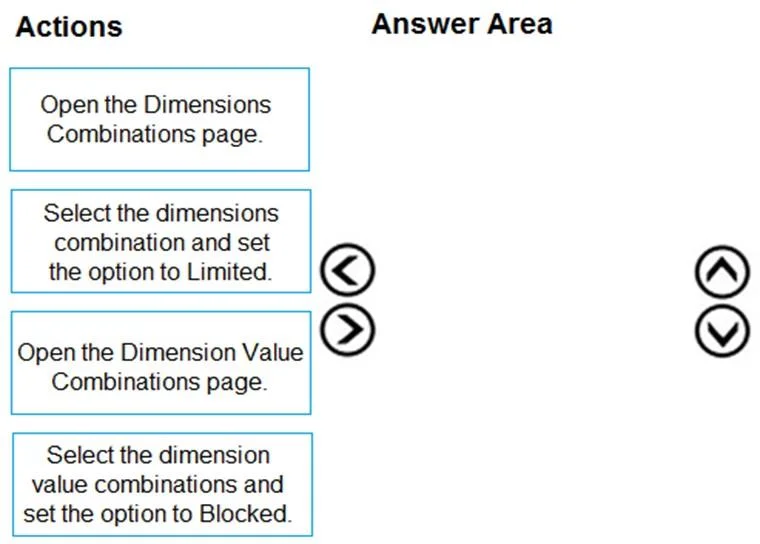
Drag and Drop Question The company uses Dynamics 365 Business Central. You create several dimensions that will be used to perform cost analyses. Some dimension value combinations are not allowed…
The correct answer is Open the Dimensions Combinations page.; Select the dimensions combination and set the option to Limited.; Open the Dimension Value Combinations page.; Select the dimension value combinations and set the option to Blocked. Dynamics 365 Business Central: Setting Up Dimension Combinations This question tests your understanding of the two-level hierarchy for blocking dimension combinations: first at the dimension level, then at the dimension value level. --- Why This Order? The process follows a…
Question
Exhibit
Answer Area
Drag items
Correct arrangement
- Open the Dimensions Combinations page.
- Select the dimensions combination and set the option to Limited.
- Open the Dimension Value Combinations page.
- Select the dimension value combinations and set the option to Blocked.
Explanation
Dynamics 365 Business Central: Setting Up Dimension Combinations
This question tests your understanding of the two-level hierarchy for blocking dimension combinations: first at the dimension level, then at the dimension value level.
Why This Order?
The process follows a parent-to-child logic. You must configure the broader dimension combination before you can configure the specific values within it.
Item-by-Item Breakdown
1. Open the Dimensions Combinations page This is the entry point. The Dimension Combinations page is where you manage which pairs of dimensions are allowed, limited, or blocked together. You must start here because the next step depends on selecting something on this page.
2. Select the dimensions combination and set the option to Limited Setting a combination to Limited (rather than Blocked or Allowed) is the critical middle step. "Limited" means the combination is permitted in general, but only specific value pairings within it are allowed - it unlocks the ability to drill into value-level restrictions. If you set it to Blocked, no values under that combination can ever be used, making step 3 irrelevant. If you leave it as Allowed, all value combinations pass through freely.
3. Open the Dimension Value Combinations page Only after setting the parent combination to Limited can you meaningfully work at the value level. This page is typically accessed from within the Dimension Combinations page (via drilldown or a related action). You cannot effectively use this page without first completing step 2.
4. Select the dimension value combinations and set the option to Blocked Now you block the specific value pairings that are not allowed. This is the actual restriction that prevents users from posting purchase transactions with invalid combinations.
Common Mistakes
- Skipping step 2 (Limited) and going straight to Blocked at the dimension level - this blocks the entire dimension pair, not just specific values. You lose granularity.
- Trying to open Dimension Value Combinations first - without setting the parent to Limited, changes here have no effect or are inaccessible in context.
- Confusing "Blocked" at the dimension level vs. value level - Blocked at the dimension level stops all postings for that pair; Blocked at the value level stops only specific value combinations within an otherwise-allowed pair.
Topics
Community Discussion
No community discussion yet for this question.