
MB-500 · Question #36
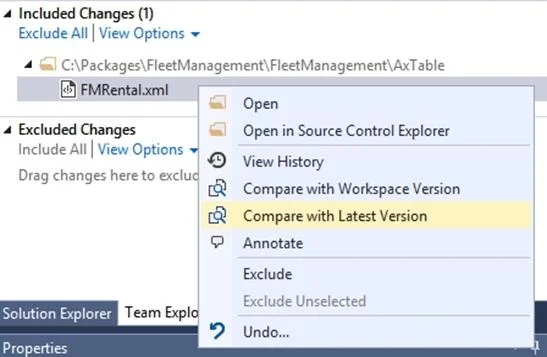
You are a Dynamics 365 Finance developer. You make changes to an existing class. You need to compare the code that is in source control with the updated class. In Visual Studio, you display Team…
The correct answer is A. In Team Explorer, select Compare with Latest Version. B. In Team Explorer, select Compare with Workspace Version. D. Run the tf diff command. In Team Explorer, right-click FMRental.xml, and select Compare with Latest Version. Choose Compare with Latest Version to see how the changes you have made compare to the latest version of the file on your Team Foundation Server. Choose Compare with Workspace Version to see…
Question
Exhibit
Options
- AIn Team Explorer, select Compare with Latest Version.
- BIn Team Explorer, select Compare with Workspace Version.
- CIn Team Explorer, select Compare Files.
- DRun the tf diff command.
- ERun the vsdiffmerge command.
How the community answered
(21 responses)- A81% (17)
- C5% (1)
- E14% (3)
Explanation
In Team Explorer, right-click FMRental.xml, and select Compare with Latest Version. Choose Compare with Latest Version to see how the changes you have made compare to the latest version of the file on your Team Foundation Server. Choose Compare with Workspace Version to see what changes you have made to the version you checked out. D: The diff tool of Visual Studio is very good to compare two files. It compares, and if it is possible, displays differences between two files, files in two folders, or a shelveset and a local or a server file. tf diff[erence] itemspec [/version:versionspec] [/type:filetype] [/format:format [/ignorespace] [/ignoreeol] [/ignorecase] [/recursive] [/options][/noprompt][/login:username,[password]] Incorrect Answers: E: vsdiffmerge is used for merging. https://docs.microsoft.com/en-us/azure/devops/repos/tfvc/difference-command
Topics
Community Discussion
No community discussion yet for this question.