
MB-500 · Question #136
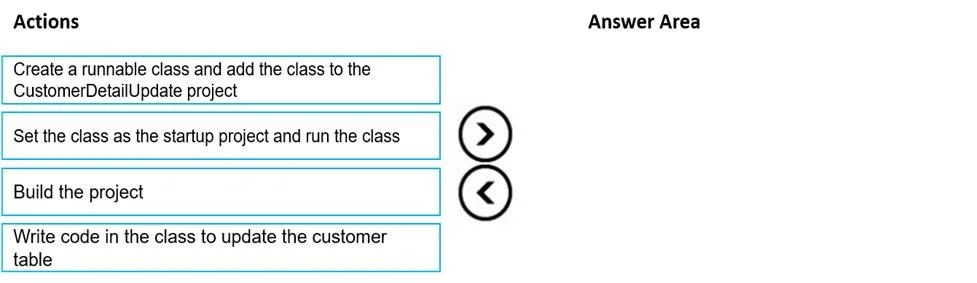
Drag and Drop Question You create a Visual Studio project named CustomerDetailUpdate. You must update data in a table named CustTable. You must be able to run the code from Visual Studio. In which…
The correct answer is Create a runnable class and add the class to the CustomerDetailUpdate project; Write code in the class to update the customer table; Build the project; Set the class as the startup project and run the class. Explanation: Ordering Steps to Run Code in Visual Studio (Dynamics 365 F&O) This question is about the correct workflow for writing and executing X++ code in a Microsoft Dynamics 365 Finance & Operations Visual Studio project. --- Why This Order? The steps follow a natural…
Question
Exhibit
Answer Area
Drag items
Correct arrangement
- Create a runnable class and add the class to the CustomerDetailUpdate project
- Write code in the class to update the customer table
- Build the project
- Set the class as the startup project and run the class
Explanation
Explanation: Ordering Steps to Run Code in Visual Studio (Dynamics 365 F&O)
This question is about the correct workflow for writing and executing X++ code in a Microsoft Dynamics 365 Finance & Operations Visual Studio project.
Why This Order?
The steps follow a natural create → write → build → run lifecycle. Skipping or reordering any step breaks the chain.
Step-by-Step Breakdown
1. Create a runnable class and add the class to the CustomerDetailUpdate project
Foundation first. You need a class before you can write anything. In D365 F&O, a "runnable class" is one that implements a
main()method - this is what Visual Studio calls as the entry point. Without this class existing in the project, there's nothing to write code in, build, or execute. Adding it to the project ties it to the solution so subsequent actions are scoped correctly.
2. Write code in the class to update the customer table
Logic before compilation. You write the X++ code that queries/updates
CustTableinside themain()method. This must come before building because the compiler needs the final source code to produce a valid binary. Writing code after building would mean the compiled output doesn't reflect your changes.
3. Build the project
Compile before running. Building compiles the X++ source into executable artifacts. If you attempt to run before building, Visual Studio either runs stale/old compiled code or fails entirely. The build step also catches syntax errors early, before execution.
4. Set the class as the startup project and run the class
Run last. You set the runnable class as the startup object so Visual Studio knows which
main()to invoke, then execute it. This is the final step - everything must exist and be compiled before the runtime can invoke it. Setting the startup object only makes sense once a buildable, complete class exists.
Common Mistakes & Misconceptions
| Mistake | Why It's Wrong |
|---|---|
| Building before writing code | You'd compile an empty or incomplete class - no logic runs against CustTable |
| Running before building | D365 F&O requires compiled X++ - there's no interpreter mode in VS |
| Setting startup object first | You can't meaningfully set a startup object before the class exists in the project |
| Writing code before creating the class | No container exists yet to write in |
Key insight: This is a strictly sequential dependency chain - each step is a prerequisite for the next. The order mirrors standard compiled-language development: scaffold → implement → compile → execute.
Topics
Community Discussion
No community discussion yet for this question.