
Microsoft
MB-335 · Question #151
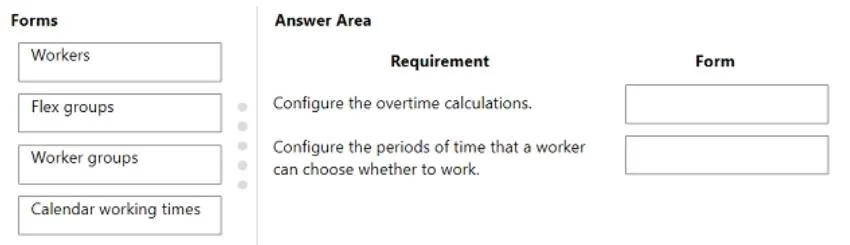
Drag and Drop Question A discrete manufacturer uses the time and attendance registration for production operations. All employees register daily dock in and clock out times during a 40-hour. Monday…
Sign in or unlock MB-335 to reveal the answer and full explanation for question #151. The question stem and answer options stay visible for context.
Configure production prerequisites
Question
Drag and Drop Question A discrete manufacturer uses the time and attendance registration for production operations. All employees register daily dock in and clock out times during a 40-hour. Monday through Friday workweek. Pay periods are every two weeks. Workers are paid hourly. The production manager will create work schedules with the following windows: Mandatory work hours Work hours during which employees can leave early without accruing absences Work hours during which employees can work extra time If a junior production worker works over 90 hours in a pay period, the worker will receive time and a half over 80 hours. If a senior production worker works over 90 hours in a pay period, the worker will receive double time over 80 hours. You need to configure the system for these requirements. Where should you configure this functionality? To answer, drag the appropriate forms to the correct requirements. Each form may be used once, more than once, or not at all. You may need to drag the split bar between panes or scroll to view content. NOTE: Each correct selection is worth one point. Answer:
Exhibit
Answer Area
Drag items
Define acid as a product-specific batch attribute on item B0001.Create a batch attribute of type string.Define the allowable acid percentage-based attribute enumeration values.Add the customer-specific batch attribute on item B0001 for the customer and configure the range to 5.5 to 10.5.Create a batch attribute, acid, of type fraction.
Unlock MB-335 to see the answer
You've previewed enough free MB-335 questions. Unlock MB-335 for full answers, explanations, the timed quiz mode, progress tracking, and the master PDF. Question stem and options stay visible so you can still see what's on the exam.
Topics
#time and attendance#work schedules#flexi zones#overtime pay