MB-335 · Question #152
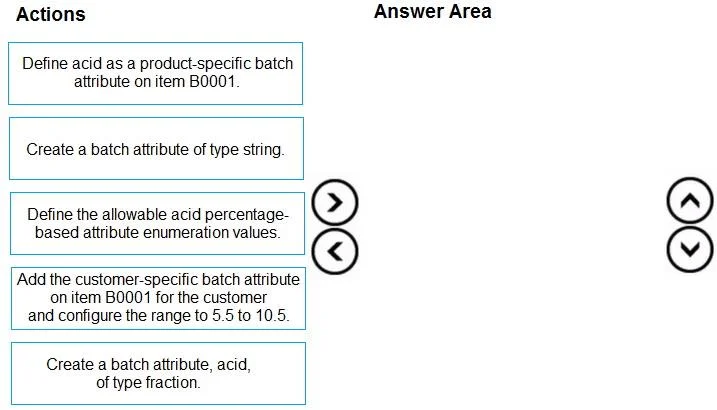
Drag and Drop Question You are the quality assurance manager of a pharmaceuticals company. One of your customers has requested to only receive batches of item B0001 that have an acid concentration bet
The correct answer is Create a batch attribute, acid, of type fraction.; Define acid as a product-specific batch attribute on item B0001.; Add the customer-specific batch attribute on item B0001 for the customer and configure the range to 5.5 to 10.5.. Batch Attribute Setup - Correct Sequence Explained This question is from Microsoft Dynamics 365 Supply Chain Management (or similar ERP), covering the batch attribute configuration workflow. The core logic follows a strict dependency chain: create globally → link to product → res
Question
Exhibit
Answer Area
Drag items
Correct arrangement
- Create a batch attribute, acid, of type fraction.
- Define acid as a product-specific batch attribute on item B0001.
- Add the customer-specific batch attribute on item B0001 for the customer and configure the range to 5.5 to 10.5.
Explanation
Batch Attribute Setup - Correct Sequence Explained
This question is from Microsoft Dynamics 365 Supply Chain Management (or similar ERP), covering the batch attribute configuration workflow. The core logic follows a strict dependency chain: create globally → link to product → restrict for customer.
Step 1: Create a batch attribute, acid, of type fraction
Why first: The attribute must exist in the system before it can be assigned anywhere. This is the foundational master-data step - nothing else is possible without it.
Why "fraction" and not "string":
- A fraction type stores numeric/decimal values, which enables range-based validation (5.5 to 10.5).
- A string type stores text and only supports discrete enumeration values - you cannot define a continuous numeric range on a string attribute.
- The customer requirement is a numeric range, so "fraction" is the only correct type.
Common mistake: Choosing "string" because "acid percentage" sounds like it could be a label. It cannot - strings can't be validated against a min/max range.
Step 2: Define acid as a product-specific batch attribute on item B0001
Why second: Once the attribute exists globally, you must associate it with the specific released product (B0001). This tells the system that batches of B0001 should carry and track this attribute.
Why before the customer step: The customer-specific configuration references the product-level assignment. You cannot configure a customer override for an attribute that hasn't been linked to the product yet - the system has no basis for the restriction.
Common mistake: Trying to go straight to the customer setup without first assigning the attribute to the item.
Step 3: Add the customer-specific batch attribute on item B0001 for the customer and configure the range to 5.5 to 10.5
Why last: This step is the actual business requirement fulfillment. It narrows the acceptable range for a specific customer beyond the product-level defaults.
This step depends on both prior steps being complete:
- The attribute (acid, fraction) must exist - Step 1.
- The attribute must be product-linked to B0001 - Step 2.
Only then can you layer on a customer-specific acceptable range of 5.5–10.5%.
Why the Distractors Are Wrong
| Distractor | Why excluded |
|---|---|
| Create a batch attribute of type string | Strings don't support numeric range validation - wrong type for this use case |
| Define allowable acid percentage-based enumeration values | Enumerations are discrete/predefined values, not continuous ranges; contradicts the fraction type chosen |
The key principle: ERP batch attribute setup always flows from global definition → product association → customer/site-specific restriction. Each level is a prerequisite for the next.
Topics
Community Discussion
No community discussion yet for this question.