
Microsoft
MB-280 · Question #83
Drag and Drop Question The sellers at your organization are keen to adopt generative AI capabilities and use them efficiently. They have been editing Contact records directly in Copilot for Sales…
Sign in or unlock MB-280 to reveal the answer and full explanation for question #83. The question stem and answer options stay visible for context.
Configure Dynamics 365 Sales standard and premium features
Question
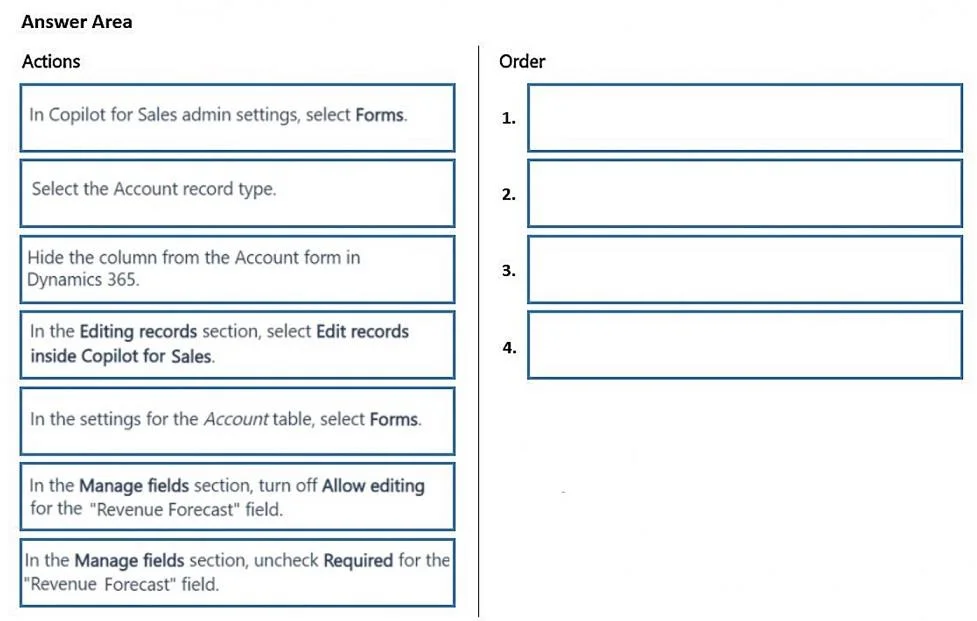
Drag and Drop Question The sellers at your organization are keen to adopt generative AI capabilities and use them efficiently. They have been editing Contact records directly in Copilot for Sales and have now provided feedback that they would be more productive if they could also edit Account records directly in Copilot for Sales. However, the vice president of sales does NOT want the sellers to be able to edit the "Revenue Forecast" field in Copilot for Sales. You need to enable these requirements. Which four actions should you perform in sequence? To answer, move the four appropriate actions from the list of actions to the answer area. Arrange the four actions in the correct order. Answer:
Exhibit
Answer Area
Drag items
In Copilot for Sales admin settings, select Forms.Select the Account record type.Hide the column from the Account form in Dynamics 365.In the Editing records section, select Edit records inside Copilot for Sales.In the settings for the Account table, select Forms.In the Manage fields section, turn off Allow editing for the "Revenue Forecast" field.In the Manage fields section, uncheck Required for the "Revenue Forecast" field.
Unlock MB-280 to see the answer
You've previewed enough free MB-280 questions. Unlock MB-280 for full answers, explanations, the timed quiz mode, progress tracking, and the master PDF. Question stem and options stay visible so you can still see what's on the exam.
Topics
#Copilot for Sales#record editing#field-level restriction#generative AI configuration