MB-280 · Question #69
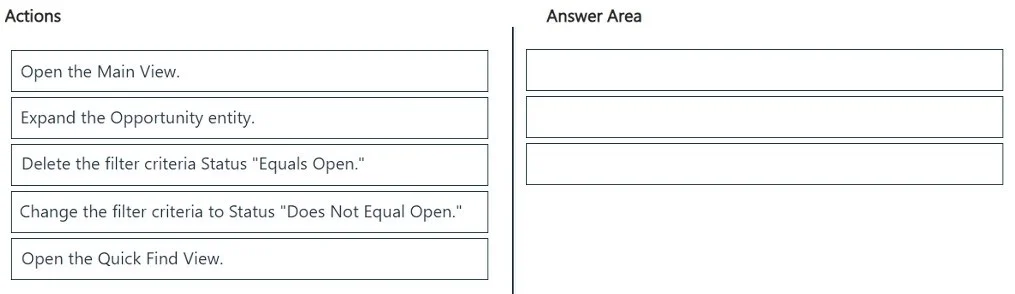
Drag and Drop Question You are a Dynamics 365 Sales system customizer. Salespeople report that they cannot search for open and closed opportunities using the search tool in the Quick Find View. You ne
The correct answer is Open the Quick Find View.; Delete the filter criteria Status "Equals Open."; Change the filter criteria to Status "Does Not Equal Open.". Dynamics 365 Quick Find View - Explanation The Core Problem The Quick Find View has a hardcoded filter: Status "Equals Open". This means the search tool only returns open opportunities. Closed ones are silently excluded. The fix requires editing that filter directly in the view c
Question
Exhibit
Answer Area
Drag items
Correct arrangement
- Open the Quick Find View.
- Delete the filter criteria Status "Equals Open."
- Change the filter criteria to Status "Does Not Equal Open."
Explanation
Dynamics 365 Quick Find View - Explanation
The Core Problem
The Quick Find View has a hardcoded filter: Status "Equals Open". This means the search tool only returns open opportunities. Closed ones are silently excluded. The fix requires editing that filter directly in the view configuration.
Why Each Step Goes Where It Does
Step 1 - Open the Quick Find View
This is the correct starting point because the Quick Find View is what powers the search bar in Dynamics 365. It is a distinct view type from the Main View. The filter restricting results lives here, not in the Main View.
Common mistake: Choosing "Open the Main View" instead. The Main View controls the default list layout - it has no bearing on what the search tool returns. Editing the Main View would change nothing about the search behavior.
Step 2 - Delete the filter criteria Status "Equals Open"
Before you can replace the filter, you must remove the existing condition. In the Quick Find View editor, the filter row reads Status | Equals | Open. Deleting this row clears the restriction entirely, which is required before a new condition can be set cleanly.
Why not skip straight to Step 3? You cannot change a condition's operator/value in all versions of the UI without first clearing the existing entry. Delete is the prerequisite action.
Step 3 - Change the filter criteria to Status "Does Not Equal Open"
After deleting the old condition, you add a new filter: Status Does Not Equal Open. In Dynamics 365, Opportunity status options are Open, Won, and Lost. "Does Not Equal Open" effectively targets Won and Lost (i.e., closed) records, while Open records surface naturally without the old restriction.
Common misconception: Many assume you should simply delete the filter entirely and leave it blank (showing all records). The exam expects a replacement filter to explicitly include closed statuses in the search scope, which reflects real-world best practice - an unrestricted Quick Find View on large datasets can cause performance issues.
Why "Expand the Opportunity entity" Is Not Included
Expanding the Opportunity entity in the solution explorer is a navigation step to reach the views, but the question asks for the configuration actions specifically. The exam treats navigation to the system customizer as a prerequisite already completed, so it is a distractor here.
Summary Table
| Step | Action | Reason |
|---|---|---|
| 1 | Open the Quick Find View | Search tool filters live here, not in Main View |
| 2 | Delete "Status Equals Open" | Must remove existing condition before replacing it |
| 3 | Set "Status Does Not Equal Open" | Explicitly includes closed (Won/Lost) opportunities in search results |
Topics
Community Discussion
No community discussion yet for this question.