nerdexam
Microsoft

MB-280 · Question #67

Drag and Drop Question Your organization works with larger customers (accounts) that can have a single holding and then many subsidiaries through different levels in a parent-child relationship. The c

The correct answer is Create a new account plan table.; Open the advanced Relationship settings.; Create a 1:N self-referential relationship and mark the relationship as hierarchical.; Go to the Hierarchy Settings grid view.. Explanation: Creating a Hierarchical Account Plan Table in Dataverse This question tests knowledge of configuring hierarchical self-referential relationships in Microsoft Dataverse (Power Platform / Dynamics 365). --- Why This Order? The sequence follows a strict dependency chain

Perform Dynamics 365 Sales customizations

Question

Drag and Drop Question Your organization works with larger customers (accounts) that can have a single holding and then many subsidiaries through different levels in a parent-child relationship. The chief commercial officer wants the sales team to start creating different account plans for each individual subsidiary. You need to create a new custom account plan table so that records can have the same parent- child relationships as the account records. The relationships must be able to be visualized in a hierarchy. Which four actions should you perform in sequence before saving and publishing your changes? To answer, move the four appropriate actions from the list of actions to the answer area. Arrange the four actions in the correct order. Answer:

Exhibit
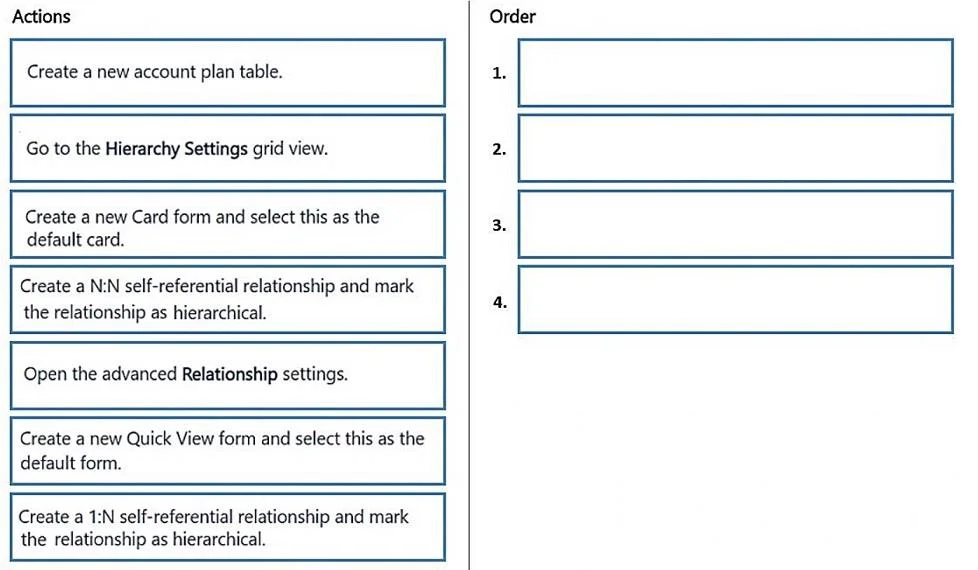
MB-280 question #67 exhibit

Answer Area

Drag items

Create a new account plan table.Go to the Hierarchy Settings grid view.Create a new Card form and select this as the default card.Create a N:N self-referential relationship and mark the relationship as hierarchical.Open the advanced Relationship settings.Create a new Quick View form and select this as the default form.Create a 1:N self-referential relationship and mark the relationship as hierarchical.

Correct arrangement

  • Create a new account plan table.
  • Open the advanced Relationship settings.
  • Create a 1:N self-referential relationship and mark the relationship as hierarchical.
  • Go to the Hierarchy Settings grid view.

Explanation

Explanation: Creating a Hierarchical Account Plan Table in Dataverse

This question tests knowledge of configuring hierarchical self-referential relationships in Microsoft Dataverse (Power Platform / Dynamics 365).


Why This Order?

The sequence follows a strict dependency chain: you cannot configure what doesn't exist yet.


Step-by-Step Breakdown

1. Create a new account plan table.

The table must exist before anything else can be configured on it. There is nothing to add relationships to, set hierarchy on, or visualize without first creating the table. This is always the foundation step.

2. Open the advanced Relationship settings.

Once inside the table, you navigate to its Relationships section and open the advanced settings panel. This is a prerequisite gate - the option to mark a relationship as hierarchical is only exposed through advanced settings, not the default/quick relationship creation UI.

Common mistake: Skipping this step and trying to create the relationship without advanced settings open, then wondering why the "hierarchical" checkbox isn't visible.

3. Create a 1:N self-referential relationship and mark the relationship as hierarchical.

A 1:N (one-to-many) self-referential relationship is the correct type for parent-child hierarchy. It means: one parent account plan can have many child account plans, all within the same table. Checking "hierarchical" on this relationship is what unlocks hierarchy visualization features in Dataverse.

Critical misconception: Choosing N:N (many-to-many). Dataverse does not support marking N:N relationships as hierarchical. Only a single 1:N self-referential relationship per table can be designated hierarchical. This is why Create a N:N self-referential relationship is a deliberate wrong-answer trap.

4. Go to the Hierarchy Settings grid view.

After the hierarchical relationship exists, you navigate to Hierarchy Settings to configure how the hierarchy is visualized (the tree/tile layout). This step is only meaningful because step 3 created the underlying hierarchical relationship - without it, Hierarchy Settings has nothing to bind to.

Common mistake: Thinking you need to create a Card form or Quick View form as a required step here. Those forms are optional customizations for what information appears on hierarchy tiles, not required to enable the hierarchy itself. They are distractors in this question.


Why the Distractors Are Wrong

DistractorWhy It's Wrong
Create a N:N self-referential relationshipN:N cannot be marked hierarchical in Dataverse
Create a new Card formOptional visual customization, not a required setup step
Create a new Quick View formSame - optional enhancement, not required for hierarchy to function

Core Principle to Remember

In Dataverse, hierarchy requires a single 1:N self-referential relationship flagged as hierarchical. Everything else (form customization, visualization tweaks) is optional layering on top of that foundation.

Topics

#custom table#parent-child relationship#hierarchy visualization#account plans

Community Discussion

No community discussion yet for this question.

Full MB-280 Practice