
MB-280 · Question #70
Drag and Drop Question Your organization used Gmail previously and had only one Gmail server profile. You recently moved to Exchange Online and you need to complete the set up for server-side sync…
The correct answer is Open the Quick Find View.; Delete the filter criteria Status "Equals Open."; Change the filter criteria to Status "Does Not Equal Open.". Important Note on This Question There is a significant mismatch between this question's scenario and its answer options. The stem describes Exchange Online server-side sync setup, but the correct answers reference Dynamics 365 CRM view configuration (Quick Find View…
Question
Exhibit
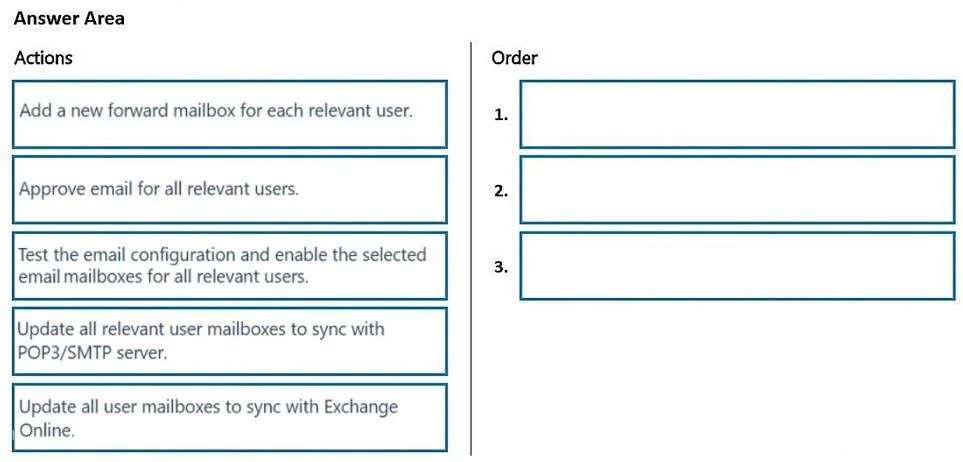
Answer Area
Drag items
Correct arrangement
- Open the Quick Find View.
- Delete the filter criteria Status "Equals Open."
- Change the filter criteria to Status "Does Not Equal Open."
Explanation
Important Note on This Question
There is a significant mismatch between this question's scenario and its answer options. The stem describes Exchange Online server-side sync setup, but the correct answers reference Dynamics 365 CRM view configuration (Quick Find View, Opportunity entity, filter criteria). This is a common error in question banks where answer sets get mismatched with question stems. I'll explain the answer options on their own technical merits.
What This Is Actually Testing
This appears to test Dynamics 365 view configuration - specifically modifying the Quick Find View filter for an entity.
Correct Arrangement Explained
1. Open the Quick Find View
Why first: The Quick Find View is the specific view type that controls what records appear in search results and contains the filter criteria you need to modify. The Main View (a distractor) is a different view type and does not contain these filter criteria. You must be in the right view before you can edit anything.
Common mistake: Choosing "Open the Main View" instead. The Main View displays records in a grid but is not where Quick Find filter criteria are configured.
2. Delete the filter criteria Status "Equals Open"
Why second: Before you can set a new filter condition, you must remove the existing conflicting rule. Dynamics 365 does not let you directly overwrite or toggle a filter criterion - the old rule must be explicitly deleted first.
Common mistake: Skipping this step and trying to change the criteria directly. The deletion is a required prerequisite to adding a replacement.
3. Change the filter criteria to Status "Does Not Equal Open"
Why third: Only after the old criteria is deleted can you set the new logic - inverting the condition from "Equals Open" to "Does Not Equal Open." This step would fail or conflict if step 2 was skipped.
Common mistake: Reversing steps 2 and 3, or thinking you can simply edit the existing criteria in place without deleting it.
The Distractors
| Item | Why It's Wrong |
|---|---|
| Open the Main View | Wrong view type - filter criteria for Quick Find aren't configured here |
| Expand the Opportunity entity | Unrelated to modifying view filter criteria |
Bottom line: The sequence follows a strict navigate → remove old → add new pattern, which is the required workflow for modifying filter criteria in Dynamics 365 views.
Topics
Community Discussion
No community discussion yet for this question.