MB-280 · Question #71
Drag and Drop Question You have enabled Dynamics 365 App for Outlook for your sales team. Users report that they are dissatisfied that they must track the emails manually, so you propose folder-level
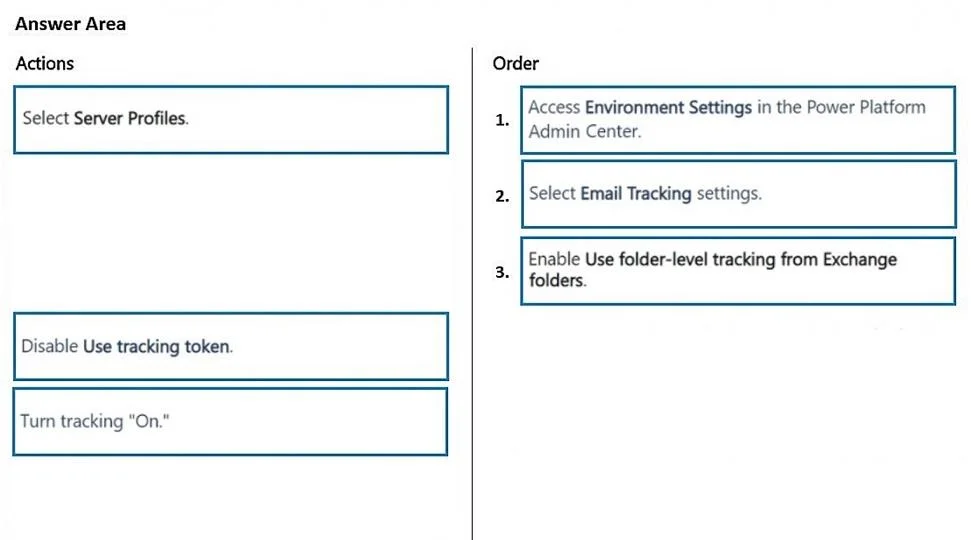
The correct answer is Access Environment Settings in the Power Platform Admin Center.; Select Email Tracking settings.; Enable Use folder-level tracking from Exchange folders.. Folder-Level Tracking in Dynamics 365 - Explained What's Being Asked To let users configure folder-level tracking rules (auto-track emails moved into specific Exchange folders), an admin must first enable the feature at the environment level via Power Platform Admin Center. The q
Question
Exhibit
Answer Area
Drag items
Correct arrangement
- Access Environment Settings in the Power Platform Admin Center.
- Select Email Tracking settings.
- Enable Use folder-level tracking from Exchange folders.
Explanation
Folder-Level Tracking in Dynamics 365 - Explained
What's Being Asked
To let users configure folder-level tracking rules (auto-track emails moved into specific Exchange folders), an admin must first enable the feature at the environment level via Power Platform Admin Center. The question asks for the correct 3-step sequence to reach and toggle that setting.
Why This Exact Order
Step 1 - Access Environment Settings in the Power Platform Admin Center
This is the mandatory entry point. All environment-wide configuration for Dynamics 365 lives in the Power Platform Admin Center (PPAC), not inside the Dynamics 365 app itself. You cannot reach email tracking settings without starting here. Skipping this and going directly to Dynamics 365 settings will not expose the folder-level tracking toggle.
Step 2 - Select Email Tracking settings
Once inside the environment's settings, Email Tracking is its own sub-section. This is the specific blade that houses all email-tracking behavior: tracking tokens, open-email tracking, and folder-level tracking. You must navigate here before the relevant option is even visible.
Step 3 - Enable Use folder-level tracking from Exchange folders
This is the actual feature toggle. It activates the Exchange-folder tracking capability environment-wide, which is a prerequisite before any individual user can configure their own folder rules in Outlook.
Why the Other Items Are Wrong
| Item | Why It's Excluded |
|---|---|
| Select Server Profiles | Server Profiles configure the email server connection (e.g., Exchange endpoint). That's a separate task from enabling tracking behavior. |
| Disable Use tracking token | Tracking tokens and folder-level tracking are independent mechanisms. Disabling tokens is not required to enable folder-level tracking - this is the most common distractor/misconception. |
| Turn tracking "On" | Vague and not a real step in this navigation path. The correct action is the specific "Enable Use folder-level tracking from Exchange folders" toggle, not a generic "On" switch. |
Key Misconception to Avoid
Many candidates assume you must disable tracking tokens before enabling folder-level tracking, because the two features overlap in purpose. This is false - they can coexist. The exam is testing whether you know the admin navigation path (PPAC → Environment Settings → Email Tracking) is the prerequisite, not token management.
Topics
Community Discussion
No community discussion yet for this question.