MB-280 · Question #147
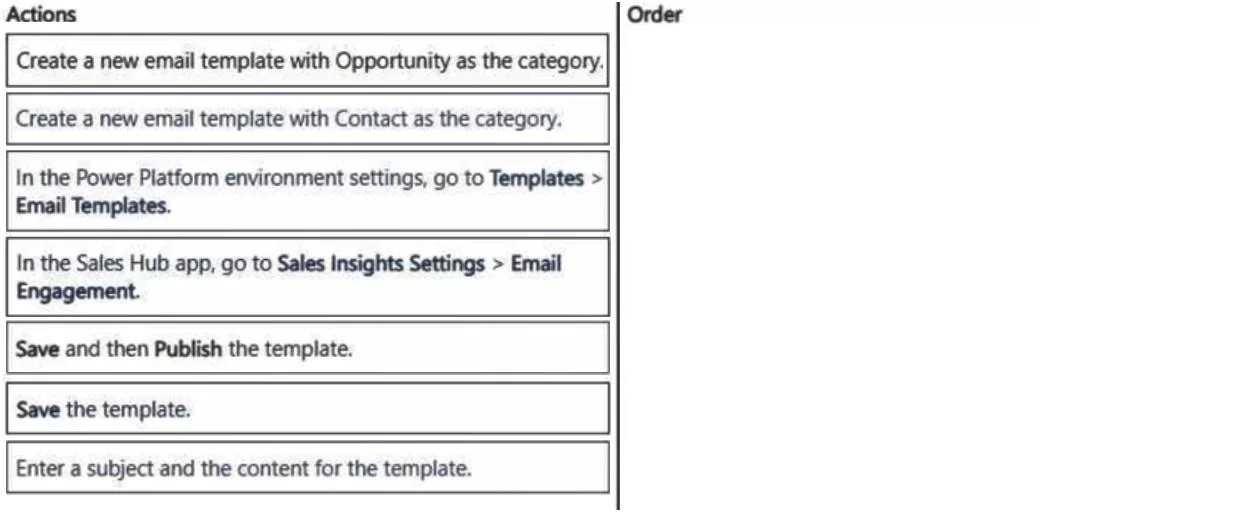
Drag and Drop Question You work for a solar panel company that specializes in office buildings. The sales team needs to set up a sequence for contacts to automatically receive a welcome email with the
The correct answer is Create a new email template with Contact as the category.; Enter a subject and the content for the template.; Save the template.; In the Sales Hub app, go to Sales Insights Settings > Email Engagement.. Explanation: Creating an Email Template for a Sales Sequence in Dynamics 365 This question tests knowledge of creating email templates within Microsoft Dynamics 365 Sales for use in Sales Accelerator sequences. --- Correct Order & Why 1. Create a new email template with Contact a
Question
Exhibit
Answer Area
Drag items
Correct arrangement
- Create a new email template with Contact as the category.
- Enter a subject and the content for the template.
- Save the template.
- In the Sales Hub app, go to Sales Insights Settings > Email Engagement.
Explanation
Explanation: Creating an Email Template for a Sales Sequence in Dynamics 365
This question tests knowledge of creating email templates within Microsoft Dynamics 365 Sales for use in Sales Accelerator sequences.
Correct Order & Why
1. Create a new email template with Contact as the category.
The sequence targets contacts (people receiving the welcome email), not opportunities (deals). In Dynamics 365, email template categories are bound to a specific entity. Choosing "Contact" ensures the template is available when building sequences that run against contact records. Choosing "Opportunity" would make the template unavailable in this context - a common mistake when learners conflate the sales pipeline entity with the audience of the sequence.
2. Enter a subject and the content for the template.
Content logically follows creation. The template shell exists after step 1; now you populate the subject line and body with the company info and welcome message. You cannot write content before the template record exists.
3. Save the template.
You must persist your work before it can be referenced anywhere. Critically, the correct action here is Save - not "Save and then Publish." Publishing is required for templates created in the Power Platform admin environment (system-wide templates), but templates created within the Sales Hub for use with Sales Accelerator sequences only require a save.
4. In the Sales Hub app, go to Sales Insights Settings > Email Engagement.
This final step is where you verify or enable the Email Engagement feature so the saved template can actually be referenced and delivered through sequences. Without navigating here to confirm Email Engagement is active, the template exists but the sequence mechanism cannot use it.
Why the Distractors Are Wrong
| Distractor | Why it's excluded |
|---|---|
| Create template with Opportunity category | Sequences run against Contact records, not Opportunities |
| Power Platform environment settings > Templates > Email Templates | That path is for admin-level system templates, not Sales Accelerator sequence templates |
| Save and then Publish the template | Publishing applies to system templates in the admin portal; Sales Hub sequence templates only need saving |
Key Misconception to Avoid
Many learners assume you must "Publish" every template. In Dynamics 365, publishing is only required for system-level templates managed through the Power Platform admin settings. Templates created within the Sales Hub for sequences are ready after a simple save.
Topics
Community Discussion
No community discussion yet for this question.